Back to Blog
How to Connect Meta Ads with WhatsApp and Your CRM Automatically (Technical Guide for Non-Technical People)
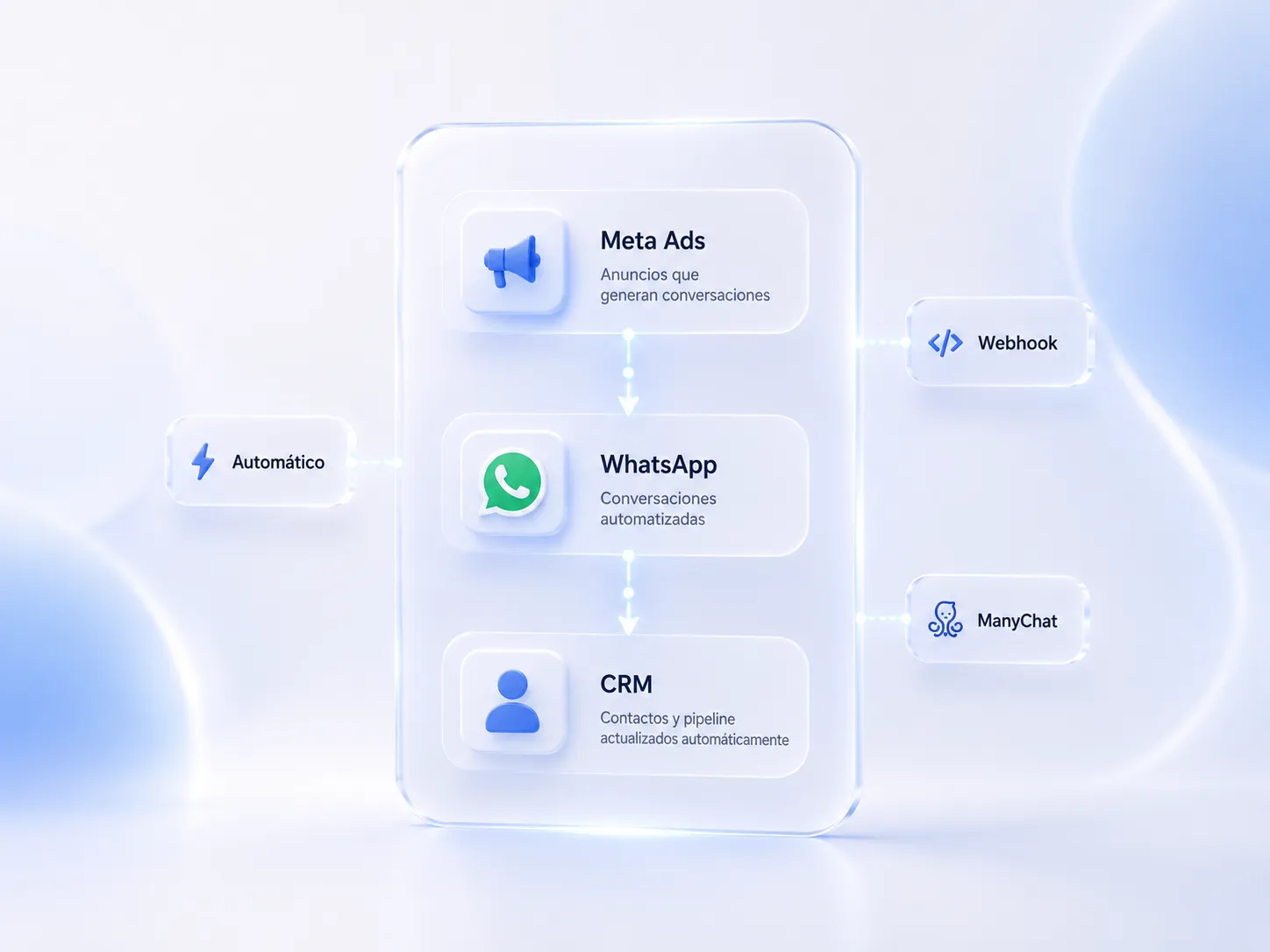
The Meta Ads → WhatsApp → CRM stack is the most-searched integration in conversational marketing — and almost no tutorial covers it completely. This guide walks through all three links: connecting the ad to WhatsApp, passing bot data to the CRM automatically, and your options if you don't want to deal with webhooks.
The Problem This Integration Solves
Without the integration, the funnel breaks at WhatsApp. A prospect clicks a Meta ad, opens a conversation in DM or WhatsApp, the automation bot qualifies them — and that's where the data record ends. The sales rep has to manually check WhatsApp to see who qualified, copy contact details into the CRM by hand, and update pipeline stages without any automation.
With the full integration:
- Lead arrives from Meta Ads → opens conversation in Instagram DM or WhatsApp
- The automation tool qualifies the lead with the bot
- When qualification completes, the tool automatically creates the contact in the CRM with the prospect's data and the assigned tag
- The CRM updates the pipeline stage based on the tag (QUALIFIED_BOOKING, COLD_PROSPECT, etc.)
- The sales rep opens the CRM and sees a complete, current pipeline without touching the DM inbox
The result: real pipeline visibility, accurate conversion metrics, and zero manual data transcription.
The Architecture
The critical link most tutorials skip: the bridge between ManyChat and the CRM. There are two ways to cross it — native integration (easier, available with HubSpot) or webhook (more flexible, required for GoHighLevel and other CRMs).
Step 1 — Connect Instagram DM or WhatsApp Business to ManyChat
This guide uses ManyChat as the reference tool; other conversational automation platforms have equivalent flows.
ManyChat works with both Instagram DM and WhatsApp Business API. For US and Canada markets, Instagram DM is typically the primary channel; WhatsApp works well for LATAM communities in the US and for international audiences.
For Instagram DM:
- In ManyChat, go to Settings → Channels → Instagram
- Click Connect Instagram Account and authorize with your Meta Business Manager
- Select the Instagram business account you want to connect
- Confirm permissions — ManyChat will now manage DM conversations on that account
For WhatsApp Business:
- In ManyChat, go to Settings → Channels → WhatsApp
- Click Connect WhatsApp Business Account and authorize via Meta Business Manager
- Select the WhatsApp Business number you want to connect
- Confirm permissions and wait for verification (typically under 24 hours for already-verified accounts)
Step 2 — Create the Click-to-DM Ad in Meta
- In Meta Ads Manager, create a new campaign with objective Messages or Leads
- At the ad set level, select Instagram Direct or WhatsApp as the message destination
- Assign the account connected to ManyChat
- At the ad level, set the CTA button to Send Message
- In the Greeting Message section, include a keyword that ManyChat will recognize as a trigger
Technical note: the opening message in Meta can be pre-filled so it already contains a keyword. For example: "Hi, I'm interested in learning more about [product/service]" with the keyword INFO already written. This activates the ManyChat bot automatically without requiring the user to type anything additional.
Step 3a — ManyChat → HubSpot (Native Integration)
HubSpot has a native ManyChat integration that requires no webhook or code.
In ManyChat:
- Go to Settings → Integrations → HubSpot
- Click Connect to HubSpot and authorize with your HubSpot account
- Actions → HubSpot → Create or Update Contact
- {{first_name}} → First Name in HubSpot
- {{phone}} → Phone Number
- {{user_tag}} → Custom HubSpot contact property (e.g., "ManyChat Tag")
- Optionally, use HubSpot → Create Deal to automatically create a deal in the pipeline at the corresponding stage
In HubSpot:
- Go to Contacts → Workflows and create a workflow with trigger: "Contact property ManyChat Tag = QUALIFIED_BOOKING"
- Action: move the deal to the "Appointment Booked" stage in the pipeline
- Repeat for each tag you want to map to a pipeline stage
The contact appears in HubSpot with all the data the prospect provided in the bot — name, phone, and any additional information the flow collected.
Step 3b — ManyChat → GoHighLevel (via Webhook)
GoHighLevel doesn't have a native ManyChat integration, but ManyChat's webhook action handles it without code.
In GoHighLevel:
- Go to Settings → API Keys and copy your API Key
- Go to Automations → New Workflow and create a trigger: "Contact Tag Added" with the value QUALIFIED_BOOKING
- Add the action: move the contact to the corresponding pipeline stage (or assign to a team member)
In ManyChat:
- At the point in the flow where the lead receives the qualification tag, add an action: Actions → Send Webhook
- URL: https://rest.gohighlevel.com/v1/contacts/
- Method: POST
- Headers: Authorization: Bearer [your GoHighLevel API Key], Content-Type: application/json
- In the Body (JSON), map ManyChat fields to GoHighLevel:
- Save and activate the webhook
- Test by sending a test message — the contact should appear in GoHighLevel within seconds
To test the webhook: use ManyChat's "Test Webhook" feature with dummy data before activating it in production. If the contact appears in GoHighLevel with the correct fields, the connection is working.
Step 3c — No-Code Alternative: Zapier or Make
If you'd rather not configure webhooks manually, Zapier and Make (formerly Integromat) are the visual bridge between ManyChat and any CRM.
With Zapier:
- Create a Zap with trigger: ManyChat → New Tag Added to User
- Filter by tag: QUALIFIED_BOOKING
- Add an action: HubSpot → Create Contact or GoHighLevel → Create Contact
- Map the fields and turn the Zap on
With Make:
- Create a Scenario with trigger: ManyChat → Watch Events (select "User Tags Added")
- Add a filter: tag = QUALIFIED_BOOKING
- Add a module: HubSpot → Create a Contact or GoHighLevel → Create/Update Contact
- Map fields with Make's visual drag-and-drop interface and activate the scenario
Comparison of options:
|
Option |
Difficulty |
Additional cost |
Best for |
|---|---|---|---|
|
ManyChat → HubSpot native |
Low |
No additional cost |
HubSpot users |
|
ManyChat → Webhook → GoHighLevel |
Medium |
No additional cost |
GoHighLevel users |
|
ManyChat → Zapier → any CRM |
Low |
Zapier plan (~$20–$50 USD/month) |
Any CRM, no webhook config |
|
ManyChat → Make → any CRM |
Low–Medium |
Make plan (~$9–$16 USD/month) |
Any CRM, cheaper than Zapier |
What the Integration Enables in the Pipeline
Once all three links are connected, the CRM pipeline reflects in real time what's happening in DM or WhatsApp:
|
ManyChat tag |
CRM stage |
Automatic action |
|---|---|---|
|
QUALIFIED_BOOKING |
Qualified / Appointment Booked |
Assign to rep, send email notification |
|
COLD_PROSPECT |
Cold Lead |
Enter nurturing sequence |
|
NURTURING_21D |
Nurturing |
Reminder task in 21 days |
|
NO_SHOW |
No Show |
Manual follow-up task |
The sales rep never has to check the DM inbox to know where each lead stands — the CRM is updated automatically.
Final Step: Verify the Data Is Flowing
Before scaling ad spend with this system:
- Test the full flow by sending a test message to your DM or WhatsApp number from a personal account different from the agent account
- Verify in the CRM that the contact appears with the correct fields and in the correct pipeline stage
- Check the webhooks with ManyChat's testing tool or with a service like webhook.site to see exactly what data is being sent
- Run a small test campaign ($10–$20 USD/day budget) before scaling, to confirm the pipeline fills without manual intervention
Ready to Get More Clients?
At Asio, we teach you to implement these strategies step by step through the Mastery program — combining Meta Ads and conversational automation so you get more appointments and close more sales, without relying on manual messages.