How to Create and Launch a Meta Campaign with ASIO Marketing
Turn a business goal into a complete Meta lead campaign, review the brief and creatives, approve publication, and monitor performance in ASIO.
Last updated:
ASIO Marketing builds a Meta campaign through a guided conversation. You describe the business, offer, audience, location and goal; ASIO prepares the campaign brief, lead form, ad copy and creative options; you review or edit everything before approving publication.
Before you create a campaign
- Connect the correct Meta Business Portfolio, Facebook Page and ad account to ASIO.
- Add a valid payment method to the connected Meta ad account. Meta cannot deliver ads without one.
- For an instant-form lead campaign, accept Meta's Lead Ads Terms for the Facebook Page that will publish the ads.
- Prepare the offer, campaign goal, target location and daily ad budget.
- Gather useful business assets, including a logo, real product or service images, and optional visual references.
Open ASIO Marketing
Select ASIO Marketing
Open the campaign agent from the main ASIO sidebar.
Start a new campaign
Use the prompt box to describe the business and what you want the campaign to achieve.

Figure 52. Open ASIO Marketing and describe the campaign you want to create.
Give ASIO a useful campaign brief
You can speak naturally. A clear first message reduces follow-up questions and gives ASIO better material for the strategy and creatives. The tutorial first uses the main ASIO AI to organize the request, then gives that information to ASIO Marketing.
- What you sell and the result or offer you want to promote.
- Who the campaign should reach and where those people are located.
- The price, important conditions and real differentiators.
- The campaign goal, such as generating leads through an instant form.
- The daily budget and any brand colors, tone or claims that must be respected.
Follow the live campaign brief
As ASIO works, the Campaign brief panel shows the fields being completed. In the tutorial, the brief progresses through the objective, daily budget, location, interests when applicable, age, gender, Facebook Page, lead form and creatives.
Review the selected objective
Confirm that it matches the business result you want, not only the type of content you want to publish.
Check the Facebook Page
Make sure ASIO is preparing the campaign for the correct connected Page.
Correct the brief in the chat
Tell ASIO what to change at any time before approval.
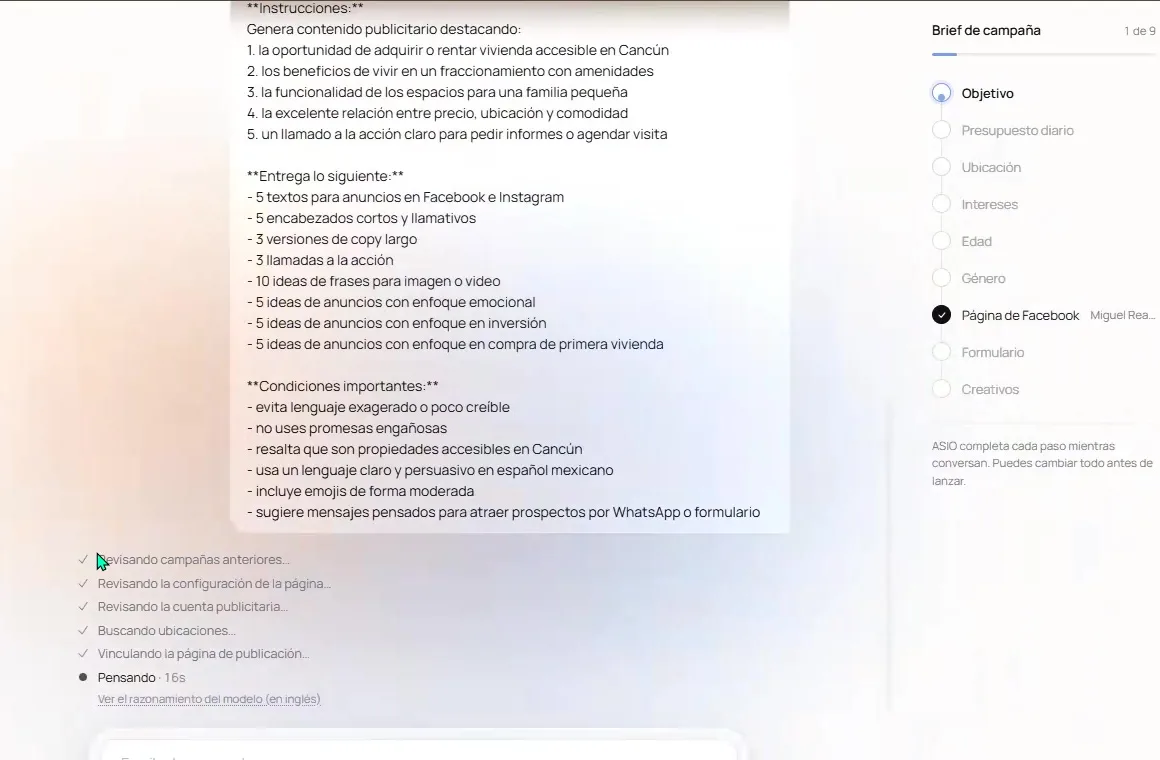
Figure 53. Follow the Campaign brief while ASIO builds each campaign component.
Upload your business assets
Select the plus button
Attach the logo, real photos, existing flyers or other useful reference files.
Use relevant files
Choose images that belong to the advertised business and accurately represent the offer.
Confirm the upload
Review the thumbnails in the conversation before ASIO creates the final concepts.
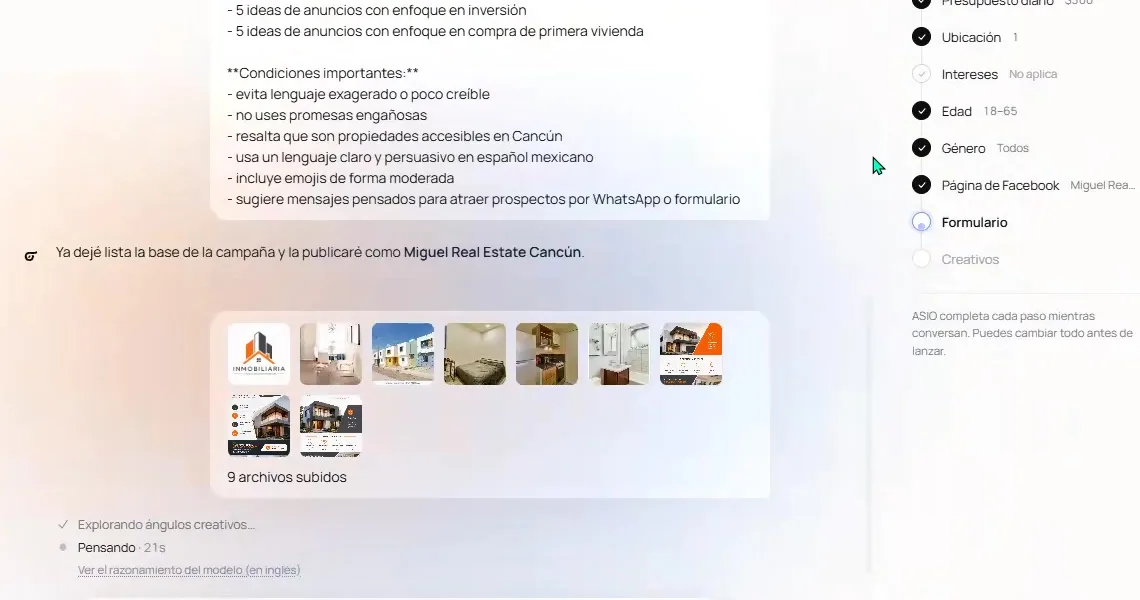
Figure 54. Upload the logo, real photos and useful visual references for the campaign.
Review the campaign settings
The example campaign in the tutorial uses the Leads objective with an instant form. Because it promotes housing, Meta treats it as a Special Ad Category and limits detailed targeting. That is why interests may show as not applicable and delivery may use a broader audience by location.
Check the daily budget
Confirm the amount and currency; the tutorial shows that the budget can be changed by simply asking ASIO.
Check the location
Confirm every city, state or area before approval.
Review audience restrictions
When the campaign is in a Special Ad Category, follow the targeting limits displayed by Meta and ASIO.
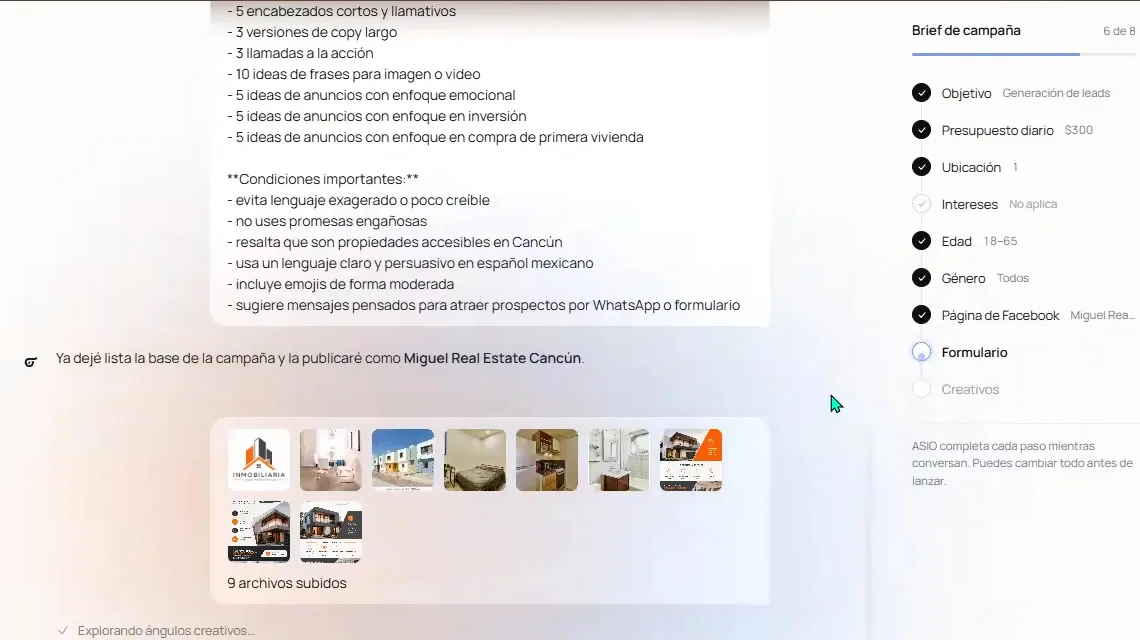
Figure 55. Review the objective, budget, location, audience, Page, form and creative progress.
Complete and review the lead form
For a lead campaign, ASIO prepares an instant form for Facebook and Instagram. The tutorial asks for the business contact number and shows a form collecting contact details and the lead's buying or renting intention.
Provide the business contact information
Enter the number or other business details ASIO requests for the form.
Review the questions
Collect only the information your team genuinely needs to follow up.
Review the privacy link
Confirm that the privacy notice is correct for your business and complies with the laws and Meta rules that apply to you.
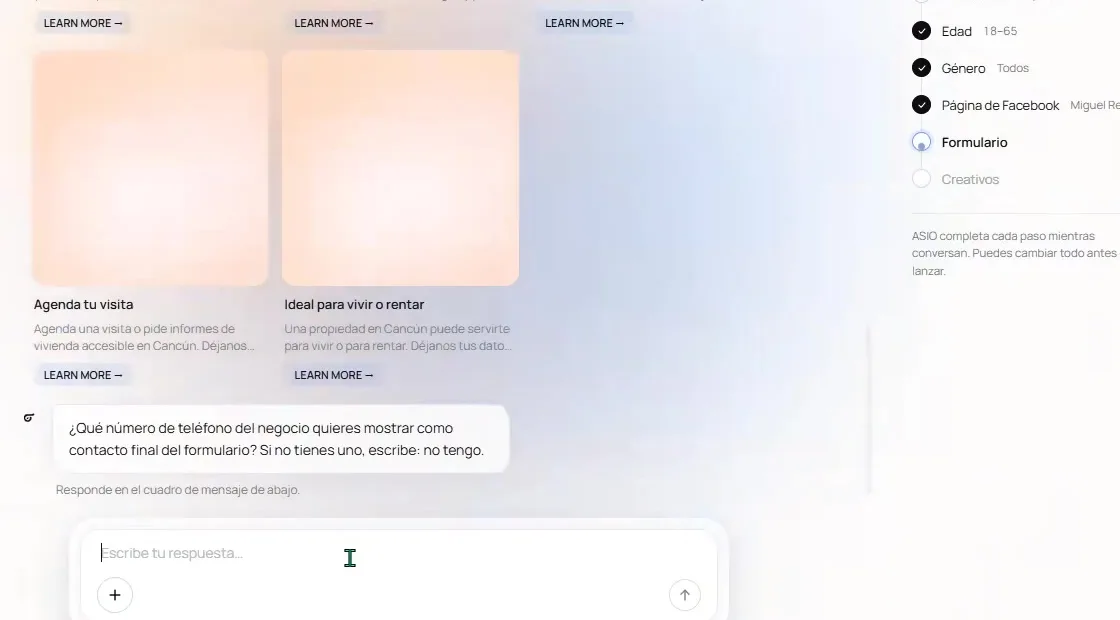
Figure 56. Provide the business information ASIO needs to complete the instant lead form.
Review the generated creatives
ASIO generates several concepts using the campaign brief and the approved assets. Each creative includes an image treatment and its corresponding ad text, headline, description and call to action.
Wait for all concepts to finish
Do not approve while a creative is still rendering.
Open each creative
Check the image, text, price, location, branding and call to action.
Reject weak or inaccurate options
Keep only the creatives you are comfortable publishing under your business name.
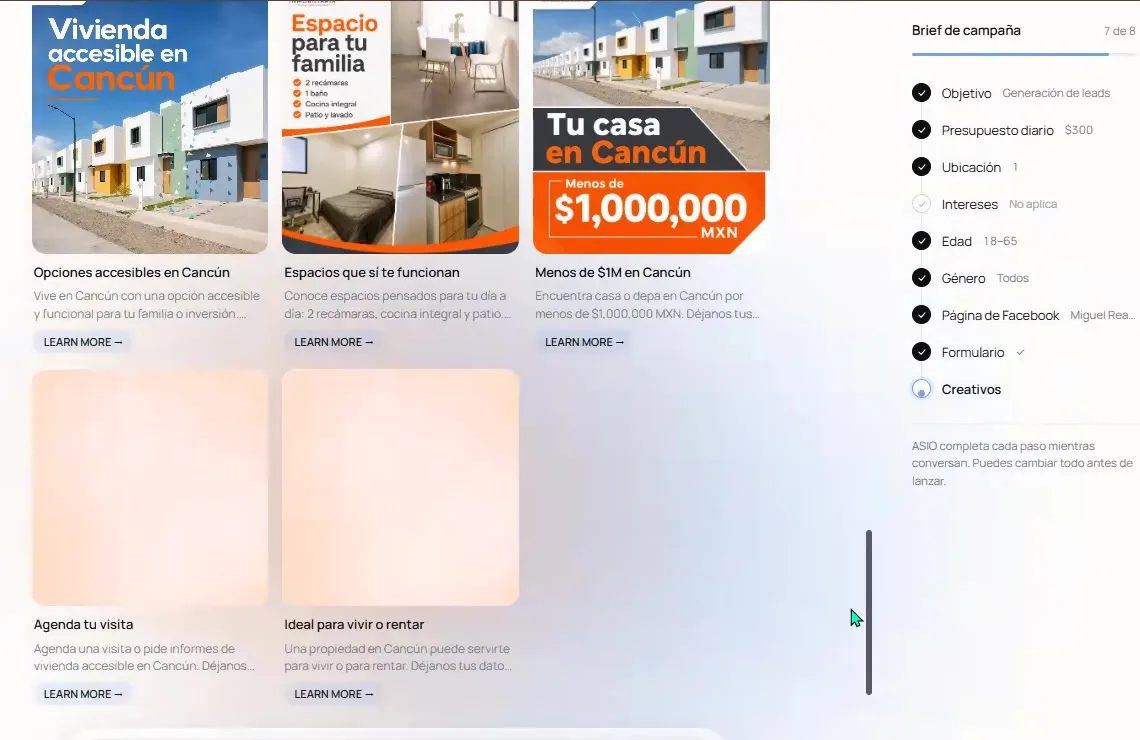
Figure 57. Review every generated creative before selecting the ads for the campaign.
Edit the text or image
Select the edit icon
Open the creative editor for the ad you want to change.
Edit the copy
Review the primary-text variants, headline and description; save only accurate final wording.
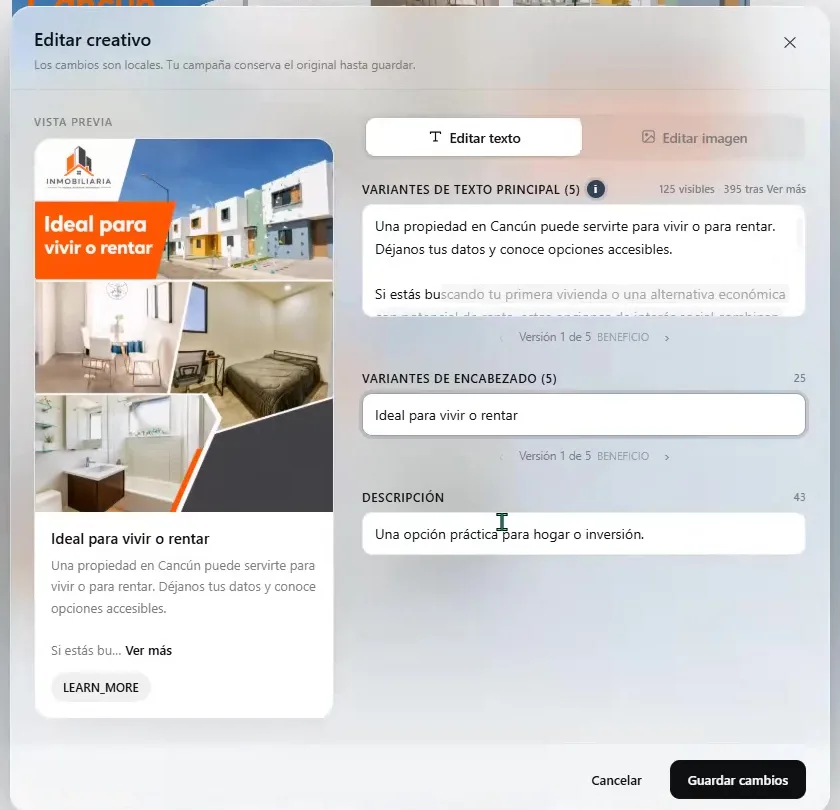
Figure 58. Edit the primary text, headline and description for an individual creative. Edit the image
Describe a specific visual change or replace the asset with your own JPG, PNG, WebP or MP4 file.
Save the changes
Confirm the updated preview before returning to the campaign.
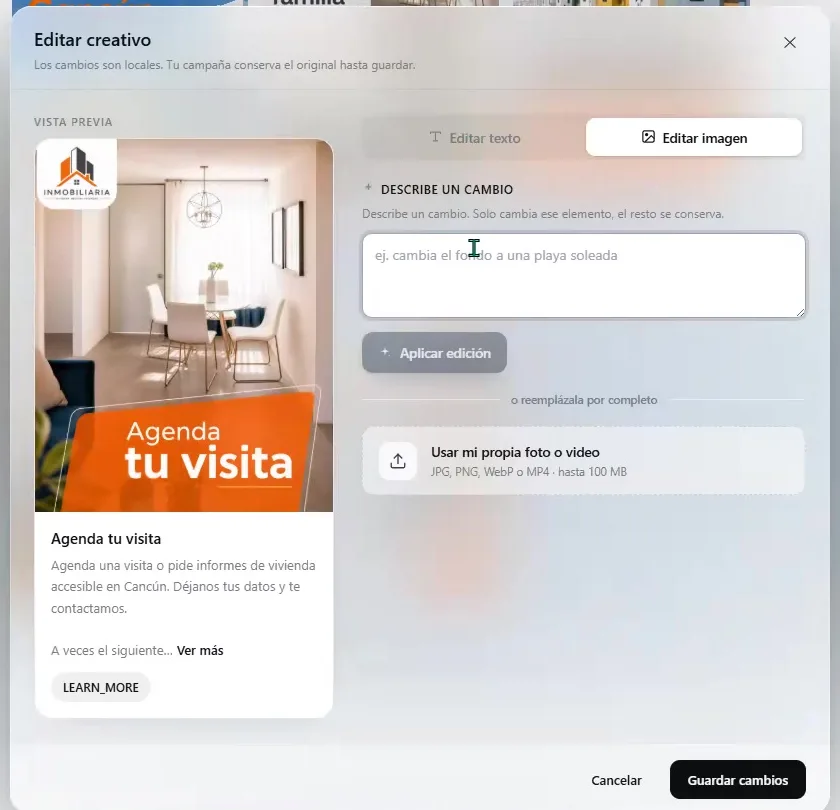
Figure 59. Request a focused image edit or replace the creative with an approved file.
Select the final ads and approve the strategy
Select the strongest creatives
Choose the ads that accurately represent the offer and provide useful variation.
Read the strategy summary
Review ASIO's explanation of the message, audience, category and recommended conversion path.
Ask for final changes
The tutorial changes the daily budget and expands the location through the conversation before approval.
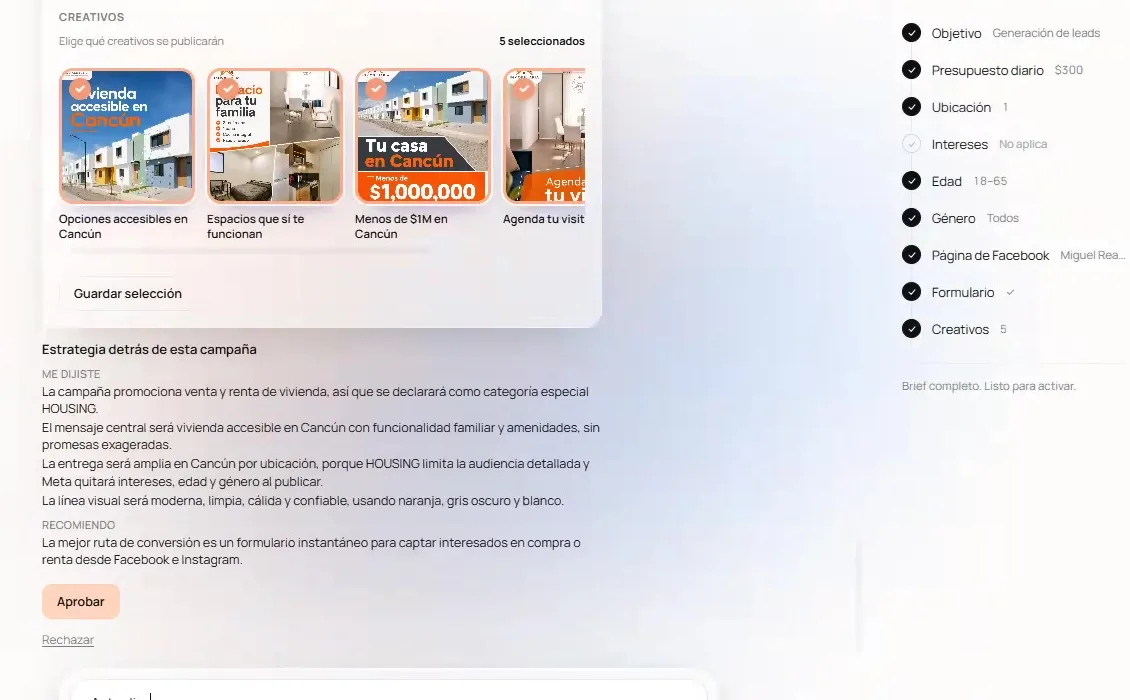
Figure 60. Select the final creatives and review the strategy before approving the campaign. Approve only when ready
Confirm the final brief, selected creatives, form and publication settings.
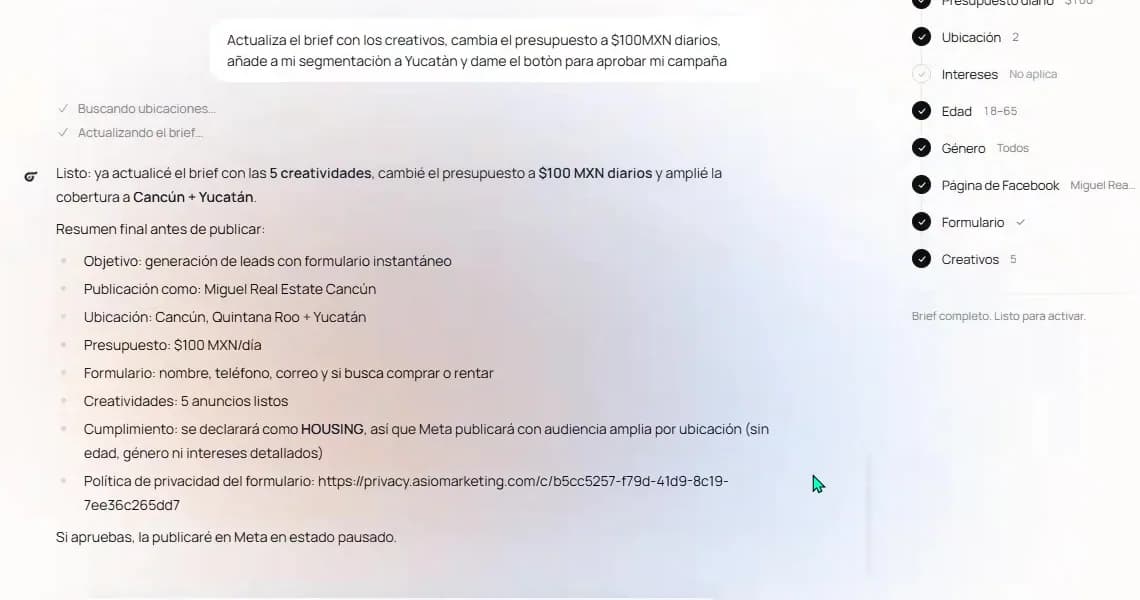
Figure 61. Read the final campaign summary after requested changes are applied.
Complete Meta's publication requirements
ASIO can prepare the campaign correctly and Meta can still block publication when the connected Page or ad account is missing a required external step. The tutorial encounters both of the following requirements.
- Lead Ads Terms: accept Meta's Lead Ads Terms for the Facebook Page used by the instant-form campaign.
- Payment method: add a valid payment method in Meta's billing settings for the connected ad account.
Open the link ASIO provides
Complete the requirement directly on the relevant Meta screen.
Return to ASIO
Tell ASIO when the external step is complete so publication can continue.
Keep the campaign paused
Review the campaign in Meta and ASIO before activating delivery.
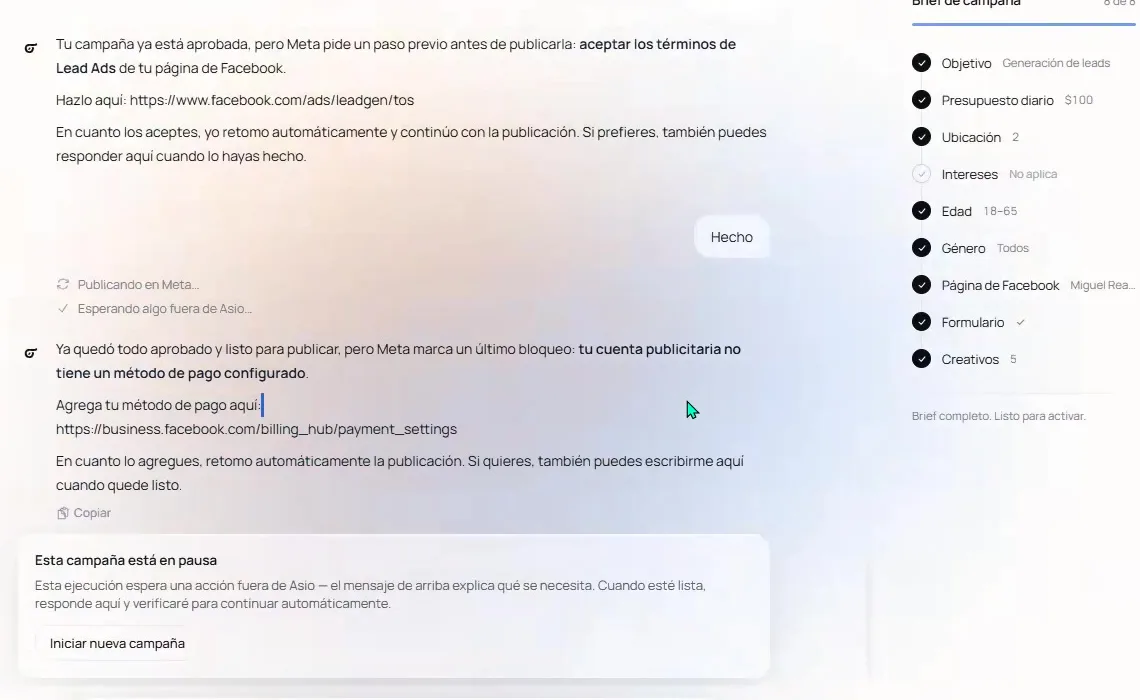
Figure 62. Complete the Lead Ads Terms and payment method when Meta blocks publication.
Review the finished campaign
After publication, the campaign page shows the selected creatives and the current delivery status. In the tutorial, the campaign is published to Meta in a paused state so it can be reviewed before spending begins.
Check the status
Confirm whether the campaign is paused or active.
Open the creatives again
Use the edit action if an approved ad still needs a correction.
Activate only after final review
Verify the budget, dates, location, Page, form and payment setup one more time.
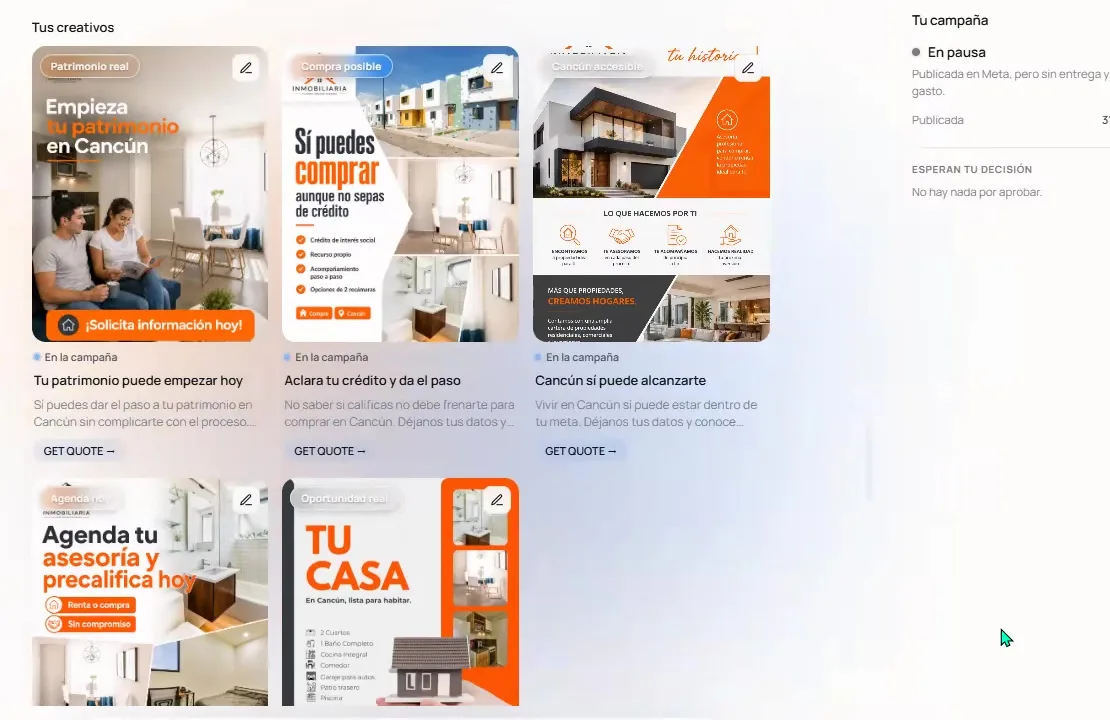
Figure 63. Review the published creatives and confirm whether the campaign is paused or active.
Monitor performance in Optimization
Open Optimization under ASIO Marketing to review campaign delivery. The tutorial shows campaign status together with budget, spend, impressions, CTR, leads, cost per lead and ROAS when the relevant data is available.
Choose the campaign
Open the campaign or ad set you want to investigate.
Confirm the date range and status
Do not evaluate a paused or newly launched campaign as if it had a full period of delivery.
Read the metrics together
Use lead volume, spend, cost per lead and delivery metrics as a connected picture.
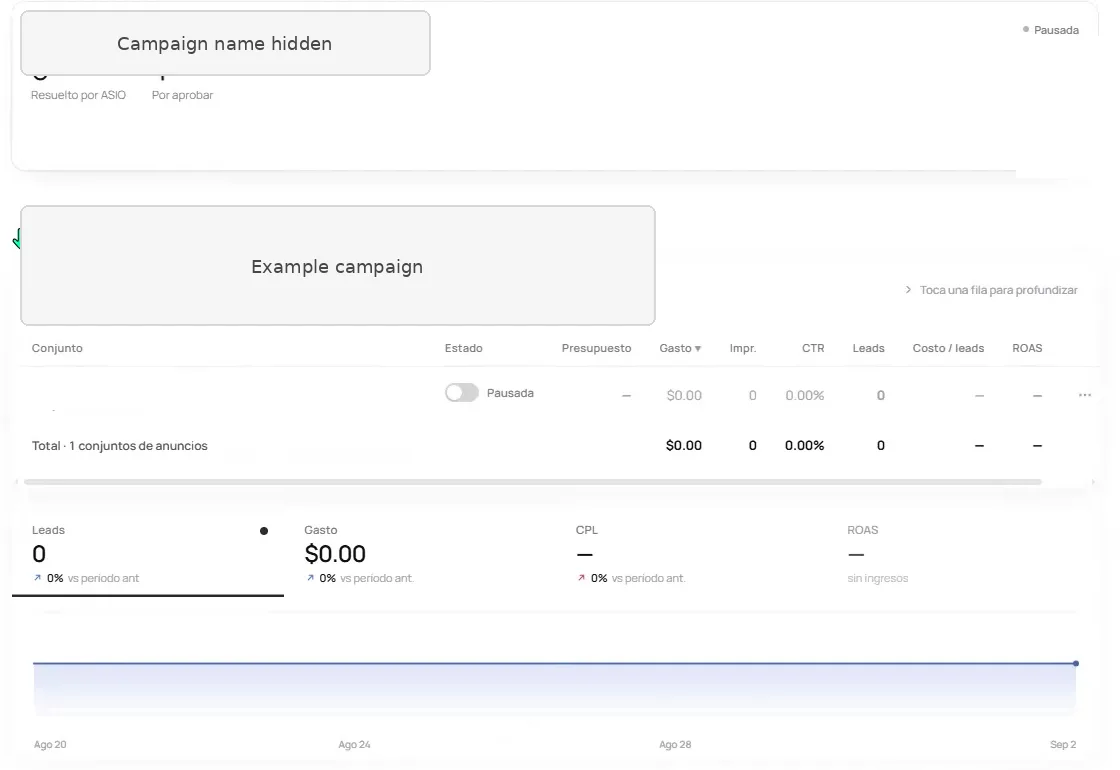
Figure 64. Use Optimization to review campaign status, delivery, leads, cost and return metrics.
Common problems
- ASIO cannot select a Facebook Page.
- Reconnect Meta and confirm that the correct Page and ad account were authorized in ASIO.
- The campaign is ready but cannot publish.
- Accept Meta's Lead Ads Terms for the selected Page and confirm the ad account has a valid payment method.
- The budget or location is wrong.
- Tell ASIO the exact correction in the campaign conversation and review the updated brief before approving.
- The creative contains an error.
- Open the edit icon, correct the copy or image, save the change and review the preview again.
- A housing, employment or financial campaign has limited targeting.
- Confirm the correct Special Ad Category and use only the targeting options Meta permits.
- The campaign shows no results.
- Check that it is active, the payment method works, the date range is correct and Meta has approved the ads.
Pre-launch checklist
Check you are done
- The correct Meta ad account and Facebook Page are connected.
- The Meta ad account has a valid payment method.
- Meta's Lead Ads Terms are accepted when an instant form is used.
- The objective matches the intended business result.
- The daily budget, currency, locations and audience settings are correct.
- The lead form and privacy notice are accurate.
- Every selected creative, claim, price and call to action has been reviewed.
- The campaign is paused until the final review is complete.
Was this helpful?