How to Connect WhatsApp and Build Automated Conversations with ASIO Messages
Connect WhatsApp Business, create and test an automated conversation with AI, edit its branches, and manage performance and inbox activity in ASIO Messages.
Last updated:
ASIO Messages helps you connect WhatsApp Business, build an automated conversation by explaining what you need in everyday language, test the customer experience, and manage the resulting chats. This guide follows the complete tutorial from the Meta connection through the visual flow builder, Performance, Inbox, and Library.
Before you begin
- Administrator access to the correct Meta Business Portfolio and WhatsApp Business Account.
- The real business name, category, country, website, and time zone requested by Meta.
- A decision about using a new number or moving an existing WhatsApp number.
- A valid payment method if Meta asks for one during setup.
- Google Calendar connected if the flow will send an appointment link.
- A clear trigger, response options, approved business information, and a human-handoff rule.
Open the Integration Center
Go to Integrations
Open the Integration Center from the main ASIO navigation.
Find WhatsApp Business
Select Connect on the WhatsApp Business card. The page also shows the status of Google Calendar and Google Drive.
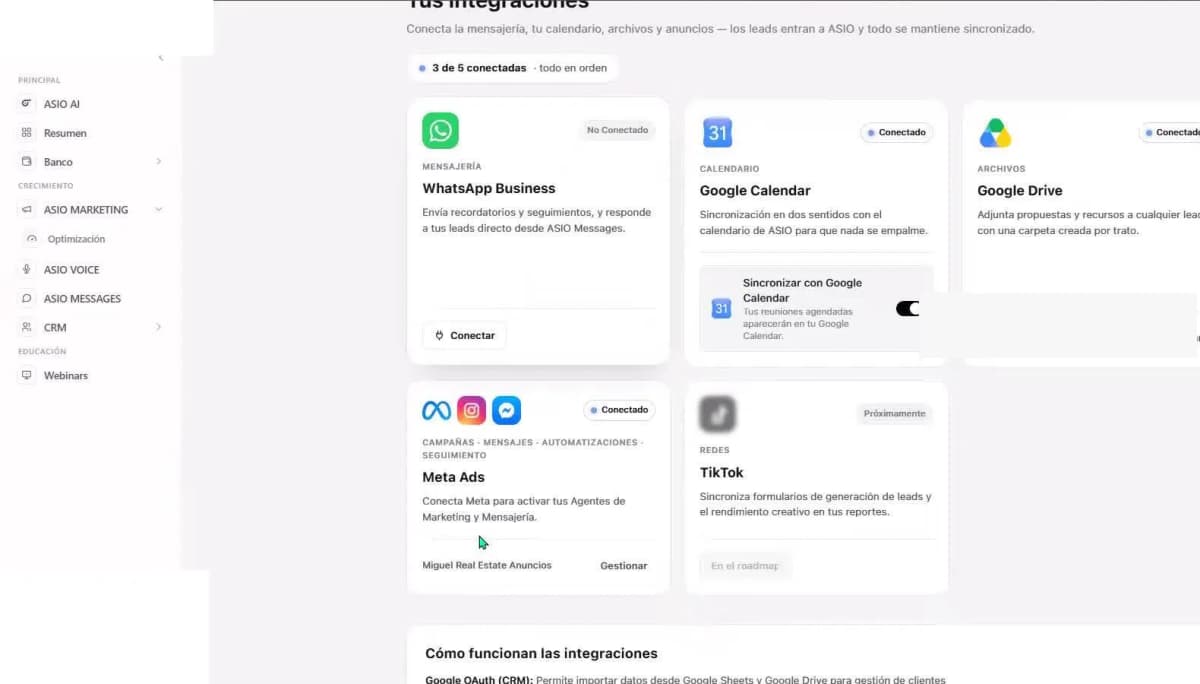
Figure 1. ASIO Integration Center with the WhatsApp Business connection card and connected Google integrations.
Select the correct Meta business assets
Meta opens its own connection window. Choose the assets that belong to the business you want to operate in ASIO Messages.
Select the Business Portfolio
Use the portfolio that owns or manages the brand's Meta assets.
Select the WhatsApp Business Account
Confirm that it is the intended business account, not a personal or unrelated account.
Continue in Meta
Accept the requested permissions only after both selections are correct.
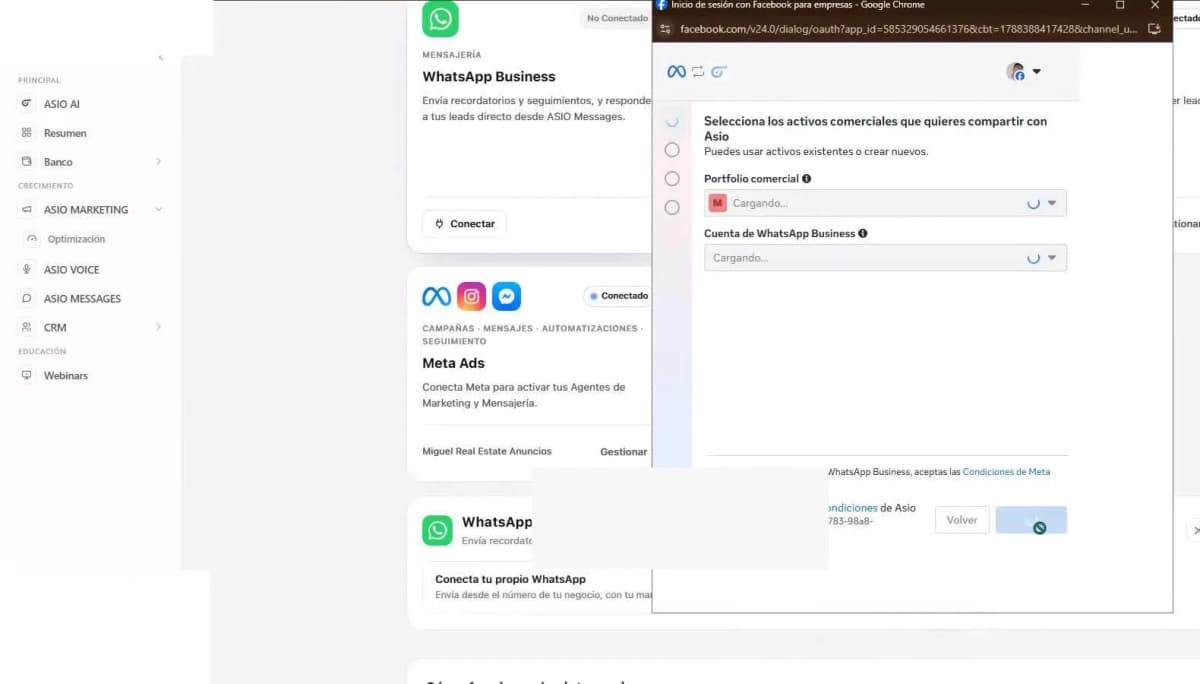
Figure 2. Meta connection window for selecting the correct Business Portfolio and WhatsApp Business Account.
Enter the business information
Complete the fields shown by Meta
In the tutorial, these include the business name, category, country, website, and time zone.
Use accurate public information
The visible WhatsApp name must represent the company and follow Meta's naming rules.
Check the time zone
Automation schedules and reports may be confusing if the account uses the wrong local time.
Review before continuing
Correct the spelling and business details before Meta creates the assets.
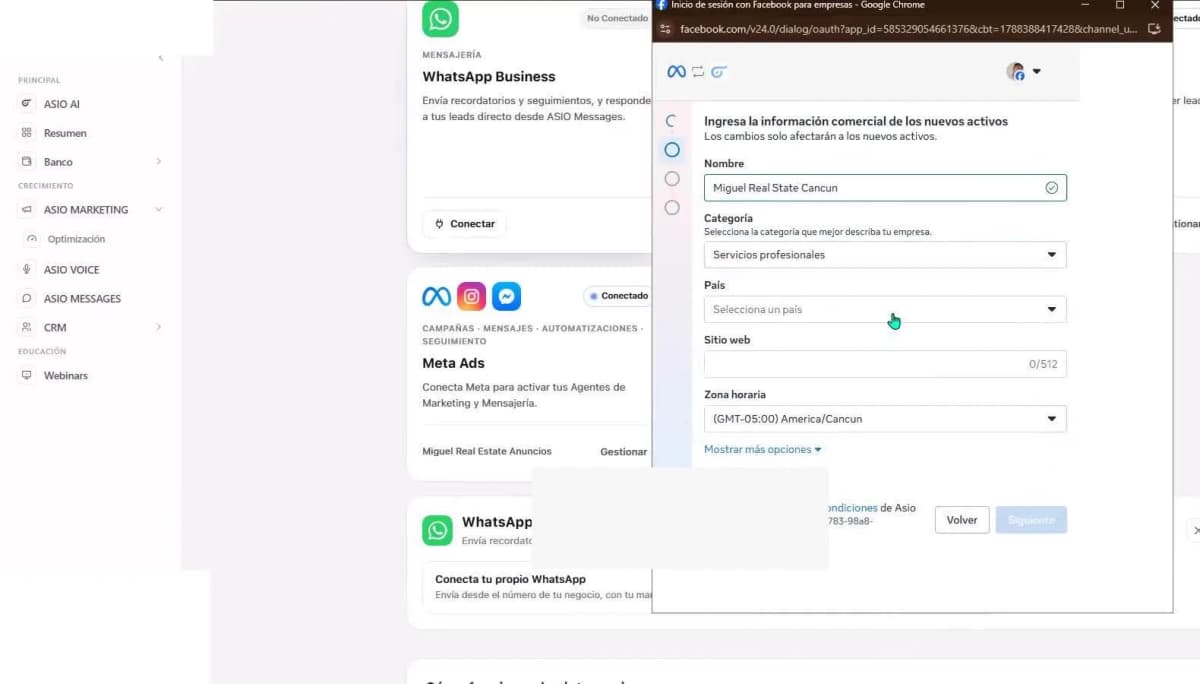
Figure 3. Meta business-information form requesting the business name, category, country, website, and time zone.
Complete payment and verification
When Meta creates the WhatsApp assets, review the confirmation screen before selecting Finish. The tutorial also shows an Add Payment Method action.
Add a payment method if requested
WhatsApp messaging charges and eligibility are managed through Meta. Always use the live terms and amounts displayed in the connected account.
Complete business verification when required
A new account or number may not be fully available until Meta finishes its checks.
Select Finish
Return to ASIO and confirm that WhatsApp Business appears as connected.
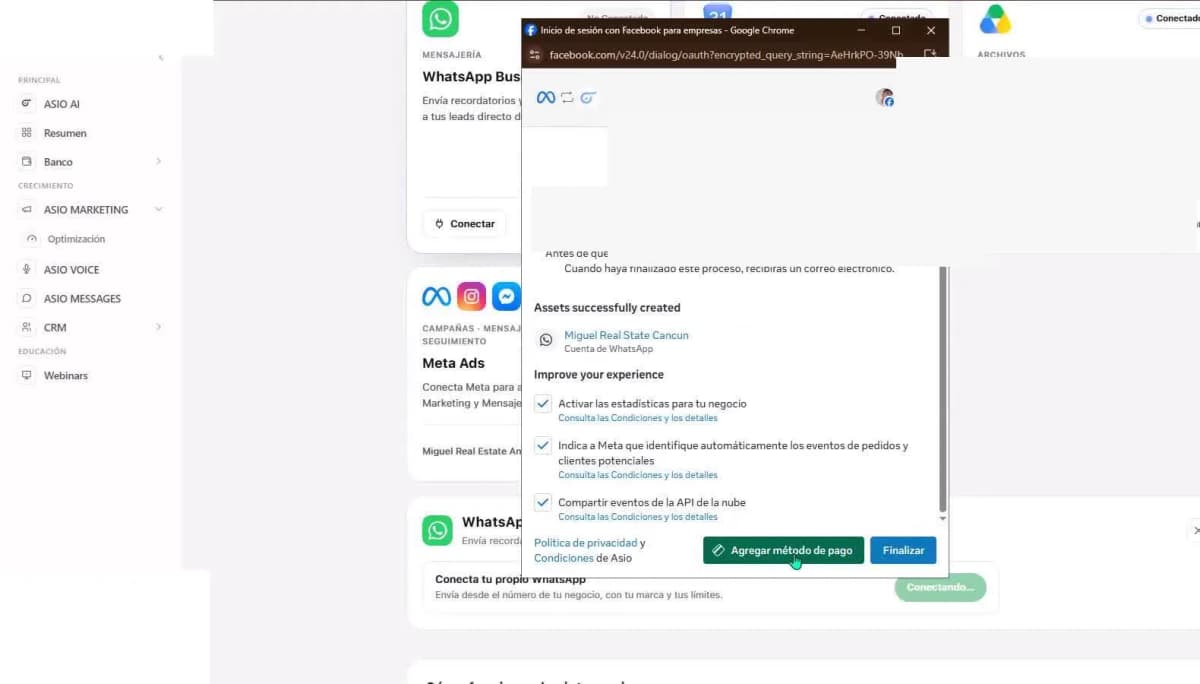
Figure 4. Meta confirmation screen with actions to add a payment method and finish the WhatsApp setup; private details are hidden.
Fix the "number is already registered" error
Meta may reject a number that is still registered to an existing WhatsApp account. The tutorial instructs the user to disconnect it from the existing account, return to the setup, and enter it again. Meta may need a few minutes to recognize the change.
Confirm the current owner
Identify whether the number is used by the WhatsApp mobile app, another Business Account, or another provider.
Disconnect or migrate it correctly
Keep proof of ownership and administrator access available.
Wait and retry
Allow several minutes after disconnection before repeating the Meta setup.
Escalate when necessary
If the number is business-critical or remains unavailable, contact support with the exact Meta error.
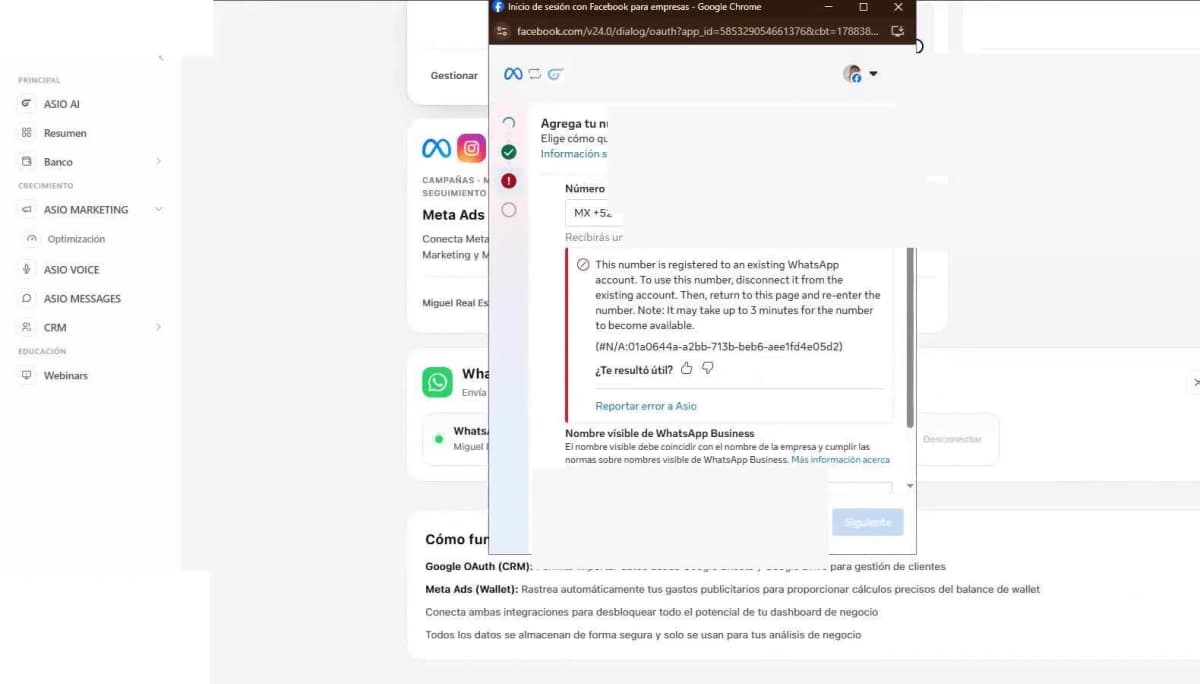
Figure 5. Meta warning that a phone number is already registered to an existing WhatsApp account; private details are hidden.
Open ASIO Messages
Select ASIO Messages
Open it from the main navigation after WhatsApp is connected.
Choose one focused use case
Begin with one entry point and one measurable outcome.
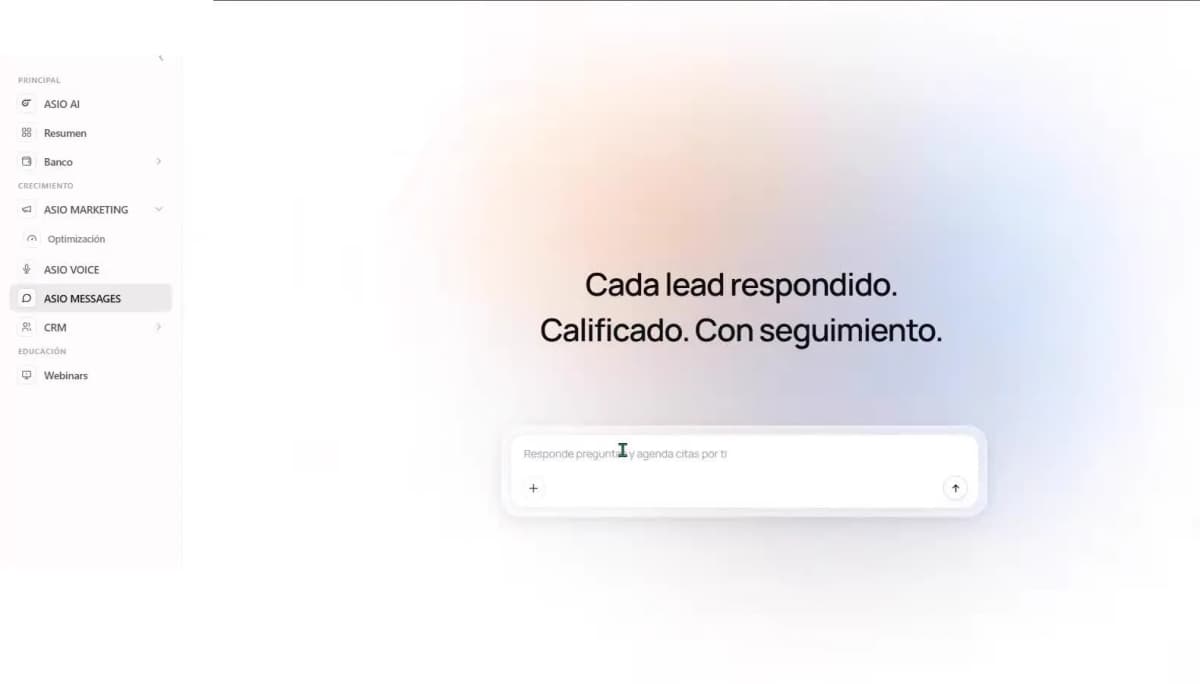
Figure 6. ASIO Messages workspace where a user can describe the automated conversation they want to create.
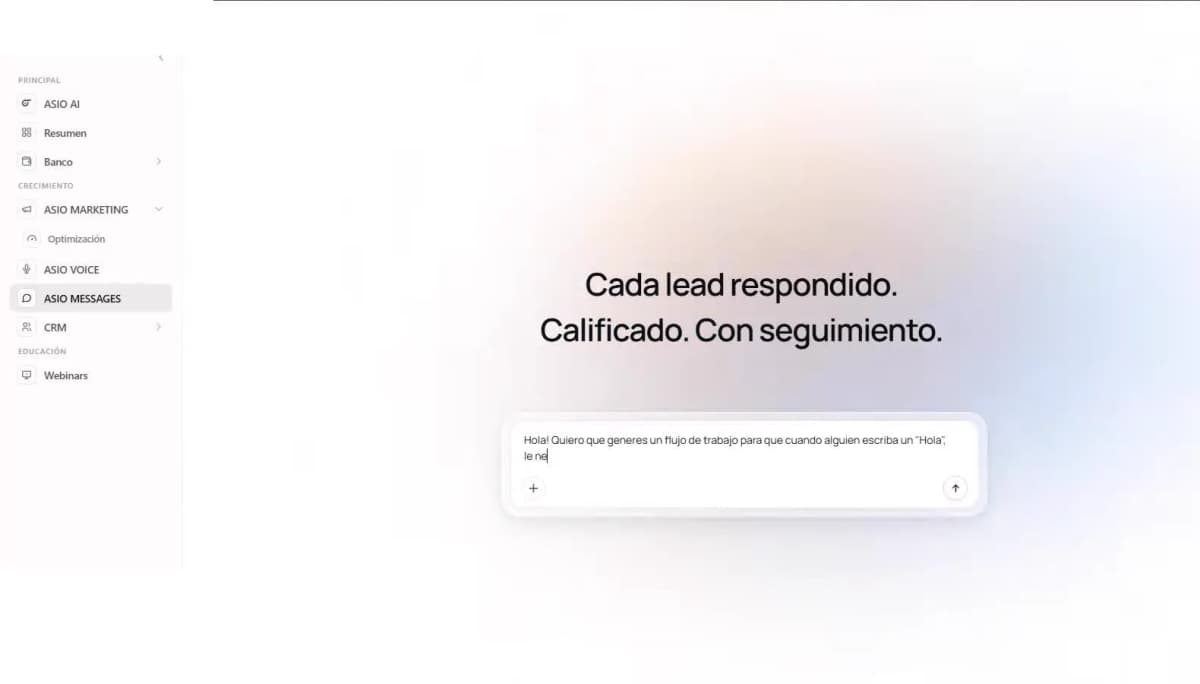
Describe the conversation in plain language
In the tutorial, the user asks ASIO to respond when someone writes "Hola," present real-estate categories, and send the relevant information according to the selected option. Include:
- Trigger: the message, keyword, event, or audience that starts the flow.
- Opening: a short welcome that makes the next action clear.
- Options: simple choices such as houses, apartments, or land.
- Branch content: the exact information, link, or question for each choice.
- Next step: book a call, open a page, send details, or hand the chat to a person.
- Fallback: what happens when the message does not match an expected answer.
Review the AI-generated flow
ASIO builds the first version and shows a phone preview. Read it as if you were the customer.
Check the first message
It should identify the purpose quickly and make the next action obvious.
Open every option
Confirm that each reply leads to the correct branch and does not trap the customer in a loop.
Correct before activation
Use the AI editor for conversational changes or the visual editor for exact branches and actions.
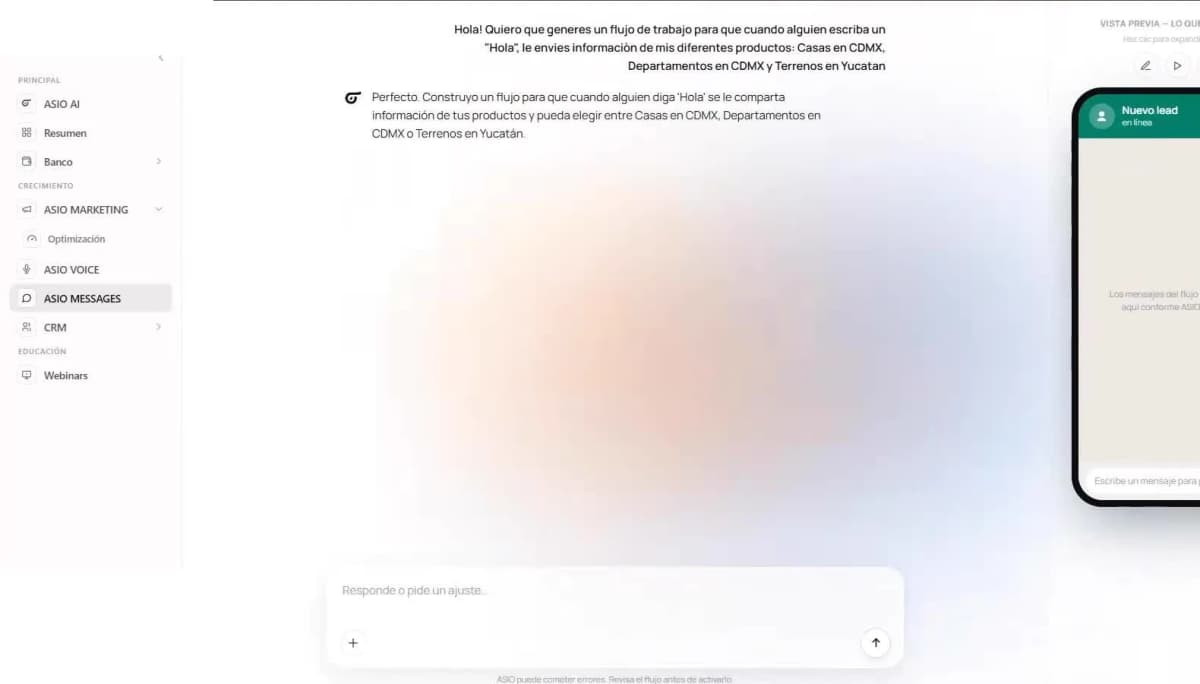
Figure 8. AI-generated ASIO Messages flow with a phone preview and controls to test, save, or continue editing.
Test the real WhatsApp experience
Send a test message
Trigger the automation exactly as a customer would.
Test more than the happy path
Try every option, unexpected text, a second request, and a message that should reach a person.
Check the mobile experience
Confirm message length, line breaks, button labels, response speed, and every link.
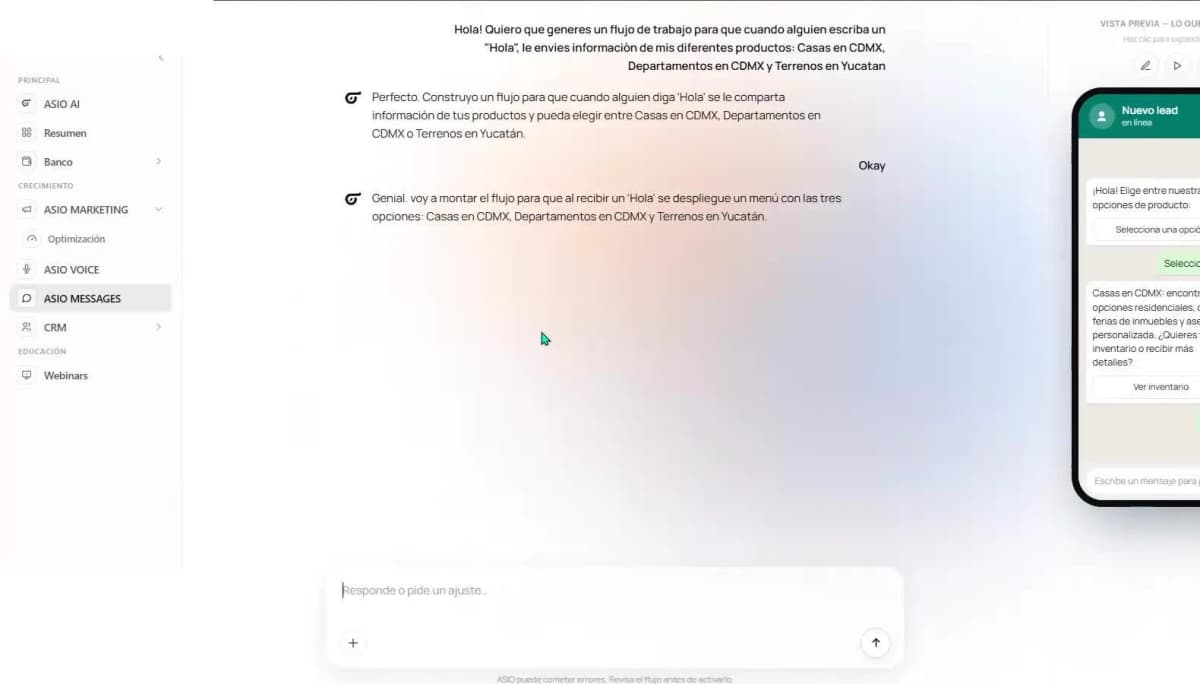
Figure 9. A live WhatsApp test of the automated welcome message and selectable response options.
Refine the flow with ASIO AI
The tutorial adds a calendar link when a lead shows interest. Ask for one precise change at a time so you can verify the result.
Name the condition
For example: when the person confirms interest, offer the appointment link.
Name the action
Specify whether ASIO should send a button, plain link, question, or handoff message.
Verify the connected service
Test the Google Calendar destination before publishing.
Save without activating when needed
Keep the flow as a draft while the business reviews its wording and logic.
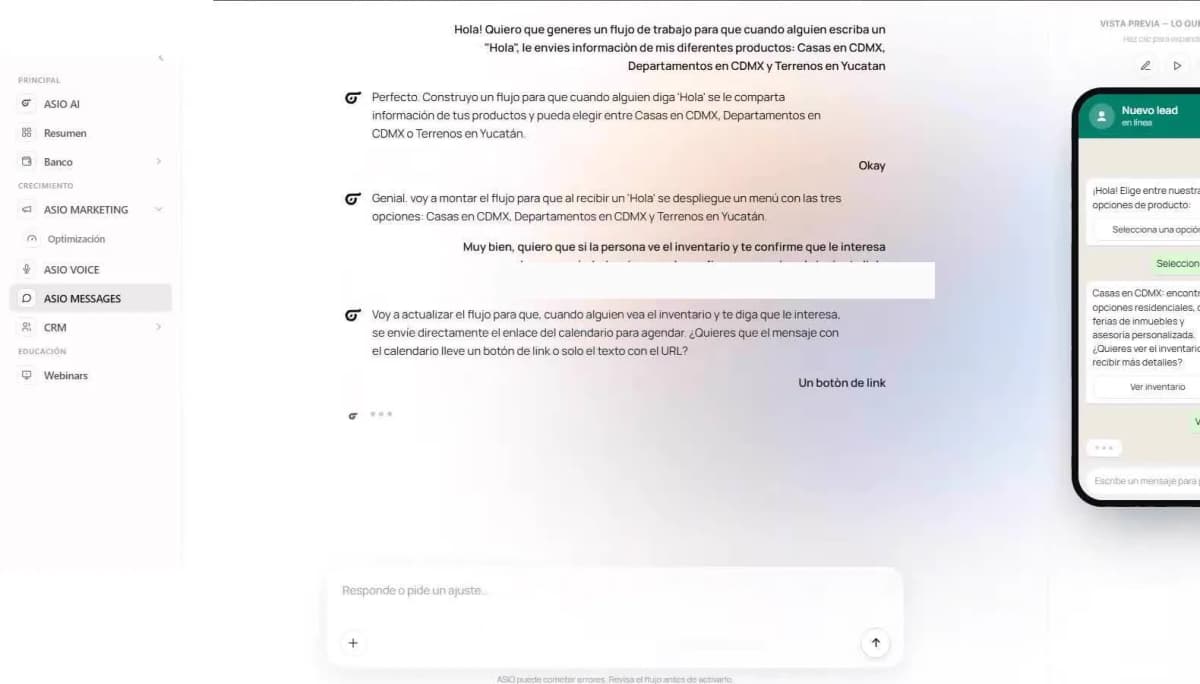
Figure 10. ASIO Messages refinement request asking the AI to add a Google Calendar booking link when a lead is interested.
Inspect and edit the visual flow
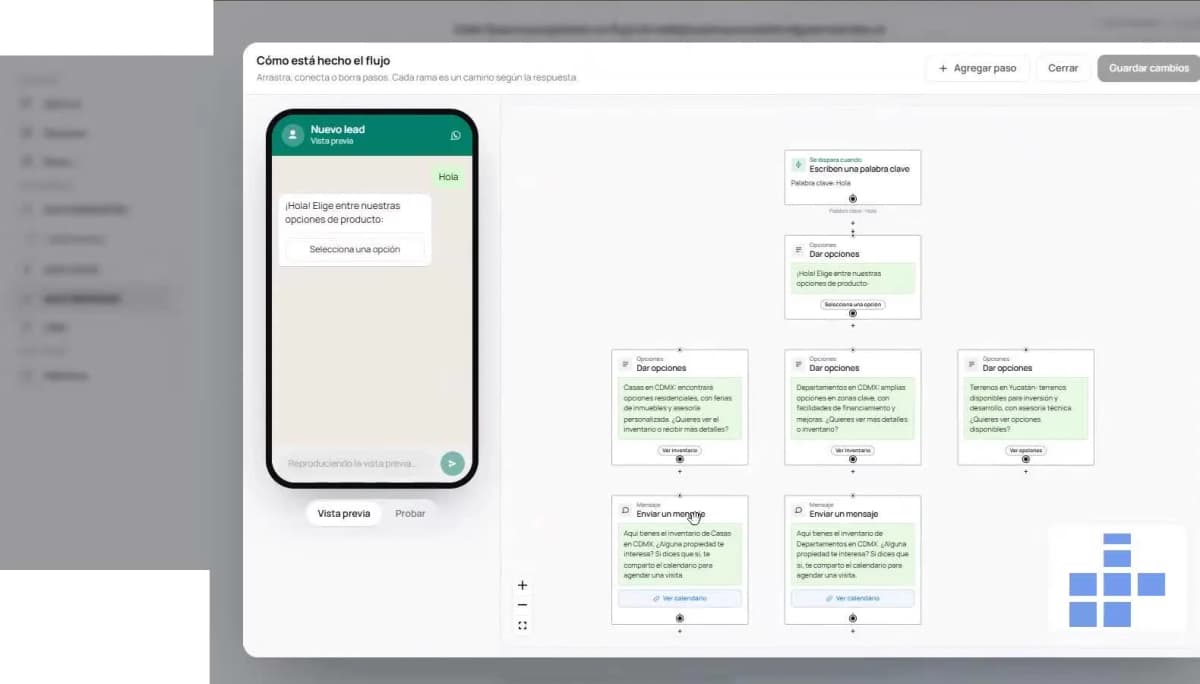
The visual builder shows how the conversation moves from the starting message to options and branches.
Open each block
Review its message, condition, button, and next connection.
Use Add Step deliberately
Add only the message, question, link, or follow-up action required for that branch.
Keep every path complete
Each branch should reach a useful next step, return to a clear menu, or transfer to a person.
Save and retest
Repeat the WhatsApp test after every meaningful change.
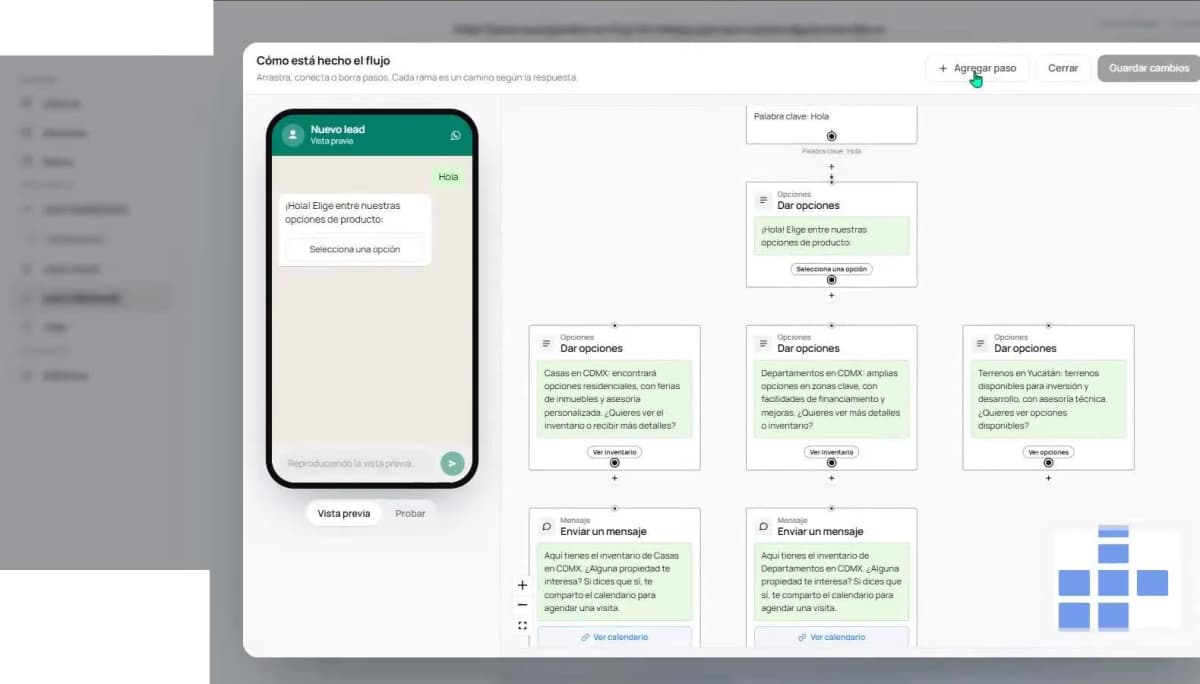
Figure 12. Visual flow editor with branch settings and the Add Step control for extending a conversation path.
Monitor message performance
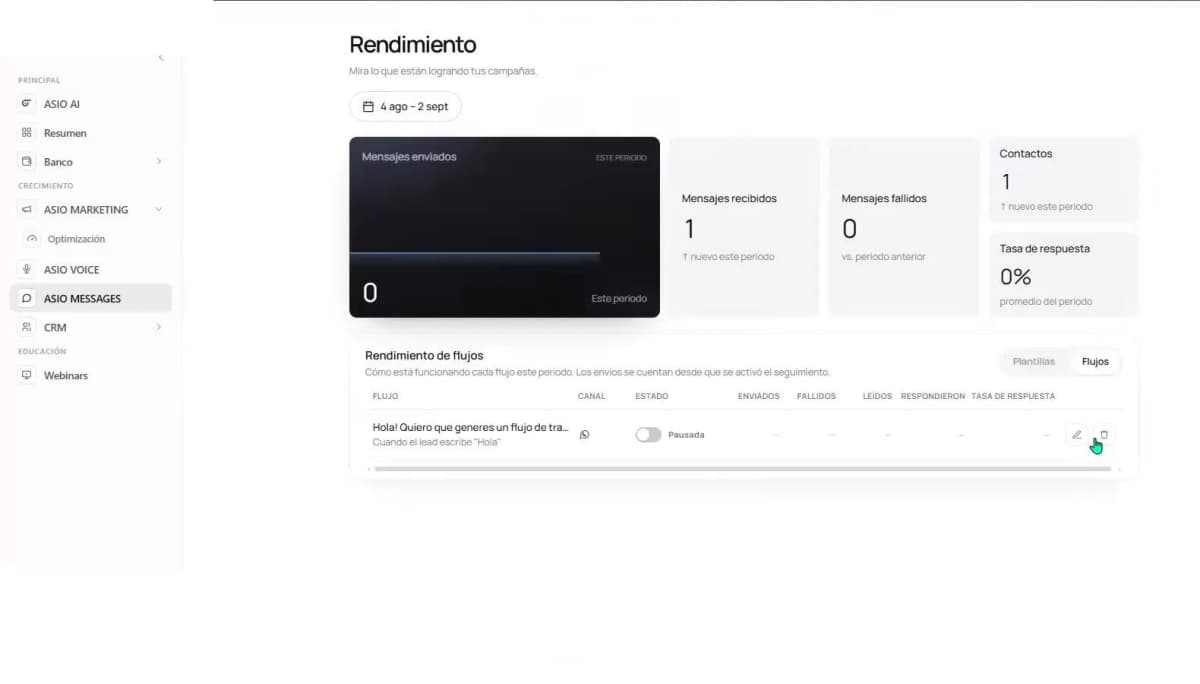
Use Performance to review sent, received, failed, contact, and response-rate information for the selected period. Review the flow as a whole rather than judging it from one conversation.
- Few starts: verify the trigger, channel connection, audience, and entry point.
- Starts without progress: shorten the opening and make the first choice easier.
- One weak branch: inspect its wording, button, link, and next action.
- Frequent human takeovers: automate only the repeated, predictable questions.
Manage conversations in the Inbox
The Inbox is where the team reviews real conversations and takes over when necessary.
Filter before assigning
Find relevant conversations by channel, chat, label, date, or responsible person.
Assign a responsible person
Clear ownership prevents duplicate replies and makes follow-up visible.
Use labels consistently
Keep a small operational set such as new lead, appointment requested, waiting for customer, and needs human support.
Read the automation context
Review what the customer selected and what ASIO already sent before replying manually.
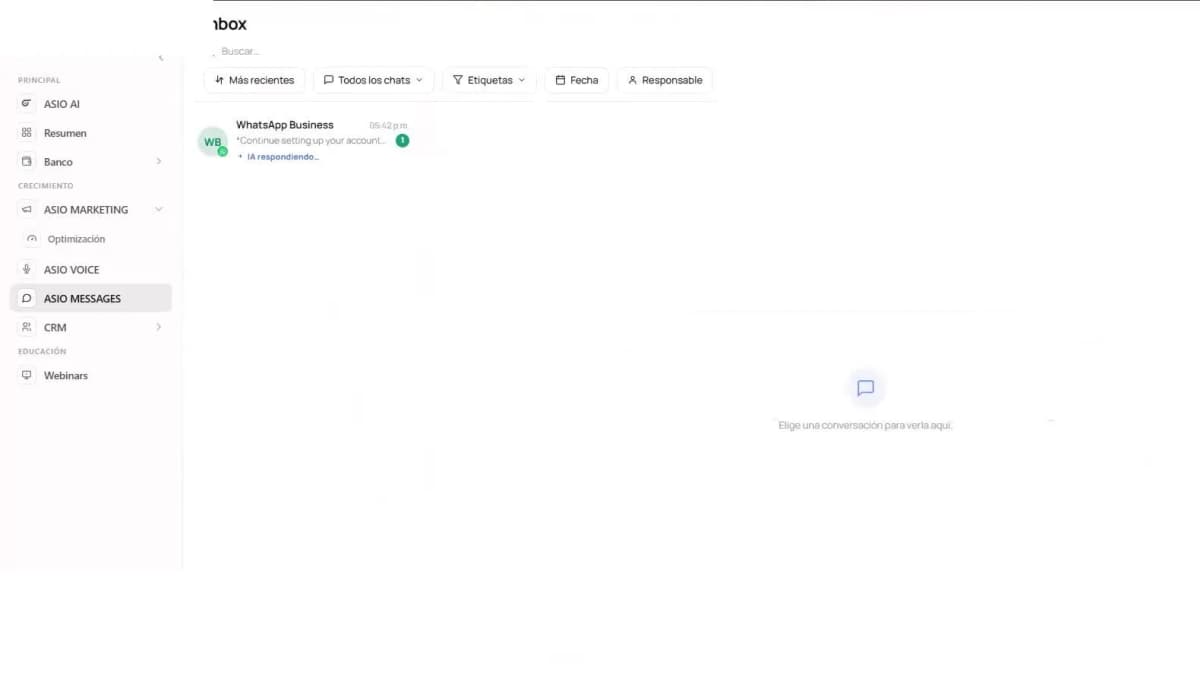
Figure 14. ASIO Messages Inbox with filters for channel, chat, label, date, and responsible person.
Use the Messages Library
The Library contains ready-to-use and custom templates for common customer conversations.
Choose the correct message type
A reactive flow response and a business-initiated WhatsApp message may have different Meta requirements.
Confirm template approval
When Meta requires an approved WhatsApp template, wait for the live approval status before using it in an automation.
Keep templates current
Update links, terms, schedules, and business details whenever the source information changes.
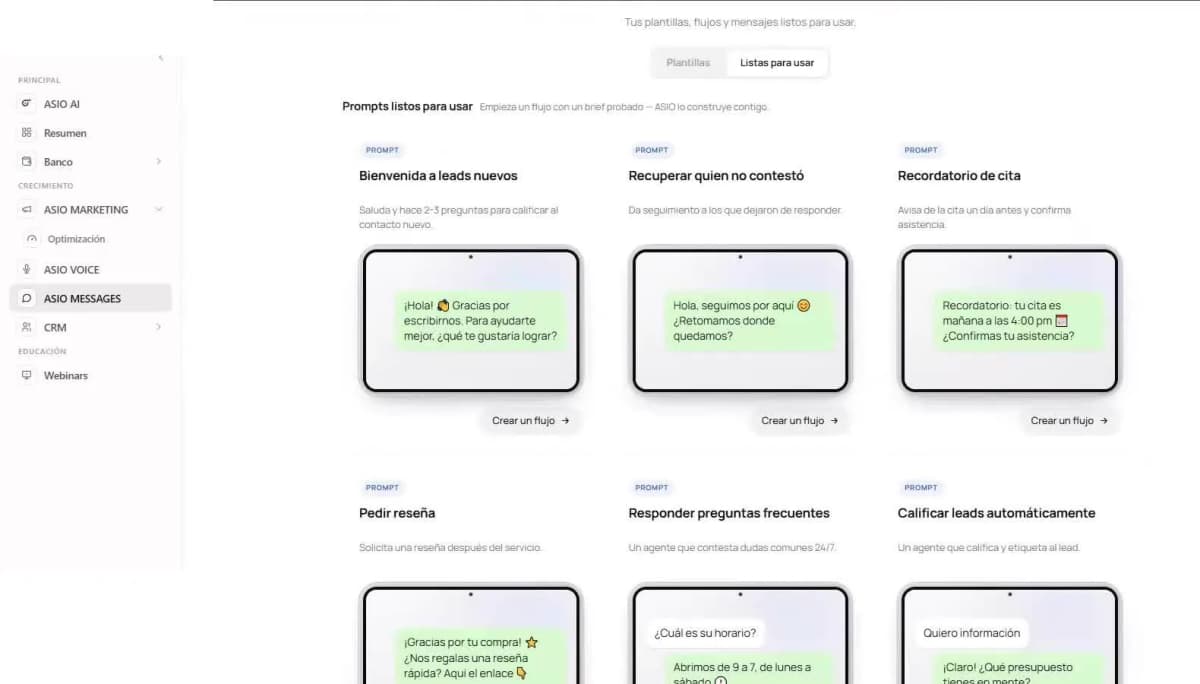
Figure 15. ASIO Messages Library with ready-to-use templates for common customer conversations.
Common problems
- WhatsApp does not appear connected.
- Return to Integrations and confirm the Meta portfolio, WhatsApp account, permissions, payment method, and verification status.
- The number is already in use.
- Identify its existing registration, plan the migration, disconnect it through the correct owner, wait, and retry.
- The flow does not start.
- Check the exact trigger, connected channel, active status, and entry condition.
- A button or branch is wrong.
- Correct it in the visual builder, save, and run a new end-to-end test.
- The appointment link is unavailable.
- Confirm the Google Calendar connection, calendar, availability, and final URL.
- The AI repeats or sends inaccurate details.
- Simplify the branch, remove conflicting instructions, provide one approved response, and retest.
- A conversation is missing from Inbox.
- Check the channel connection and Inbox filters.
- A business-initiated message is blocked.
- Confirm that the correct WhatsApp template is synchronized and approved by Meta.
Pre-activation checklist
Check you are done
- The correct Meta Business Portfolio, WhatsApp Business Account, and number are connected.
- Any requested payment method and business verification steps are complete.
- The trigger, welcome message, options, branches, links, and fallback are accurate.
- Every branch has been tested from a real WhatsApp conversation.
- Calendar and destination links open correctly on mobile.
- Inbox ownership, labels, human handoff, and follow-up responsibility are defined.
- The team has reviewed the flow before selecting Activate.
Was this helpful?