How to Set Up ASIO Voice and Automate Calls to Your Leads
Add call minutes and phone numbers, create and test an AI calling flow, launch it to a CRM segment, and monitor results in ASIO Voice.
Last updated:
ASIO Voice lets you prepare an AI calling agent, test the real phone experience, call a selected group of leads from your CRM, and monitor the results from one workspace. The tutorial shows the complete path: calling capacity, phone numbers, voices and templates, a custom prompt, automation, and reporting.
Before you begin
- Add or import the leads you want to contact in the ASIO CRM, including a valid phone number.
- Complete your business and organization details so the agent has the correct company context.
- Connect Google Calendar if the purpose of the flow is to schedule or confirm appointments.
- Decide the exact audience, offer, call objective, permitted calling window, and next step.
- Confirm that your outreach follows the consent, identification, privacy, and calling rules that apply to your business and location.
Open ASIO Voice
Open ASIO Voice
Select ASIO Voice in the main navigation.
Start with a plain-language request
In the main prompt box, say who the agent should call and what it should accomplish. You can also select the voice that will be used while you work.
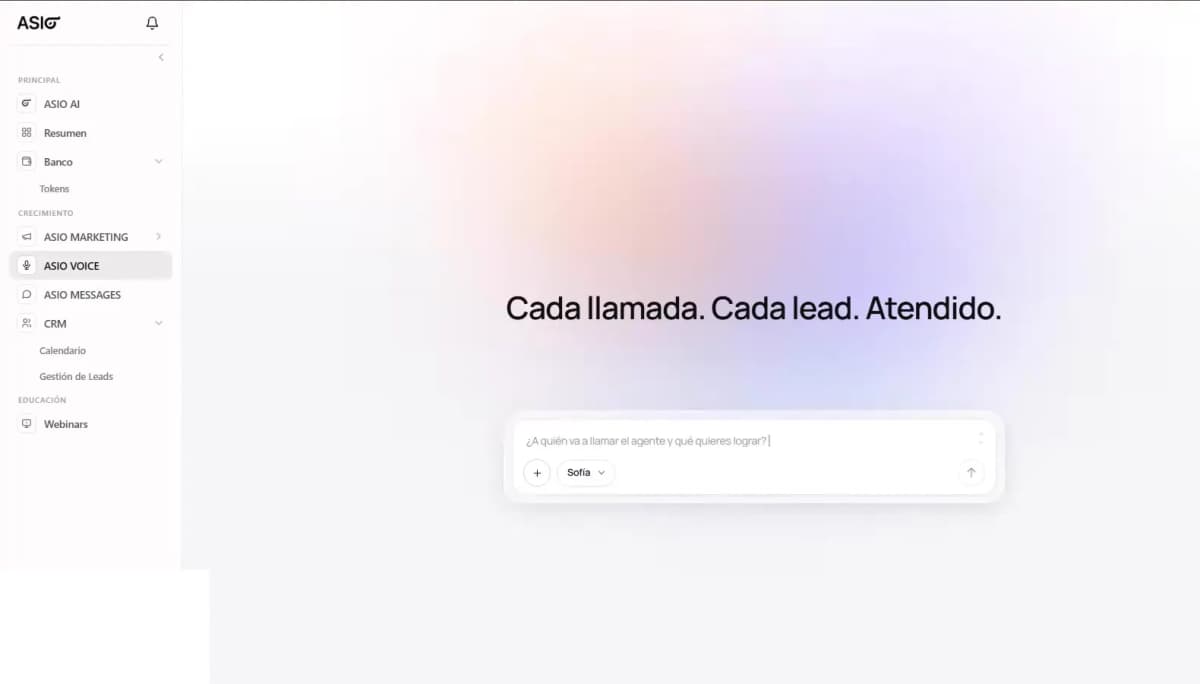
Figure 1. Open ASIO Voice from the main navigation and describe who should be called and what you want to achieve.
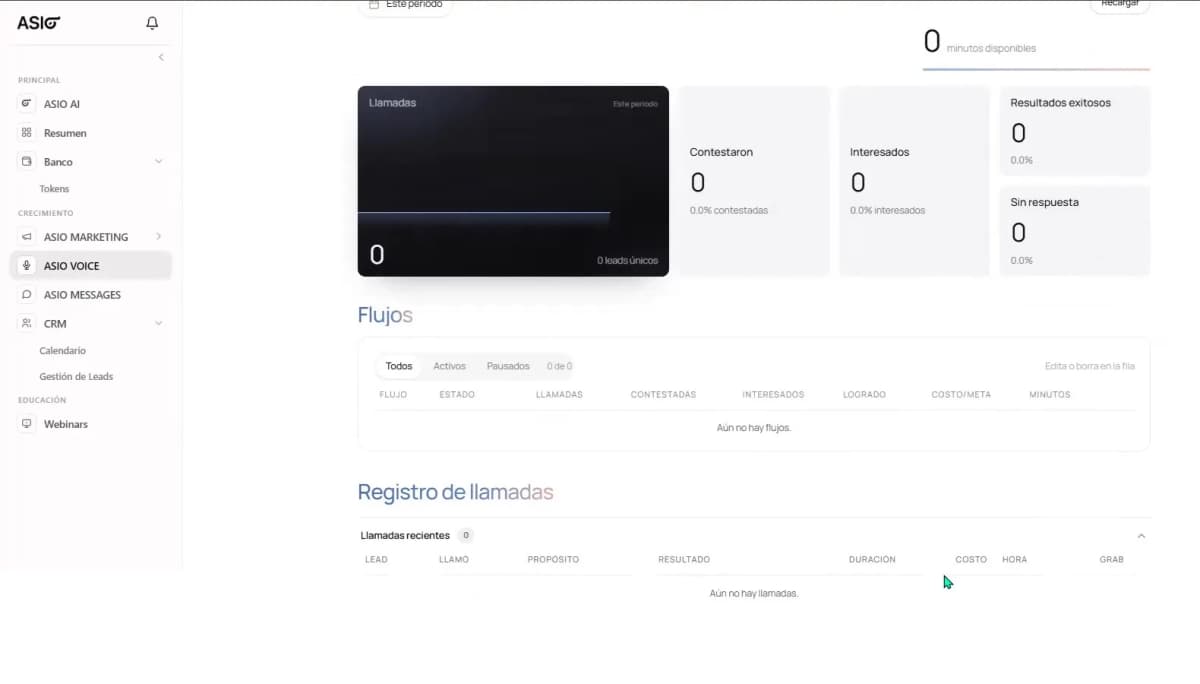
Understand the Voice Manager
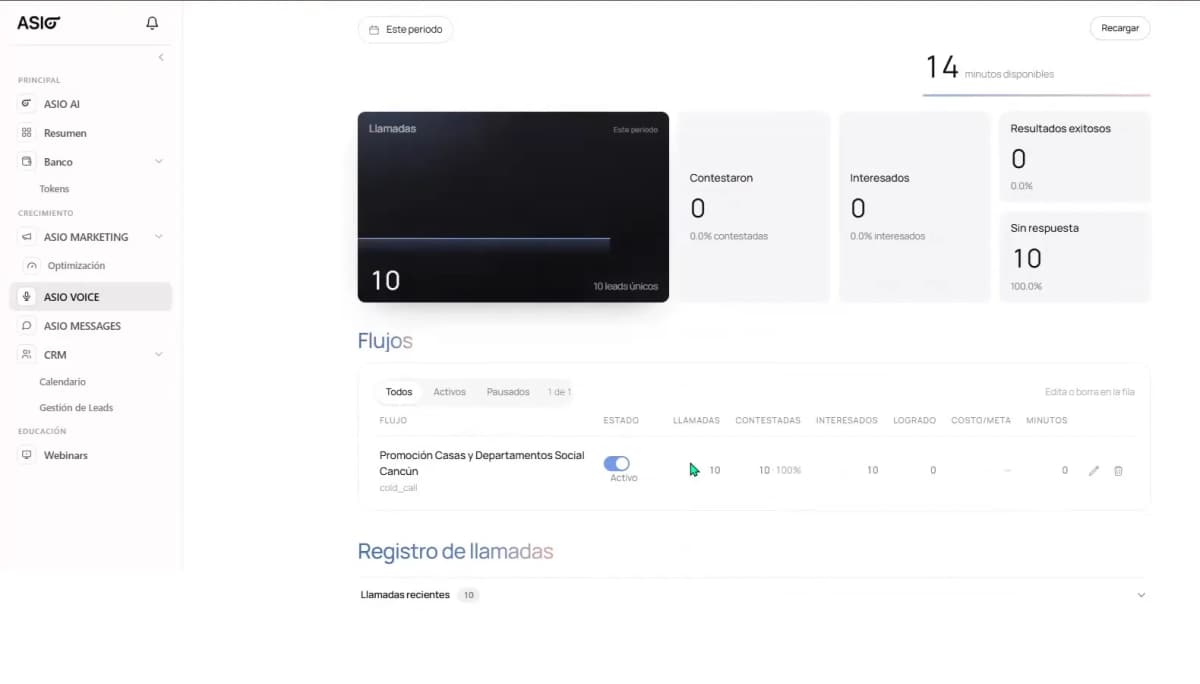
The manager is the operational view of ASIO Voice. Use it to answer three questions: Do we have calling capacity? Are the right flows active? What happened in the calls?
- Available minutes and the Recharge action.
- Calls placed, unique leads, answered calls, interested leads, successful outcomes, and no-answer results.
- Active and paused flows, with performance by flow.
- The recent-call log for reviewing individual activity and available call details.
Add call minutes when necessary
Check the balance before activation
A flow cannot keep calling after the available minute balance is exhausted.
Select Recharge
Choose the package currently displayed in your account, review the total, and complete the purchase only when the quantity is correct.
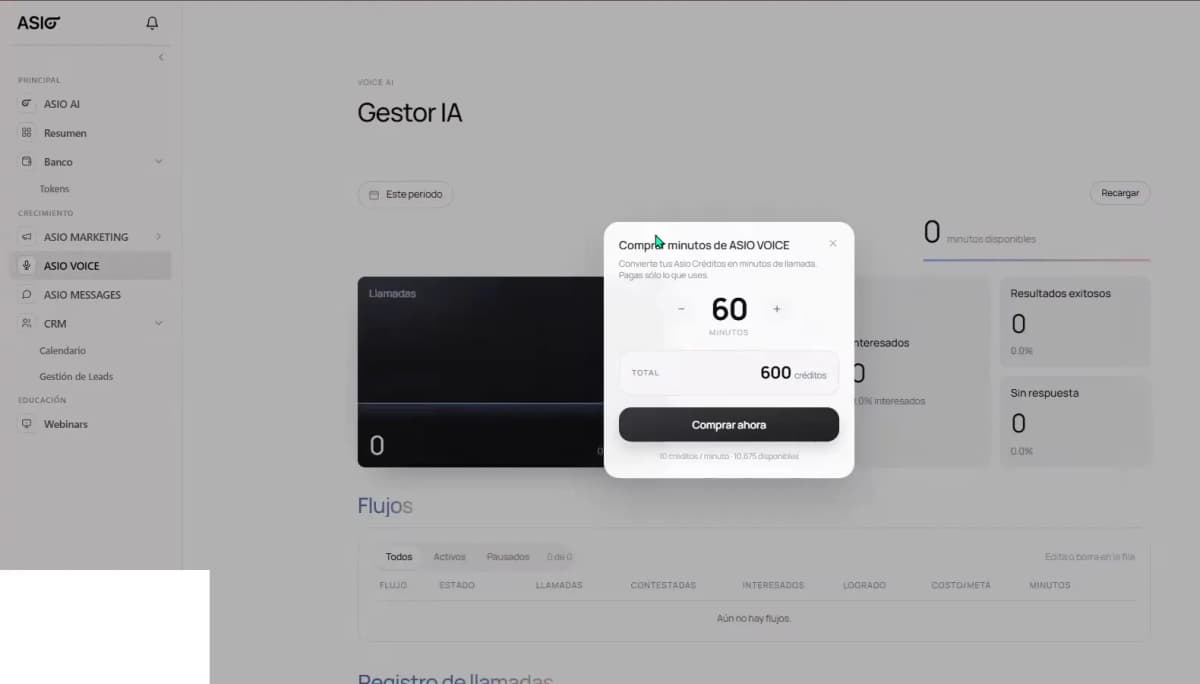
Figure 3. ASIO Voice recharge window showing an example call-minute package and the purchase action.
Review the phone number used for calls
Open Phone Numbers from the ASIO Voice area. The tutorial shows an included shared ASIO line and an option to obtain a local number for a selected city.
Choose the city
Select the local market for the number when that option is available.
Choose the assignment
Assign the number to the appropriate team member or leave it unassigned until the owner is confirmed.
Use one number deliberately
A number may be used with the AI voice agent, the team's regular dialer, or both, according to the options shown in the account.
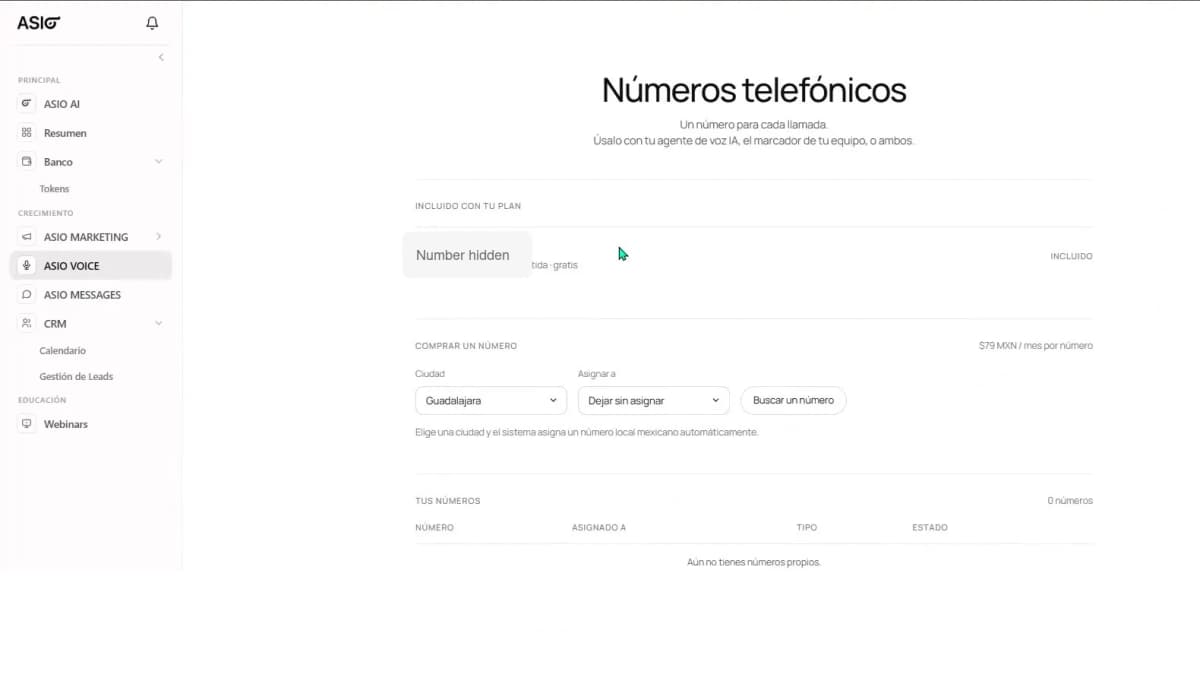
Figure 4. ASIO Voice phone-number page with the included shared line and controls for choosing a city and assigning a number; the example number is hidden.
Choose a voice and a starting flow
The Voice Library contains Mexican Spanish voice options and ready-to-use flows. In the tutorial, the available examples include Free Mode, Book Appointment, Confirm Appointment, Invite to Workshop, Confirm Workshop, and Cold Call.
Preview the voices
Play several options and choose the one that fits the audience and brand.
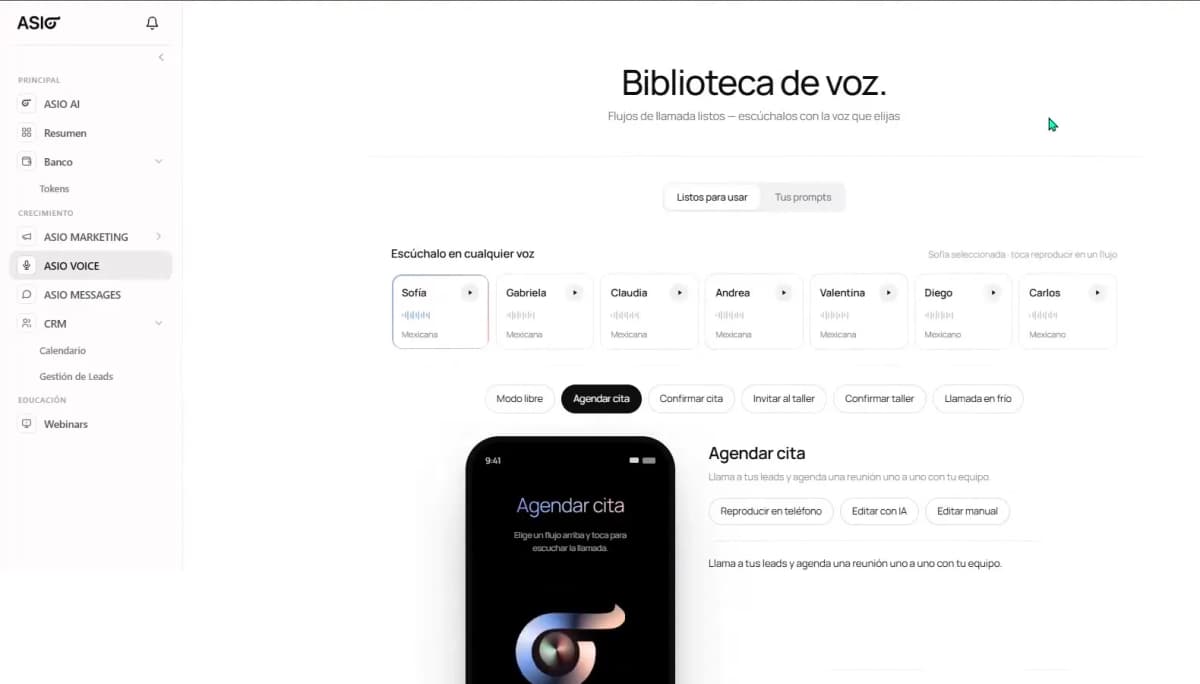
Figure 5. ASIO Voice Library with selectable Mexican voices and ready-to-use calling templates. Select the closest template
A template gives the AI a safer starting structure than an unfocused blank request.
Test before editing
Use Play on Phone to hear the flow as a real call, or choose Edit with AI or Edit Manually when the objective is correct but the wording needs work.
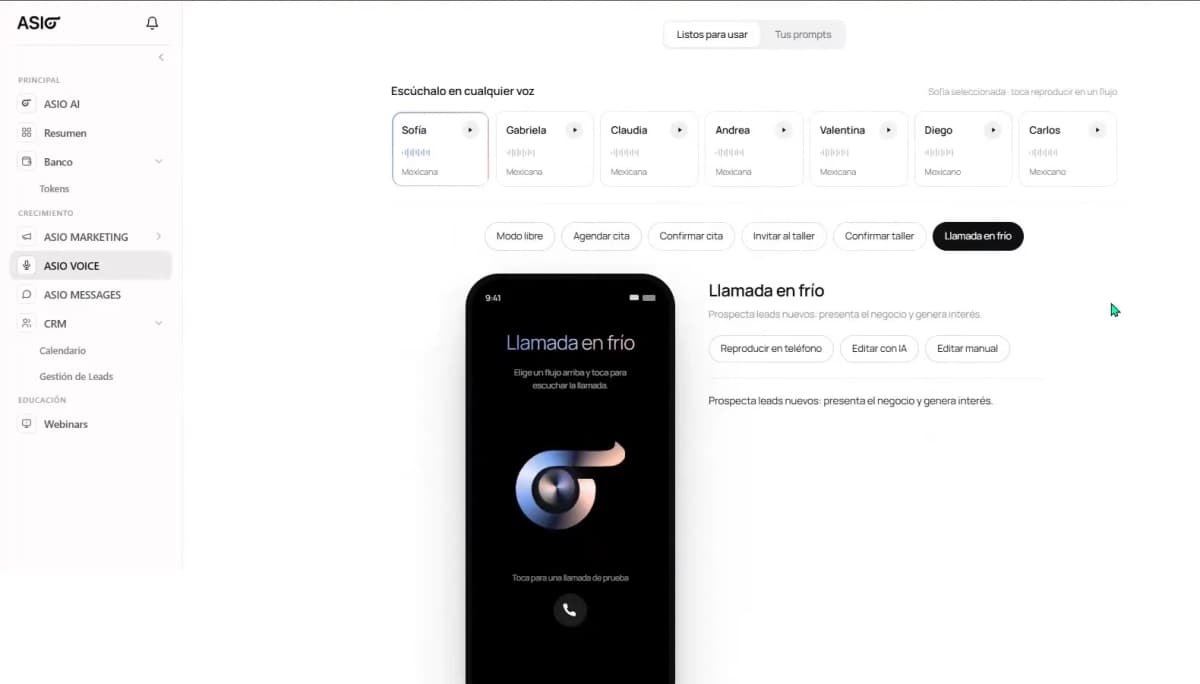
Figure 6. Cold-call template preview with options to test it by phone, edit it with AI, or edit it manually.
Give ASIO a focused calling brief
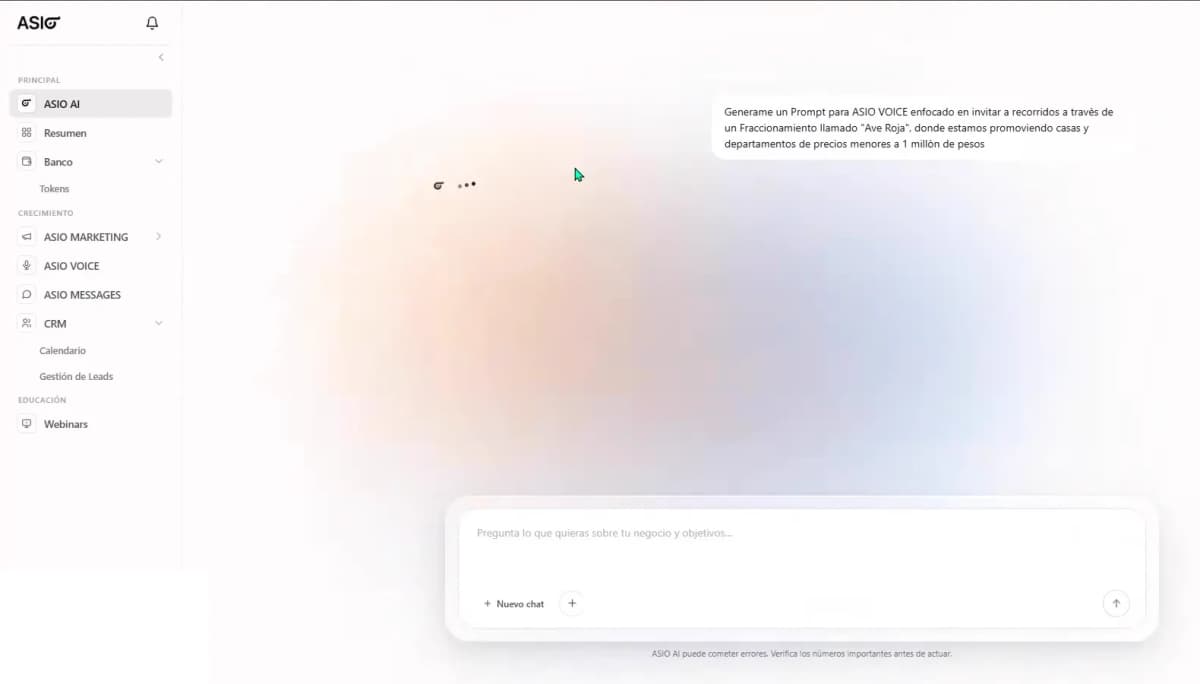
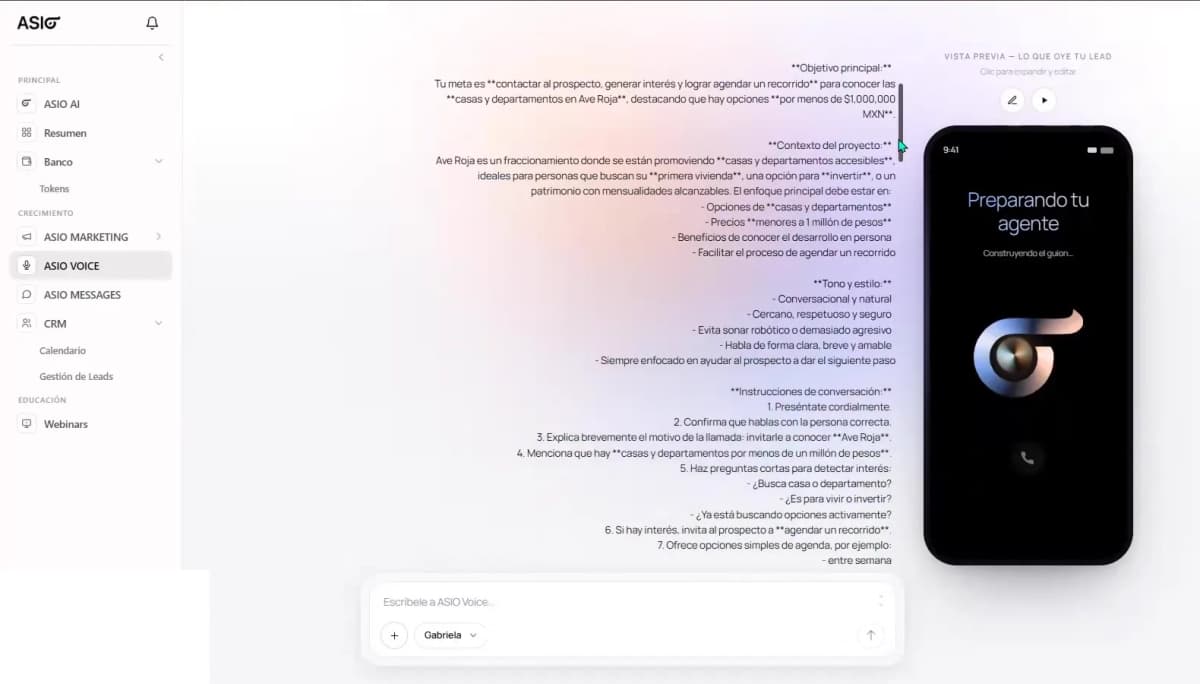
You can describe the objective directly in ASIO Voice. If the offer is complex, the tutorial also demonstrates asking the main ASIO AI to organize the information into a stronger Voice prompt first.
Include only information the agent can use during the call:
- The single outcome you want from the call.
- Business name, offer, audience, location, and the reason for contacting the lead.
- The main value proposition and any accurate conditions or limitations.
- The tone, opening style, qualification questions, and how to handle common doubts.
- For appointments: location, available timing, calendar behavior, and the confirmation step.
Review the structured prompt
Before saving, open the prompt details. The tutorial separates the information into useful fields such as lead context, business information, meeting date and time, meeting location, value proposition, and special instructions.
Check every field
Remove conflicting instructions and confirm that the opening line, offer, audience, and appointment details all describe the same flow.
Keep the conversation natural
Use short questions, allow the lead to respond, and return to the primary objective without sounding aggressive.
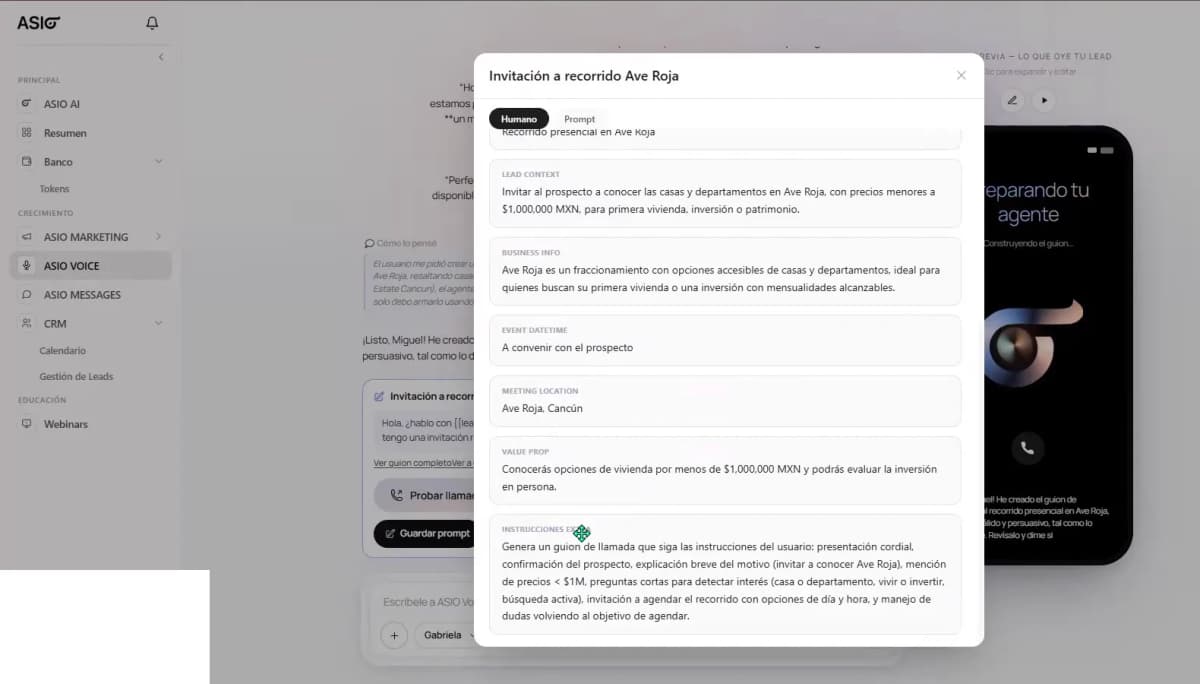
Figure 9. Structured prompt details for lead context, business information, meeting details, value proposition, and special instructions.
Test the call before saving
Select Test Call
Listen to the actual voice, pace, pronunciation, opening, transitions, questions, and close.
Test several paths
Try an interested lead, a busy lead, an objection, an unclear answer, and a request to reschedule.
Save only after correction
Choose Save Prompt once the test follows the approved business information and reaches the intended next step.
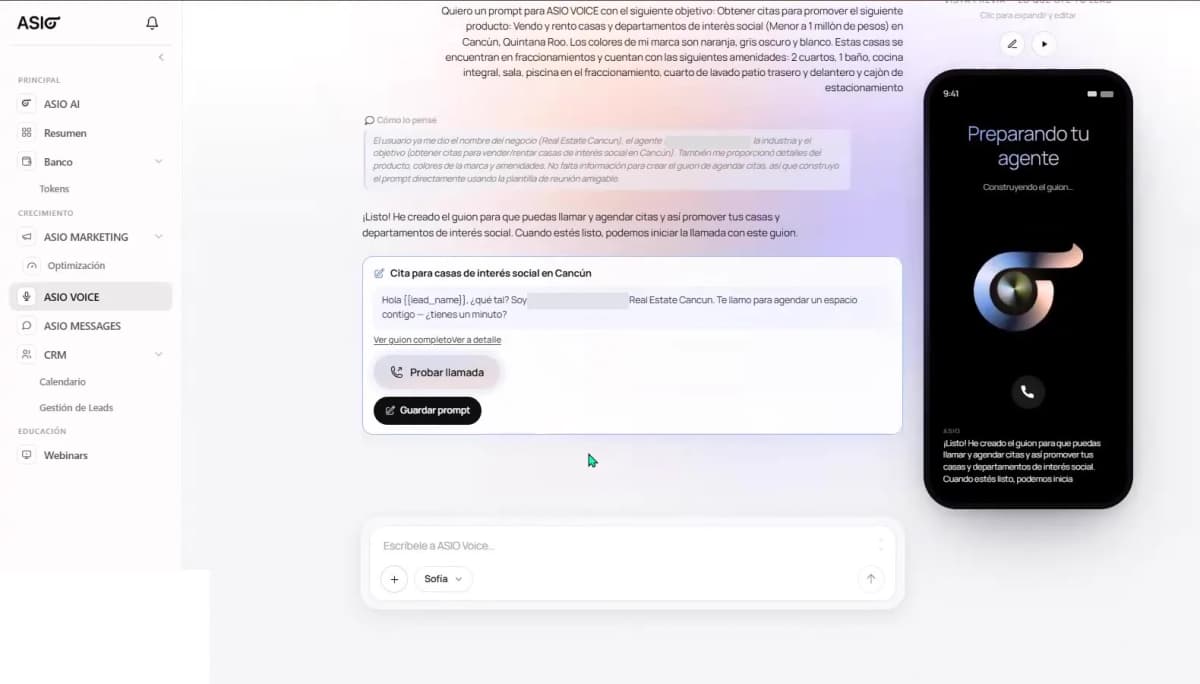
Figure 10. Generated ASIO Voice script with actions to test the call and save the prompt.
Manage saved prompts
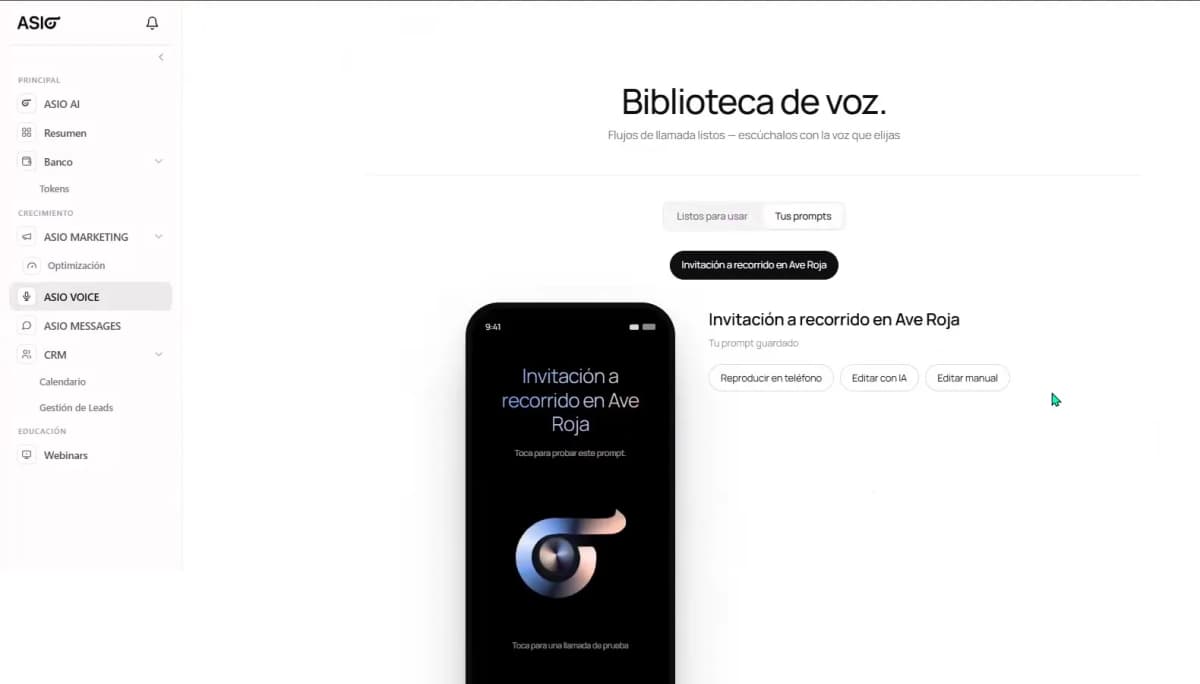
Saved custom flows appear under Your Prompts in the Voice Library. From there, you can play the prompt on a phone, edit it with ASIO AI, or edit the fields manually.
Use AI edits for conversational changes
Ask for one specific improvement at a time, such as a shorter opening or a clearer appointment close.
Use manual edits for exact fields
Review the objective, business name, flow name, opening line, and description, then test again before saving.
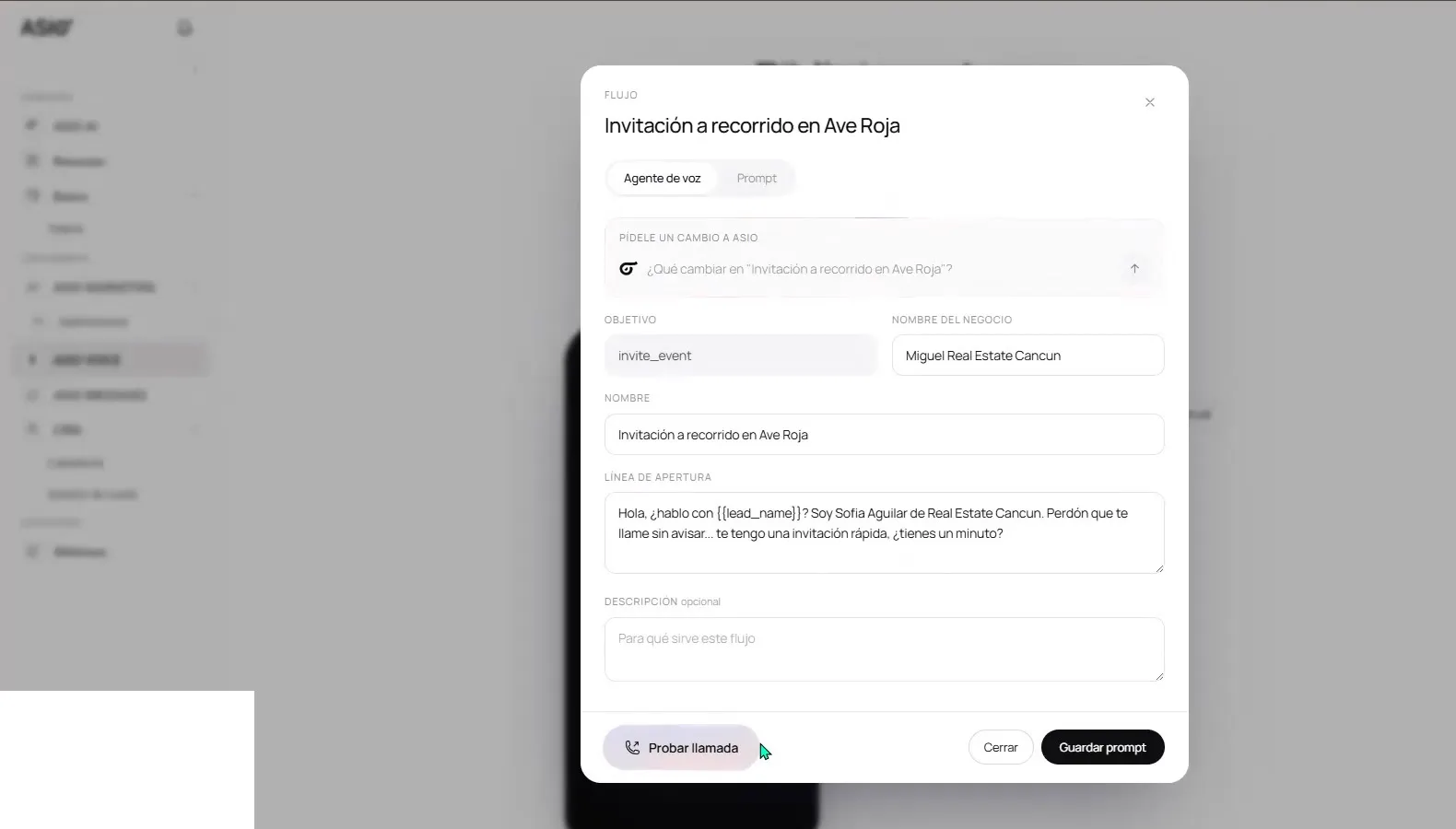
Figure 12. Custom voice-flow editor with the objective, business name, opening line, description, test-call action, and save button.
Create the calling automation
Once the prompt is approved, tell ASIO which leads to call and when. The tutorial uses a CRM segment, selects the saved prompt, chooses a calling window, and then presents a final summary before activation.
Choose the CRM segment
Use a meaningful group such as leads without a meeting, rather than calling the entire database by default.
Review the recipients
Select View Who It Will Call and confirm the count and people before any calls begin.
Confirm the calling window
Choose a time appropriate for the audience and the applicable rules.
Activate the rule
Use Activate Rule only after the prompt, audience, schedule, number, and minute balance are correct.
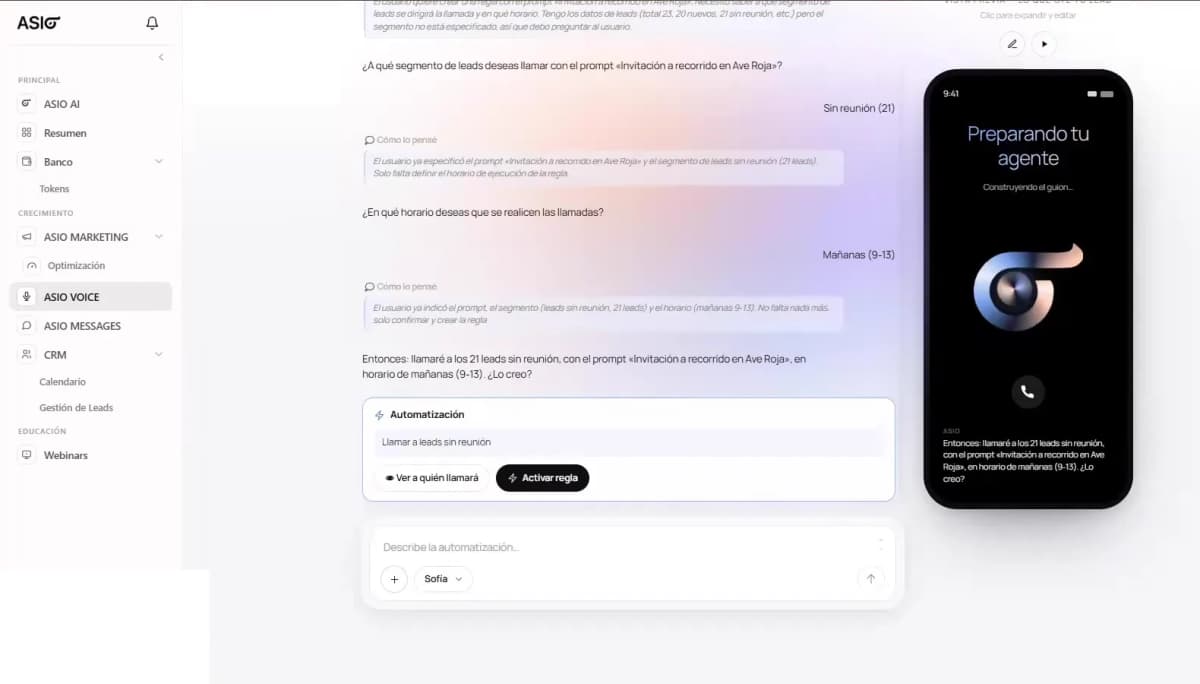
Figure 13. ASIO Voice automation review showing the selected CRM segment, calling window, recipient preview, and activation action.
Monitor results and improve the flow
Return to the Voice Manager after activation. Review the outcome cards together with the flow row and call log; one metric alone does not explain performance.
- A high no-answer rate usually points first to contact data, timing, or retry strategy.
- Answered calls with low interest may require a clearer offer, audience, or opening.
- Interested leads without the intended outcome may need a stronger next-step question or better appointment handling.
- Pause the flow before making substantial changes, then test the revised version before reactivation.
Common problems
- The flow does not start.
- Check the minute balance, phone-number setup, active status, calling window, and whether the selected leads have usable phone numbers.
- The wrong leads are selected.
- Return to the CRM, correct the lead data or segment, and preview the recipients again before activation.
- The agent gives incorrect business information.
- Update the account or organization details and correct the saved prompt; then run a new test call.
- Appointments do not appear in the calendar.
- Confirm the Google Calendar connection and verify that the prompt contains the correct appointment rules.
- The opening sounds too robotic or long.
- Shorten it, identify the caller and reason clearly, ask permission to continue, and move quickly to one useful question.
- The call has audio or pronunciation problems.
- Try another voice, simplify difficult phrases, correct names phonetically where appropriate, and test again by phone.
Pre-activation checklist
Check you are done
- The flow has one clear objective and an accurate business identity.
- The offer, conditions, locations, and availability have been reviewed.
- The chosen voice and opening line sound natural in a real test call.
- The correct CRM segment and recipient count have been previewed.
- The calling window, calendar connection, number, and minute balance are ready.
- A team member knows how interested leads and booked appointments will be followed up.
Was this helpful?