How to Use ASIO Bank and Manage Your Tokens
Track business income and expenses, purchase tokens, configure automatic recharge, review token usage, and earn token rewards.
Last updated:
ASIO Bank brings two types of information together: a simple business-money overview and the tokens used by ASIO tools. From this area, you can record income and expenses, review transactions, purchase tokens, set an automatic recharge, see where tokens are being used, and complete eligible actions to earn more tokens.
Open ASIO Bank
Open Bank
Select Bank from the main sidebar.
Review the summary
The top panel shows the available balance, token balance, recorded income, and recorded spending for the selected period.
Choose the date range
Use the date selector to review the period you want to analyze.
Open Tokens when needed
Select Tokens under Bank to review usage, history, and rewards.
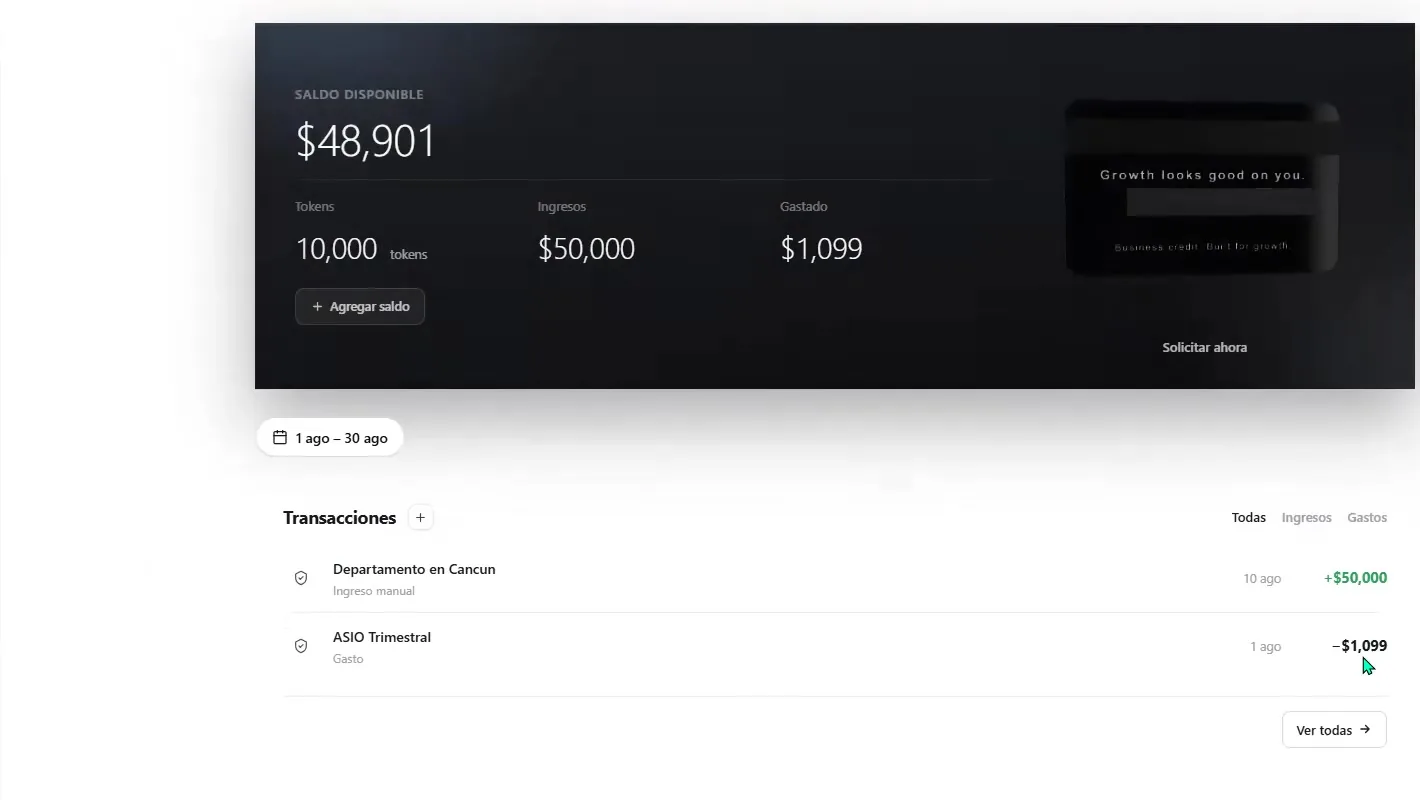
Use the ASIO Bank overview to review the recorded balance, tokens, income, spending, and recent transactions.
Purchase more tokens
Tokens are usage credits consumed by eligible ASIO services. The amount needed depends on the tools and activity inside the account.
Select Add balance
Open Bank and select Add balance below the token total.
Choose a package
Select one of the token packages currently displayed or enter a custom quantity.
Review the total
Confirm the number of tokens, price, and any discount shown before continuing.
Complete the secure payment
Use the payment flow opened by ASIO and wait for the new balance to appear.
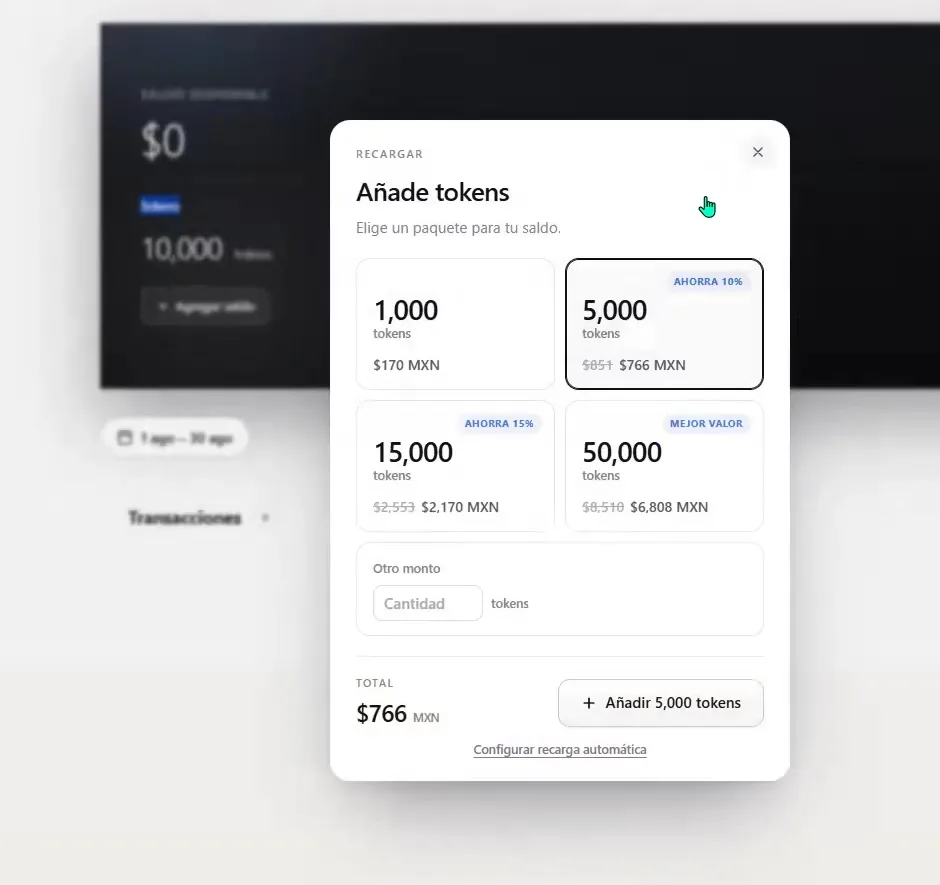
Select a token package or enter another amount, then review the total before purchasing.
Configure automatic token recharge
Automatic recharge can help prevent an eligible ASIO tool from stopping because the token balance became too low.
Set the low-balance threshold
Enter the token balance that should trigger a recharge.
Set the recharge quantity
Choose how many tokens ASIO should purchase when the threshold is reached.
Add an optional monthly limit
Use the monthly limit to control the maximum automatic recharge amount.
Confirm the payment card
Add or select the card that will be charged.
Activate the rule
Review the threshold, token quantity, estimated price, and monthly limit, then select Activate automatic recharge.
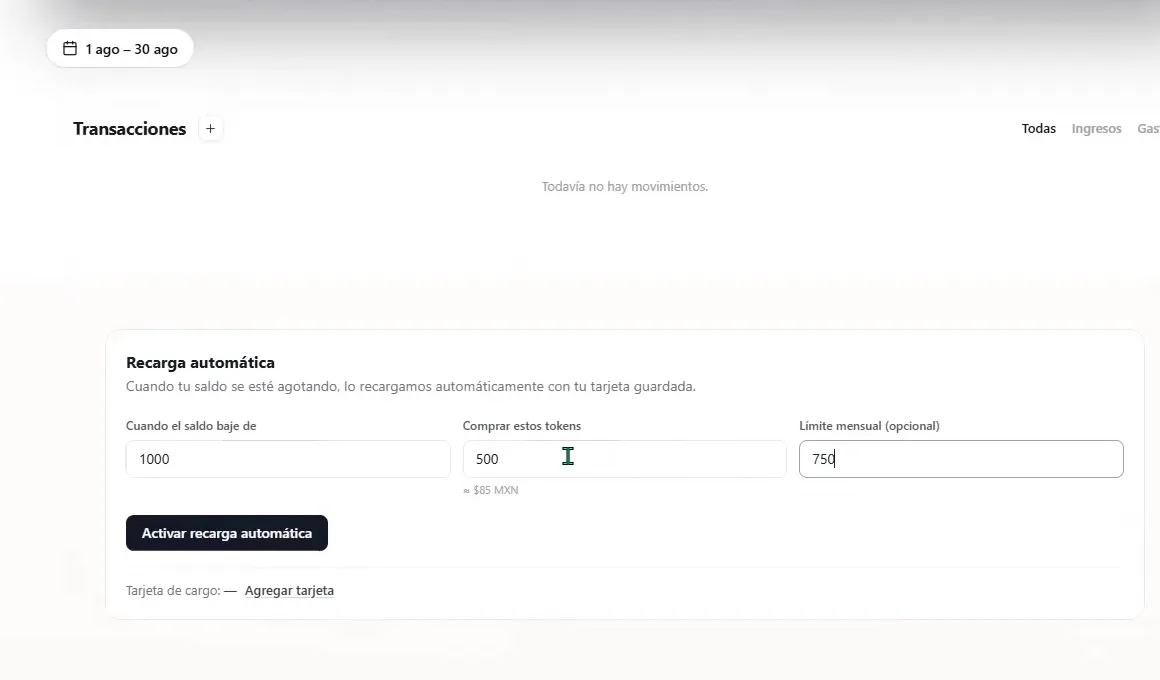
Set the trigger balance, recharge quantity, optional monthly limit, and payment card.
Record a business expense
Select the plus button
In the Transactions section, select the plus button.
Choose Expense
Select the Expense tab.
Enter the details
Add a clear name, the amount in MXN, and the correct transaction date.
Save the expense
Select Add expense and confirm that it appears in the transaction list and spending total.
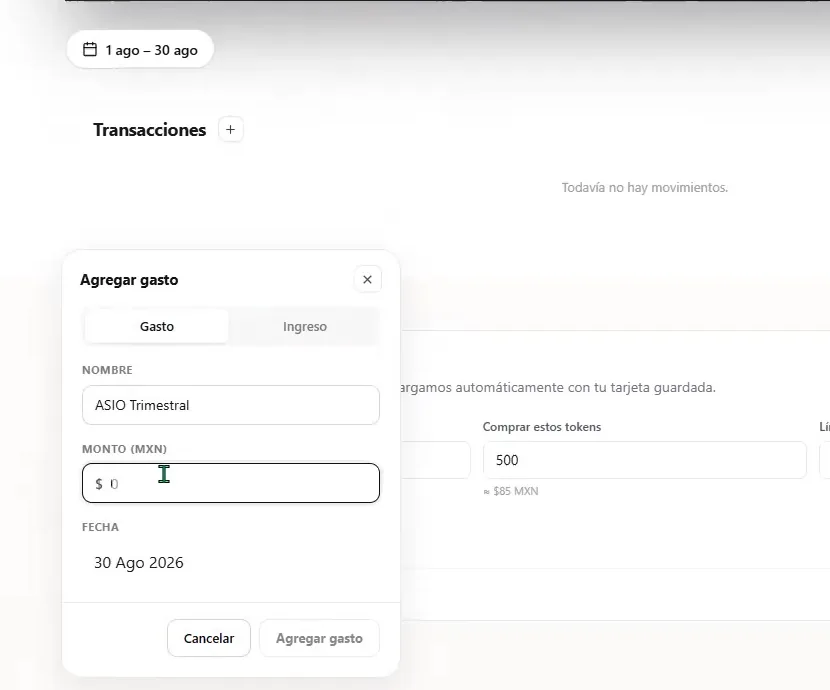
Record an expense with a clear name, amount, and date.
Record business income
Open the transaction form
Select the plus button beside Transactions.
Choose Income
Select the Income tab.
Enter the details
Add a clear source or description, the amount in MXN, and the correct date.
Save the income
Select Add income and confirm that the available balance and income total update.
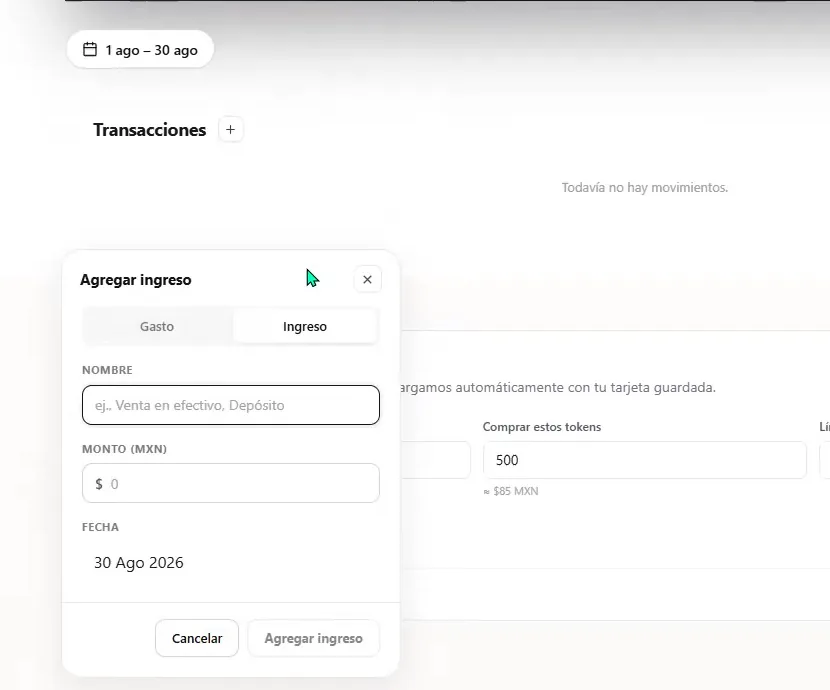
Record business income with its source, amount, and date.
Review and filter transactions
Review recent activity
The transaction list shows the description, type, date, and amount.
Filter the list
Use All, Income, or Expenses to focus on the transactions you need.
Open the full history
Select View all when the recent list does not include the transaction you are looking for.
Correct the source data
If a total looks wrong, review the amounts, transaction type, and selected date range.
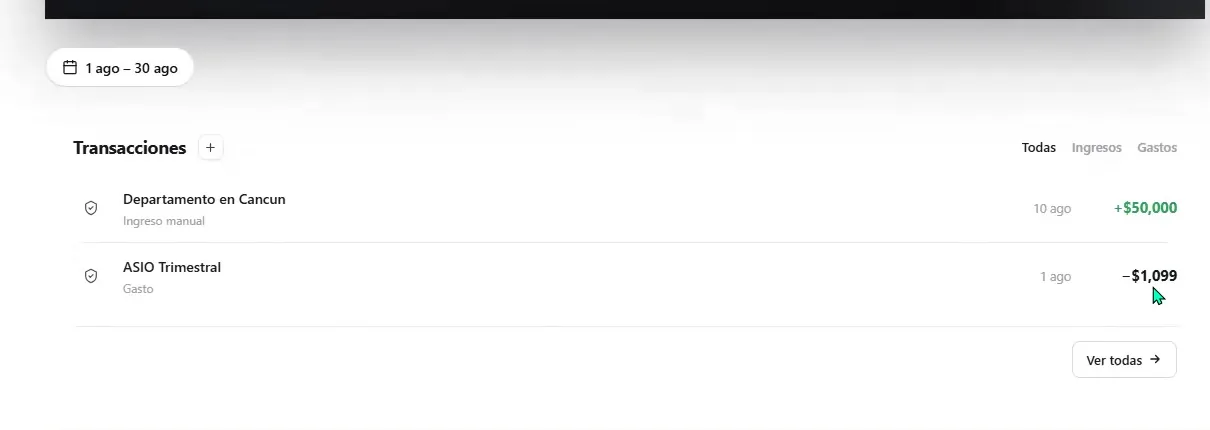
Review recent transactions and filter the list by income or expenses.
Review token balance and usage
Open Tokens
Under Bank, select Tokens.
Check the available balance
Review the number of tokens currently available and use Recharge when more are needed.
Review the current cycle
Confirm the cycle dates and the number of tokens used by each ASIO area.
Identify the source of usage
The breakdown may include AI campaigns, campaign optimization, ASIO Voice, ASIO Voice AI, ASIO Messages, and general AI.
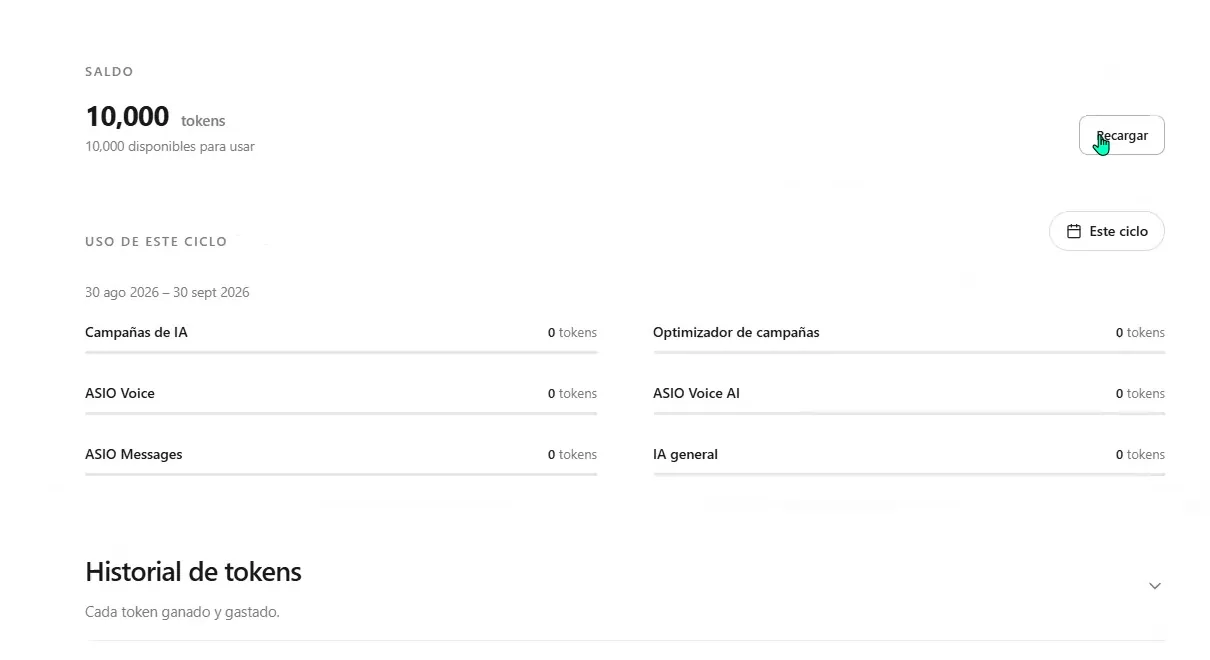
Review the available token balance and usage by ASIO service during the current cycle.
Review token history
Expand Token history
Open the Token history section to see tokens added and spent.
Use the filters
Filter by All, Earned, or Spent and select the date range you want to review.
Compare history with usage
Use the history and current-cycle breakdown together when the balance is different from what you expected.
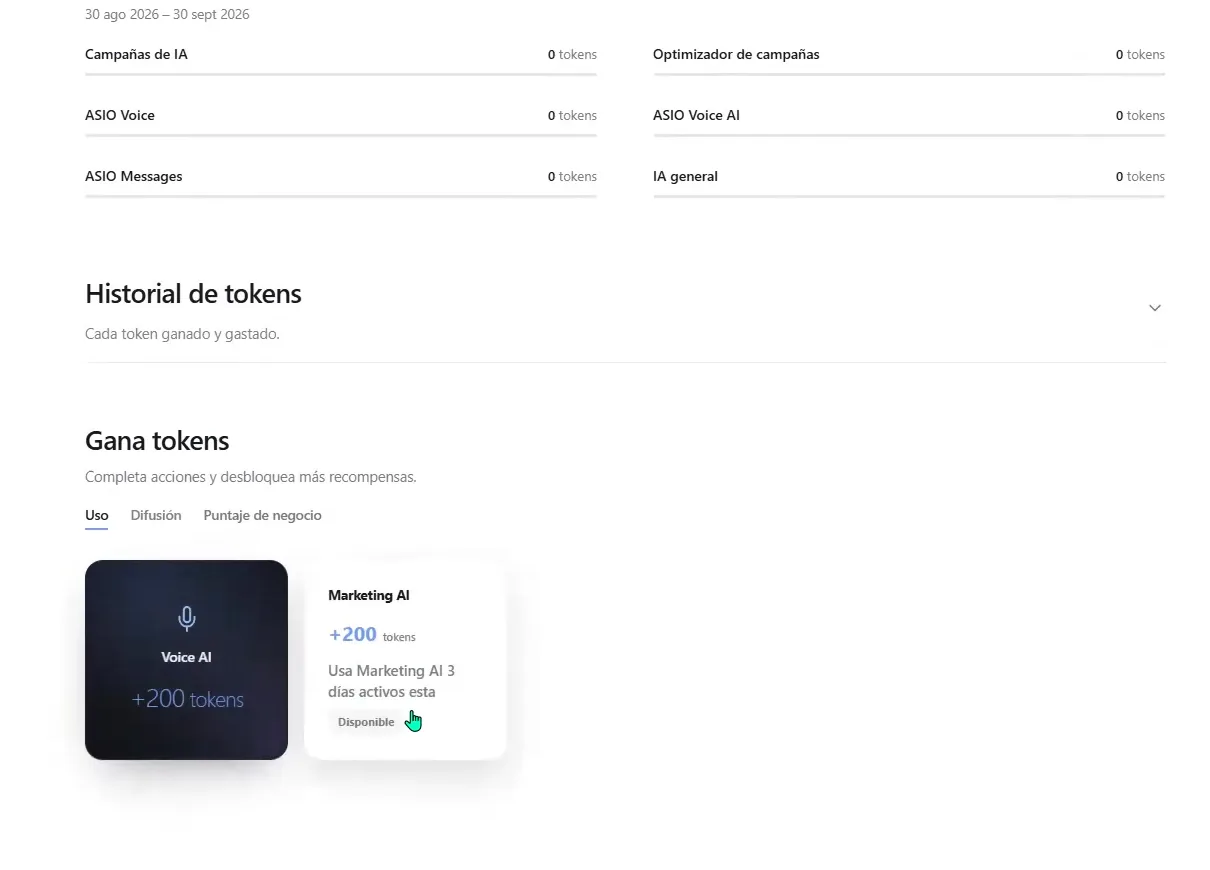
Open Token history when you need to review earned and spent tokens, then explore the available rewards.
Earn more tokens
The Earn tokens area displays eligible actions and the reward currently offered for each one. The available actions are organized into categories such as Use, Sharing, and Business score.
Choose a category
Open Use, Sharing, or Business score.
Select an available action
Examples shown in the tutorial include using ASIO tools, publishing an ASIO post, leaving an eligible review, or submitting a video testimonial.
Open the details
Read the requirements before completing the action.
Confirm the reward
After the action is approved, review Token history to confirm that the tokens were added.
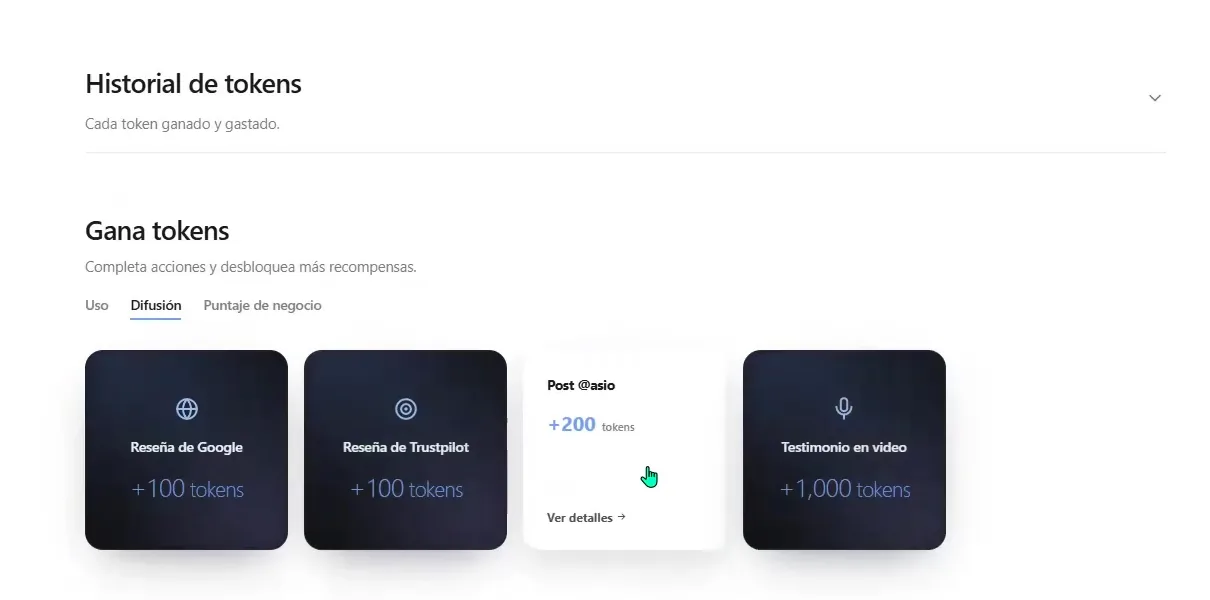
Review the currently available actions and token rewards before completing one.
Review available business-credit options
The Bank overview may display a Request now action for ASIO business-credit options. Open it only when you want to review the current eligibility requirements, amount, cost, repayment terms, and legal conditions.
ASIO Bank checklist
Check you are done
- The selected date range is correct.
- Income and expenses are recorded with clear descriptions and correct dates.
- The displayed balance matches the transactions recorded in ASIO.
- The token balance is sufficient for planned activity.
- Automatic recharge is configured with the intended threshold and monthly limit.
- Token history and current-cycle usage have been reviewed.
- Any reward or credit terms were reviewed inside the current ASIO screen.
Was this helpful?