How to Explore and Manage Your ASIO Account
Manage your ASIO plan, billing, payment method, token usage, profile, organization, team, referrals, integrations, support, and language.
Last updated:
Your ASIO Account area is the control center for your subscription and workspace. From one menu, you can review your plan and billing, update your payment method, monitor token usage, edit your business profile, manage your organization and team, access your referral link, open integrations and support, change the platform language, or sign out.
Open the Account menu
Open your user menu
Select your name or profile image in the lower-left corner of ASIO.
Expand Account
The menu displays the account-management areas: Plans and billing, Usage, Profile, Organization, and Referrals.
Use the direct links
The same menu also opens the Integration Center, Support, the English or Spanish language selector, and Sign out.
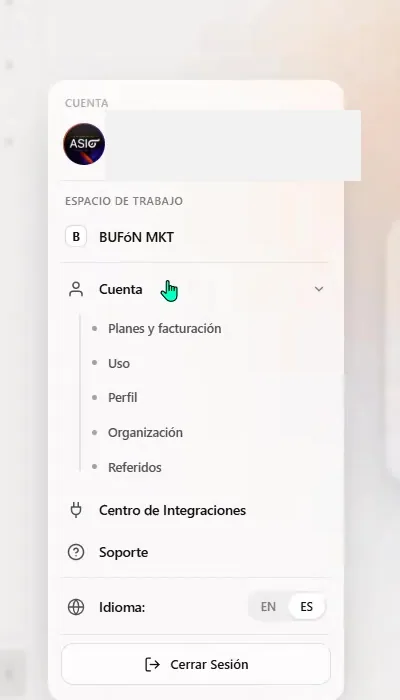
Open the Account menu from the lower-left corner of ASIO.
Manage your plan, billing, and payment method
Open Plans and billing
Select Account, then Plans and billing.
Review the current plan
Confirm the plan name, price, billing frequency, renewal date, and subscription status shown in your account.
Update the payment method
In Billing details, select Update next to Payment method and enter the new card information in the secure billing portal.
Review the next invoice
Check the amount and date before the subscription renews.
Review or recharge tokens
The billing screen shows the current token balance and a Recharge action when more tokens are needed.
Open Manage billing
Use Manage billing to update billing information, manage the subscription, download invoices when available, or cancel according to the options shown in the billing portal.
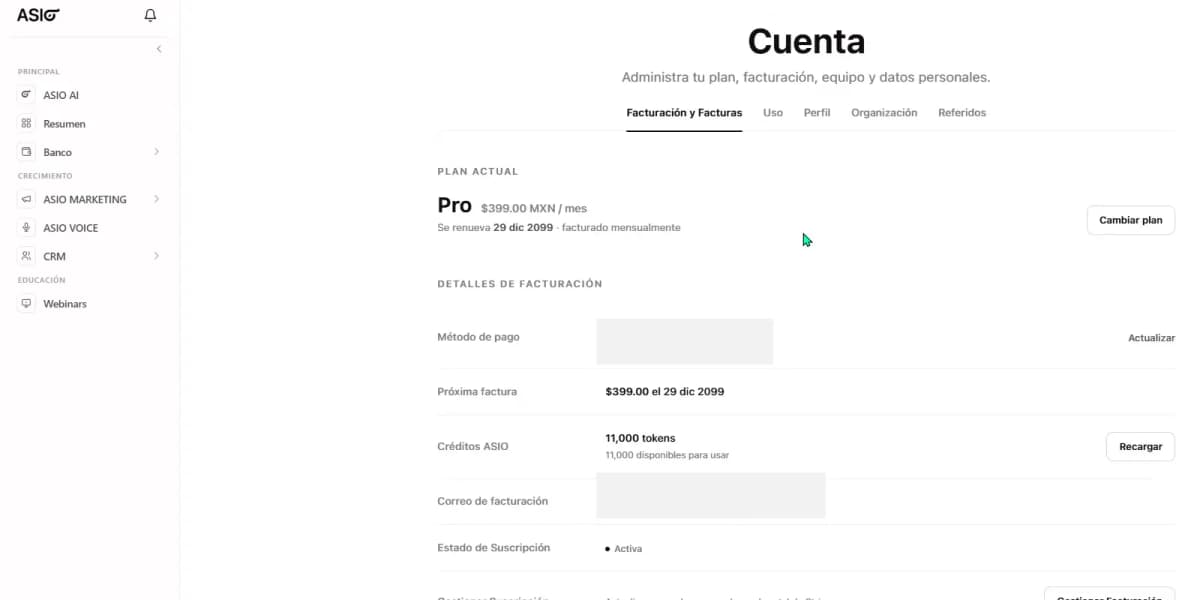
Review the current plan, payment method, next invoice, token balance, billing email, and subscription status.
Change, upgrade, or downgrade your plan
Select Change plan
Open the plan comparison from the current-plan section.
Choose a billing period
Compare the monthly, quarterly, and annual options currently available.
Compare the included limits
Review users, business number, AI agents, Messages, Voice, Marketing, CRM records, Academy access, community, and support.
Confirm the change
Select the upgrade or downgrade option and review the price and effective date before confirming.
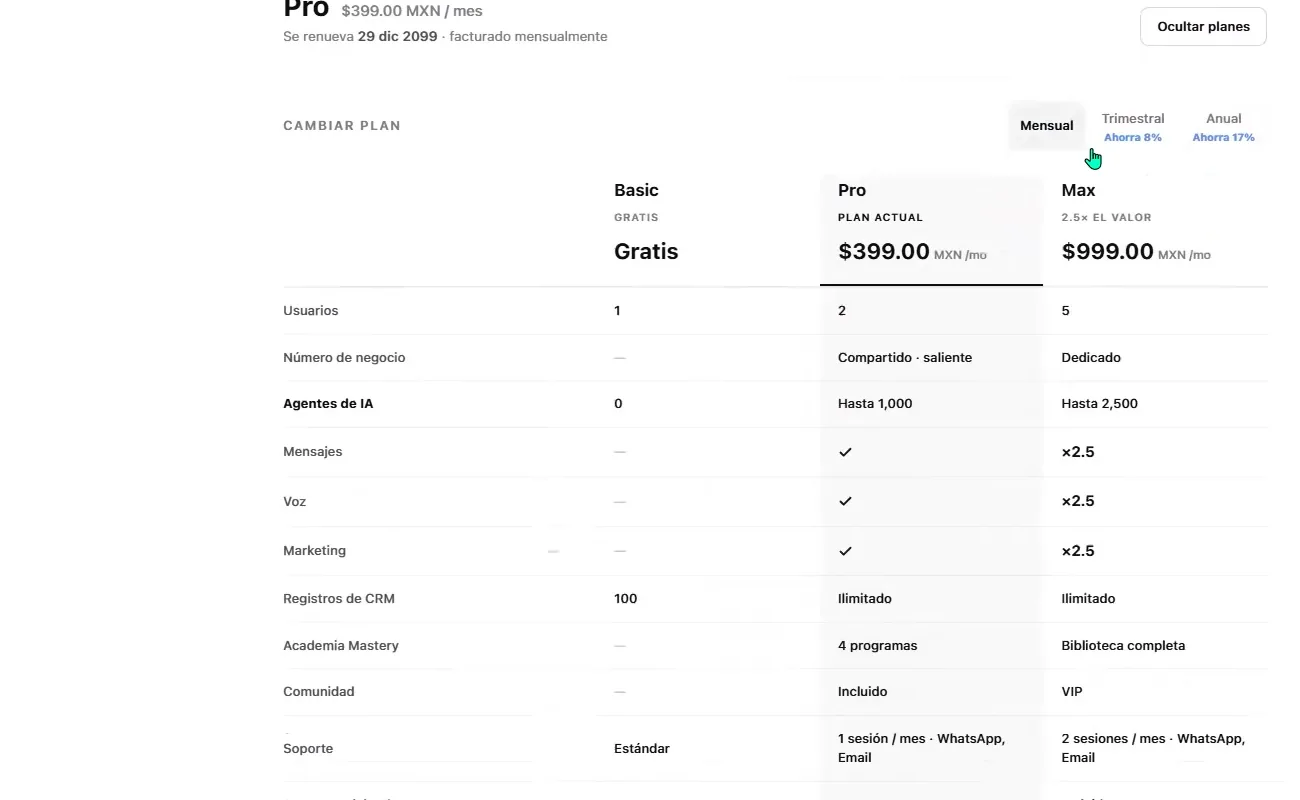
Compare the available ASIO plans and billing periods before changing your subscription.
Cancel a paid subscription
Open the cancellation option
Use Manage billing or the downgrade or cancellation action displayed under your current plan.
Select the reason
Choose the option that best explains why you are leaving and add an optional comment.
Review the impact
Confirm when the change takes effect and which plan limits, credits, or paid features will be reduced.
Confirm only when ready
Finish the cancellation in the secure billing flow.
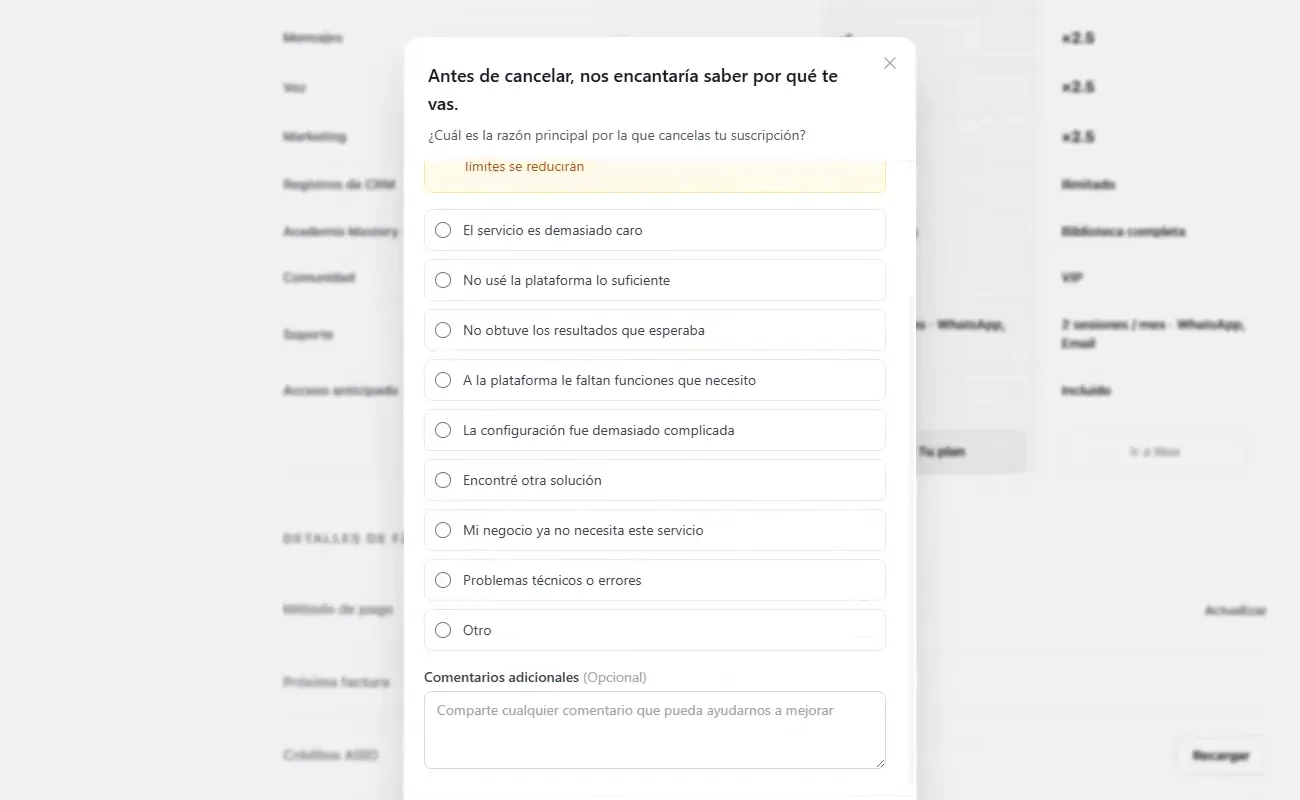
Review the cancellation questions and the impact on your account before confirming.
Monitor your token balance and usage
Tokens are the usage credits consumed by specific ASIO services. The Usage tab shows the available balance, consumption during the current billing cycle, and the current token cost for pay-as-you-go services.
Open Usage
Select Account, then Usage.
Check the balance
Review how many tokens are available and use Recharge if you need more.
Review the current cycle
See token usage for AI campaigns, campaign optimization, ASIO Voice, ASIO Voice AI, ASIO Messages, and general AI.
Check the usage rates
Review the token rate shown for each unit, such as an AI voice minute or business number.
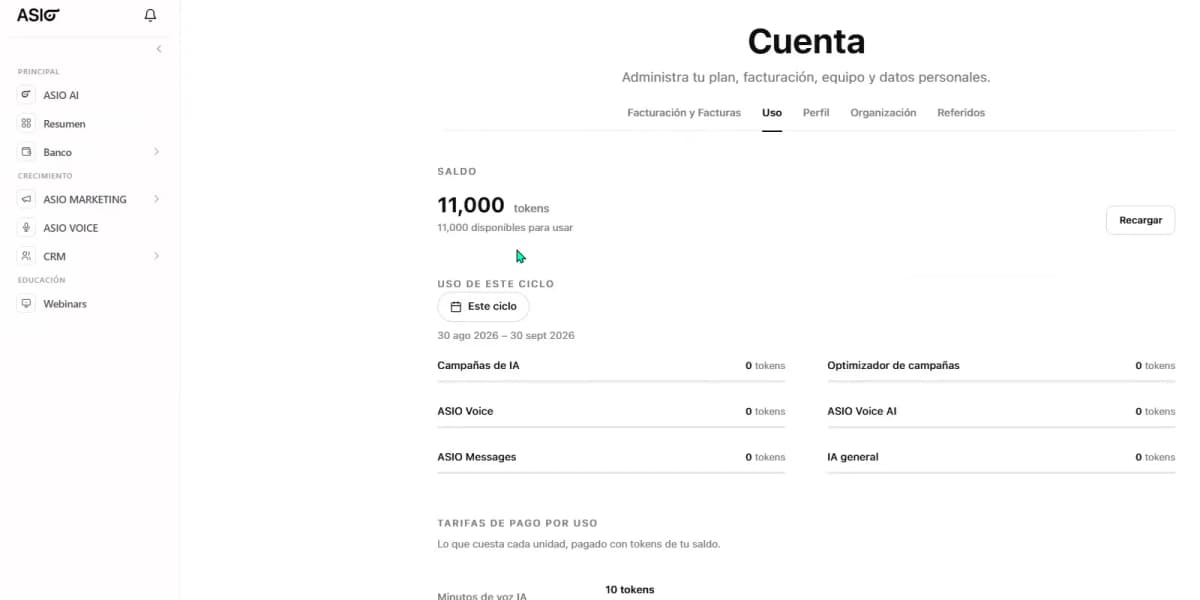
Review the token balance, current-cycle usage, and pay-as-you-go rates.
Update your profile and business information
Open Profile
Select Account, then Profile.
Upload a profile image
Add or replace the avatar connected to your ASIO user.
Review your personal details
Confirm your first name and last name.
Complete the business context
Choose the industry and business type, and enter the company name.
Use a real email and phone number
Important instructions, account updates, and billing communication may be sent to these details.
Save the changes
Select Save and wait for the successful-update message.
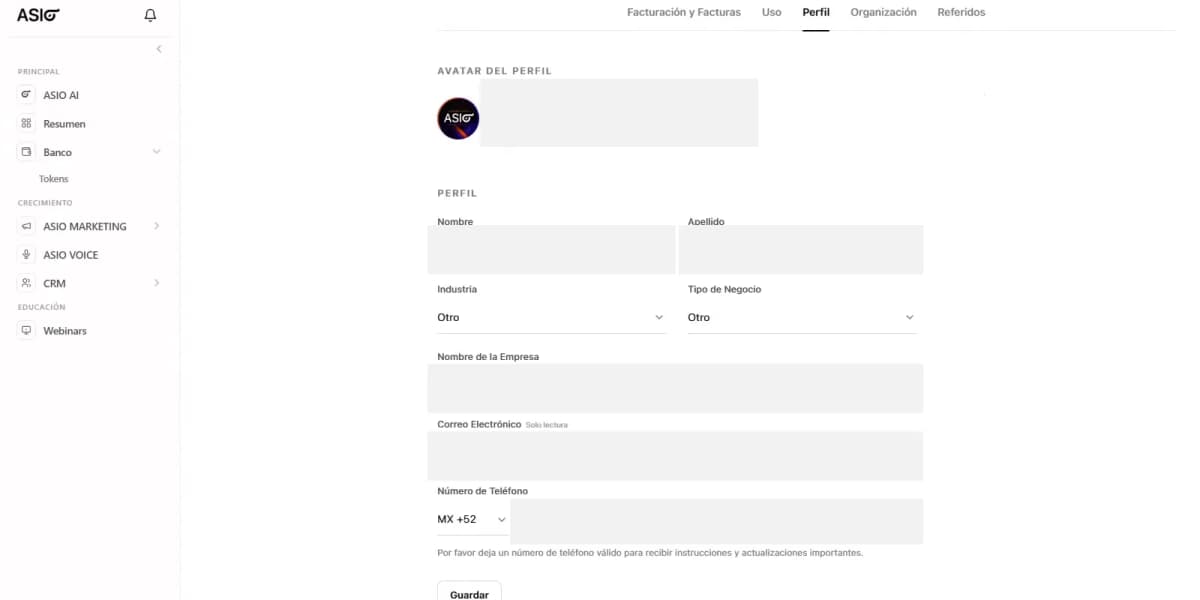
Keep the profile and business information complete and current.
Manage your organization and team
Open Organization
Select Account, then Organization.
Name the workspace
Use a clear organization name and description so the team can identify the correct business.
Invite team members
Select Invite and enter the details of the person who should access the organization.
Review member access
Confirm who belongs to the organization and who is listed as the owner.
Create another organization only when needed
A separate organization has its own members and data. Use this only for a different business or a truly separate workspace.
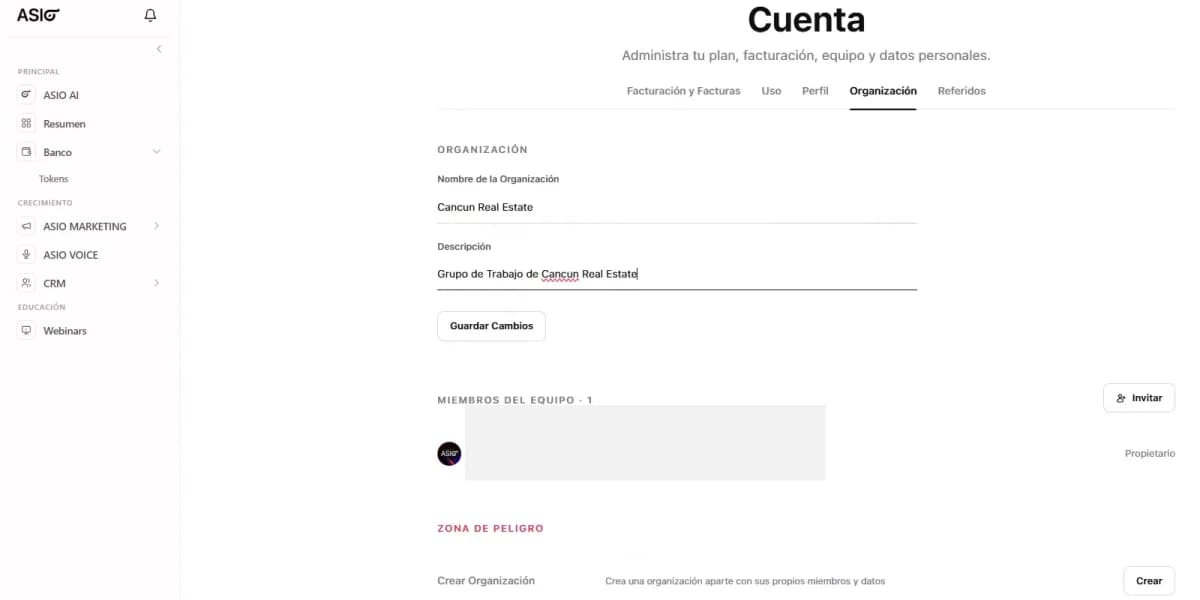
Update the organization and manage the members who can access it.
Use your referral link
Open Referrals
Select Account, then Referrals.
Copy the personal link
Select Copy and share that exact referral link with the person you are inviting.
Review performance
The page shows total referrals, converted users, total earnings, and recent referrals.
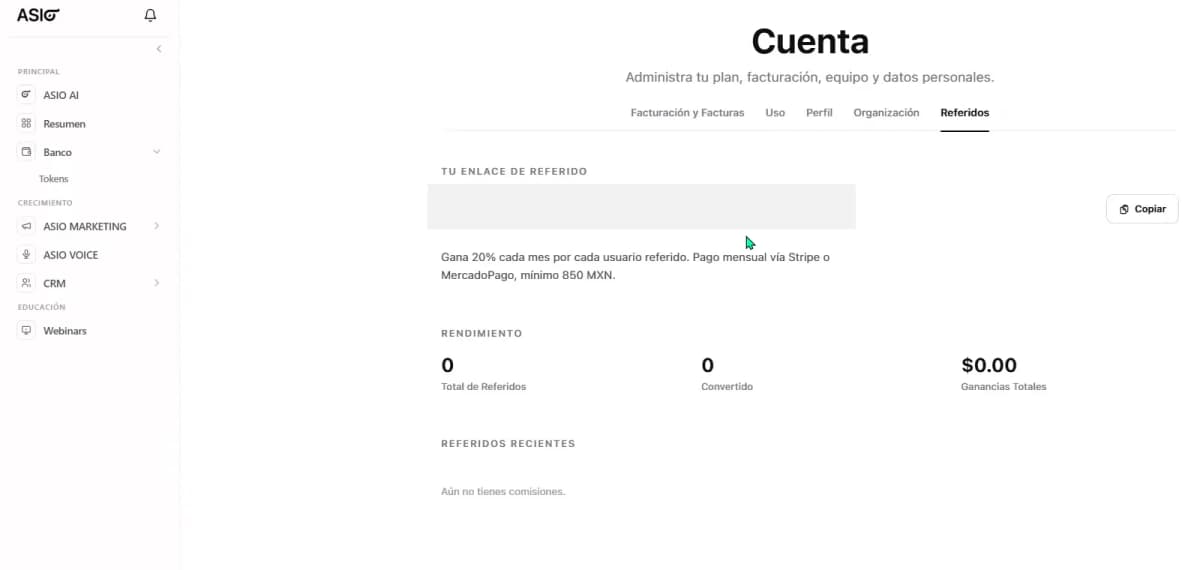
Copy the personal referral link and review referral performance.
Other useful Account-menu actions
- Integration Center: connect the external accounts ASIO needs, including Meta and Google.
- Support: contact the ASIO team when you need help. Include a screenshot of the problem, but hide passwords, card details, personal data, and confidential client information.
- Language: switch the platform between English and Spanish.
- Sign out: securely close the current ASIO session, especially on a shared computer.
Account-management checklist
Check you are done
- The plan and renewal details are correct.
- The payment method and billing email are current.
- The token balance is sufficient for planned activity.
- The profile contains a real email address and phone number.
- The organization name and team-member access are correct.
- The required integrations are connected.
Was this helpful?