How to Use the ASIO Summary Dashboard
Read your ASIO business score, performance metrics, reporting period, and agent activity from one Summary dashboard.
Last updated:
The Summary dashboard is the fastest way to understand what is happening across your ASIO account. It brings together your business score, key results, and the current activity of ASIO Messages, ASIO Voice, and ASIO Marketing so you can decide what needs attention next.
Open the Summary dashboard
Select Summary
Open Summary from the main ASIO sidebar.
Read the page from top to bottom
Start with the business score, continue to the results for the selected period, and finish with agent activity.
Use the screen as a decision page
Identify the weakest area and open the relevant tool instead of trying to analyze every number at once.
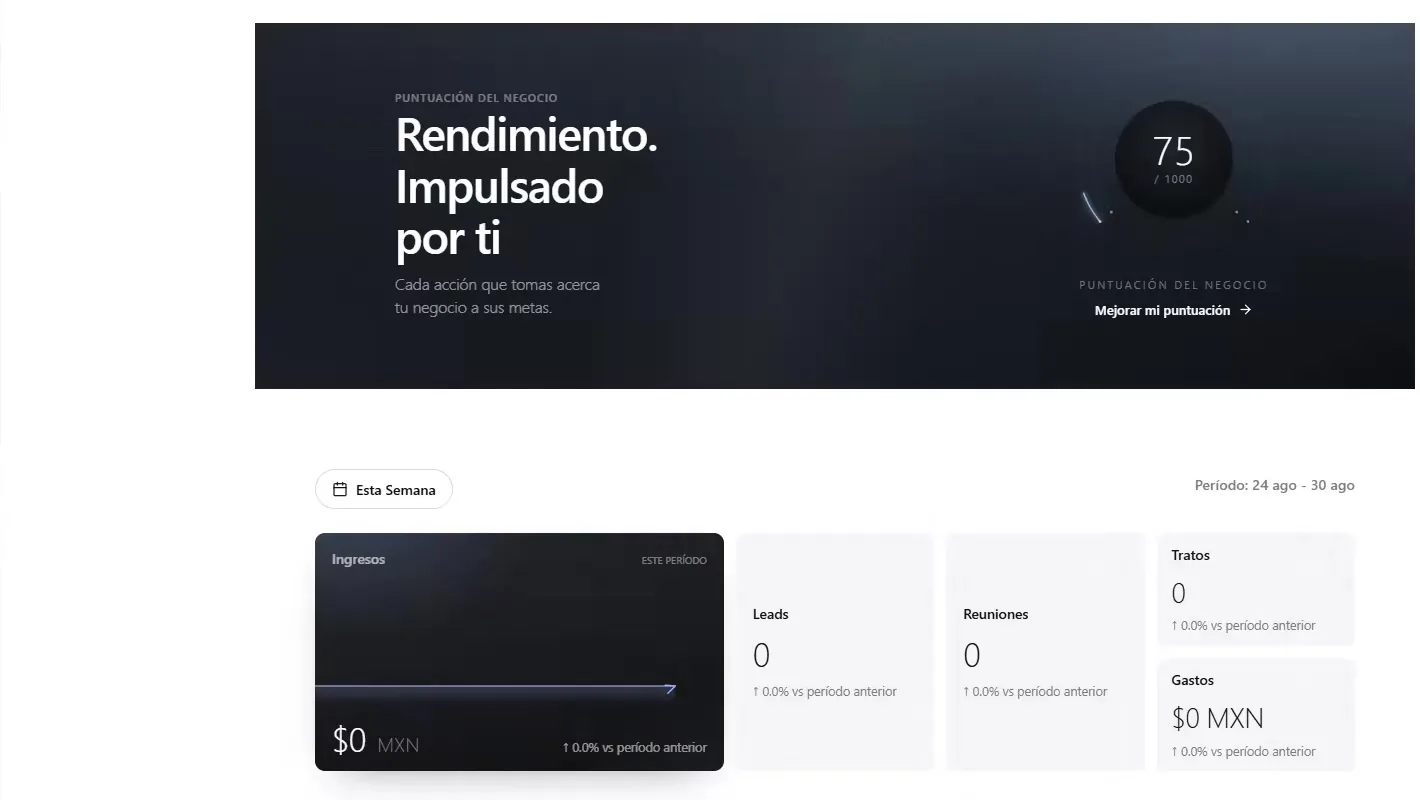
The Summary dashboard combines the business score with the main results for the selected period.
Understand your business score
The business score is a progress indicator based on account setup and recent activity. It is designed to show whether the parts needed to generate and manage customers are being put into use.
Review the current score
The score appears at the top of Summary on a scale that reaches 1,000 points.
Select Improve my score
Open the score panel to see what is missing.
Open Next steps
Review the available actions, the points attached to each action, and progress toward the next level.
Choose one useful action
Prioritize the step that removes a real blocker, such as connecting an agent, launching a campaign, generating leads, booking meetings, or recording a sale.
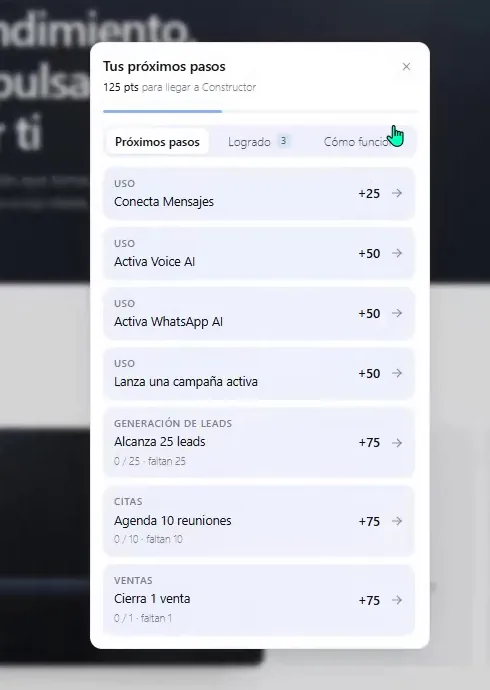
Open Next steps to see which actions can improve the business score.
Review completed actions
Open Achieved
Use the Achieved tab to confirm which setup or activity milestones have already been completed.
Check connected setup items
Examples shown in the tutorial include completing the profile and connecting Meta and Google.
Return to Next steps
After confirming what is complete, focus only on the remaining actions.
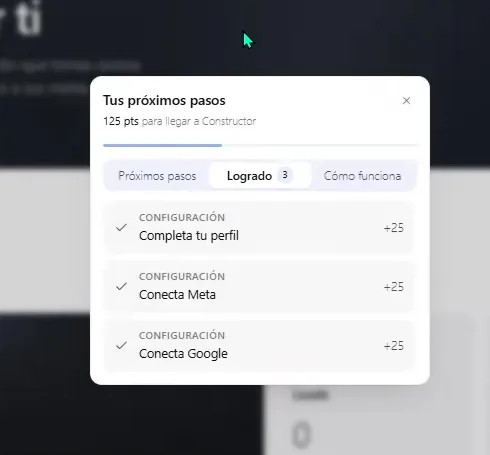
Use Achieved to confirm completed setup and activity milestones.
How the score is calculated
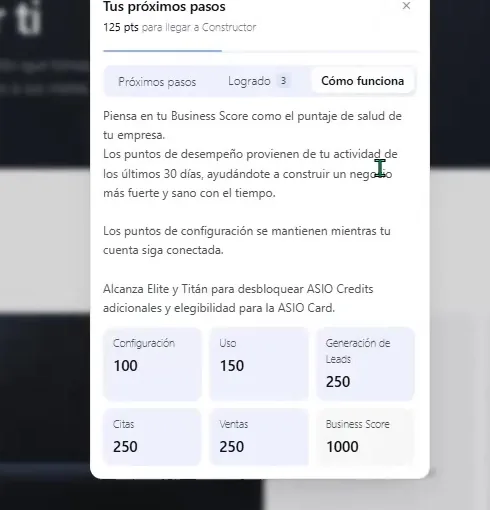
The tutorial divides the 1,000-point score into setup and business-activity categories:
- Configuration: 100 points.
- Use of ASIO tools: 150 points.
- Lead generation: 250 points.
- Meetings: 250 points.
- Sales: 250 points.
Choose the reporting period
Open the period selector
Use the date control above the performance cards.
Choose the period you want to review
For example, review the current week or another available date range.
Confirm the displayed dates
Read the exact start and end dates shown beside the cards.
Compare like with like
When ASIO displays a change versus the previous period, make sure both periods are comparable before drawing a conclusion.
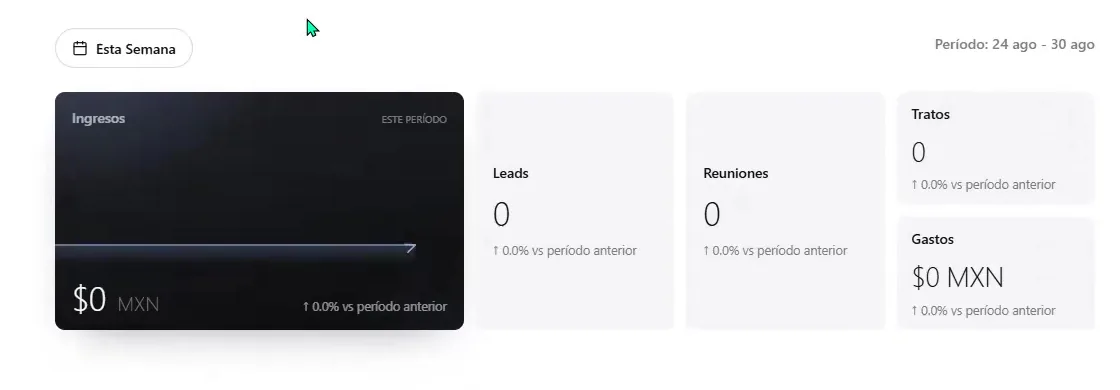
Read the main performance metrics
- Income: business income available to the Summary for the selected period.
- Leads: new potential customers recorded during the selected period.
- Meetings: appointments recorded during the selected period.
- Deals: sales or closed opportunities recorded during the selected period.
- Expenses: business spending available to the Summary for the selected period.
Check what each ASIO agent is doing
The agent cards show whether each area is active and summarize the activity available for the selected period. Messages covers messaging activity and lead-conversation results. Voice covers AI calls attended, scheduled, confirmed and rescheduled. Marketing covers advertising investment, new leads and active campaigns.
Check the status
Look for Active or Inactive on each agent card.
Review the headline metrics
Confirm whether the agent is producing or recording the activity you expect.
Open the detailed area
Select View or Review to investigate the relevant agent.
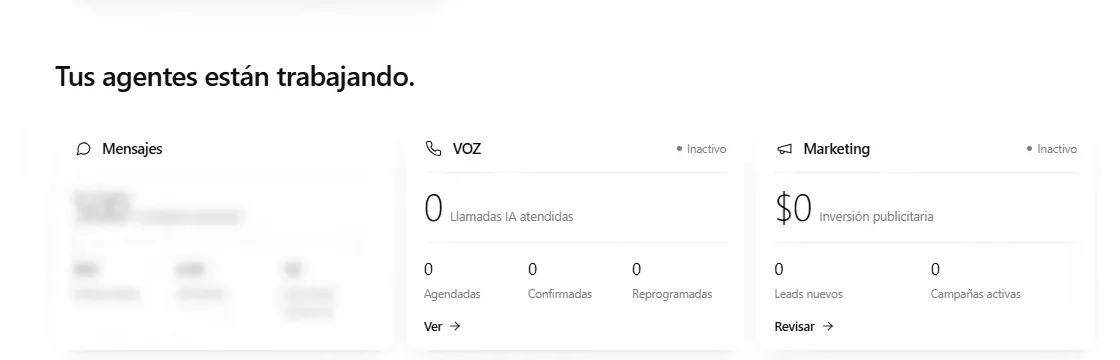
Use the Messages, Voice, and Marketing cards to check agent status and recent activity.
Open detailed Marketing performance
The Marketing performance screen provides campaign-level information that does not fit inside Summary. Depending on available campaign data, it can show leads, advertising spend, cost per lead, CPM, and CTR.
Select Review on the Marketing card
Open the Marketing performance area.
Confirm the date range
Use a period that matches the business question you are investigating.
Read the metrics together
Do not judge a campaign from one number alone; compare lead volume, spend, cost per lead, and delivery metrics.
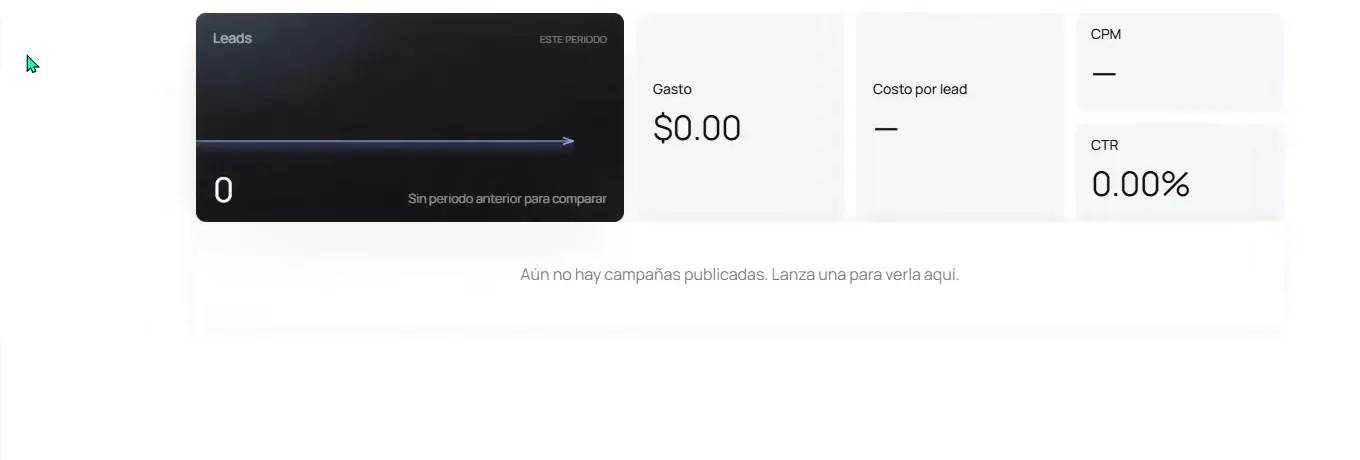
Open Marketing performance for campaign-specific leads, spend, cost, CPM, and CTR.
Open detailed Voice performance
The Voice dashboard provides operational detail for calls. It can show available minutes, total calls, answered calls, interested leads, successful results, unanswered calls, and the recent call log.
Select View on the Voice card
Open the ASIO Voice dashboard.
Review call outcomes
Compare total calls with answered, interested, successful, and unanswered results.
Open the call log
Use the recent-call list when a total needs investigation.
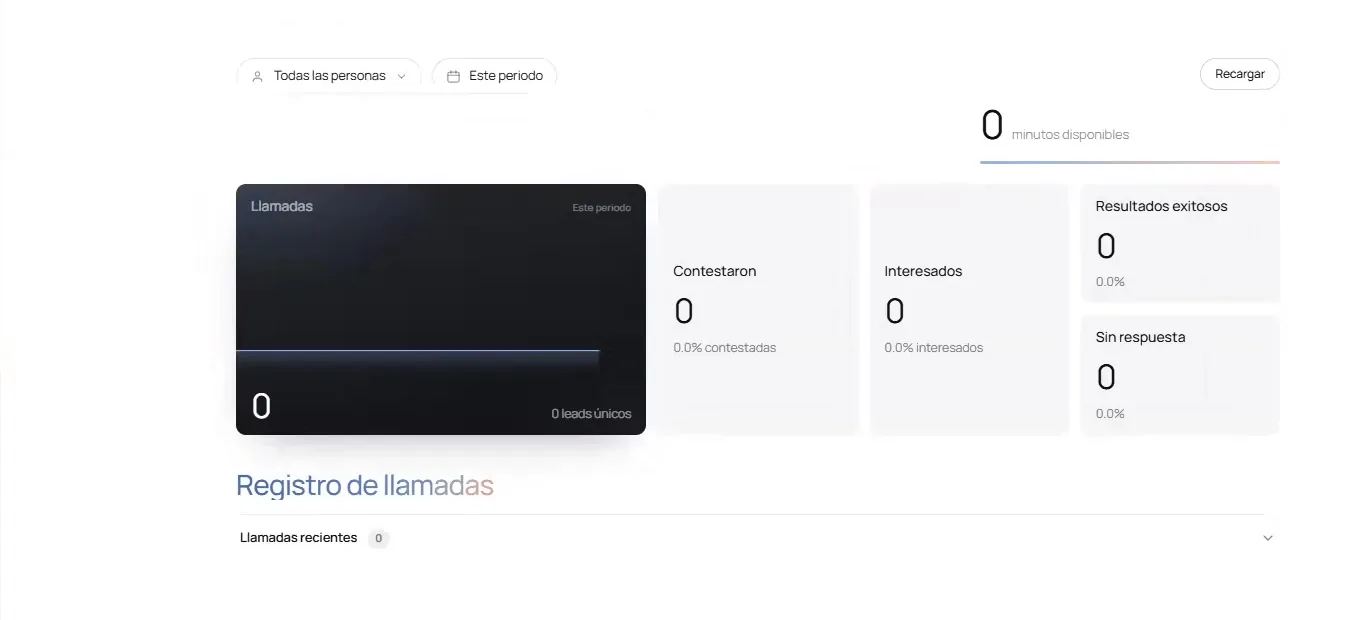
Open ASIO Voice for detailed call outcomes, available minutes, and the call log.
A simple weekly review
Check you are done
- Confirm the reporting period.
- Review the business score and choose one useful next step.
- Check income, leads, meetings, deals, and expenses.
- Confirm that the agents you expect to use are active.
- Open the detailed agent only when a number needs explanation or action.
- Ask the main ASIO AI to prioritize the next three actions based on what you found.
Was this helpful?