How to Connect Google Drive and Google Calendar to ASIO
Connect the right Google account to ASIO, review the requested permissions, and verify that Google Drive and Google Calendar are active.
Last updated:
ASIO uses a Google authorization flow to connect the Google tools used by your account. In the tutorial, one approval process gives ASIO access to the selected Google Drive, Google Sheets, and Google Calendar services. After authorization, both the Google Drive and Google Calendar cards show as connected inside ASIO.
Before you begin
- Sign in to ASIO with permission to manage integrations for the account.
- Know which Google account should own or access the business files, spreadsheets, and calendars used with ASIO.
- If several Google accounts are open in the browser, identify the correct business account before selecting one.
- Review the requested Google permissions yourself. Do not share your Google password with another person or enter it anywhere outside Google’s sign-in window.
Open the Integration Center
Open the account menu
Select your profile or account area inside ASIO.
Select Integration Center
Open the page that contains the available ASIO connections.
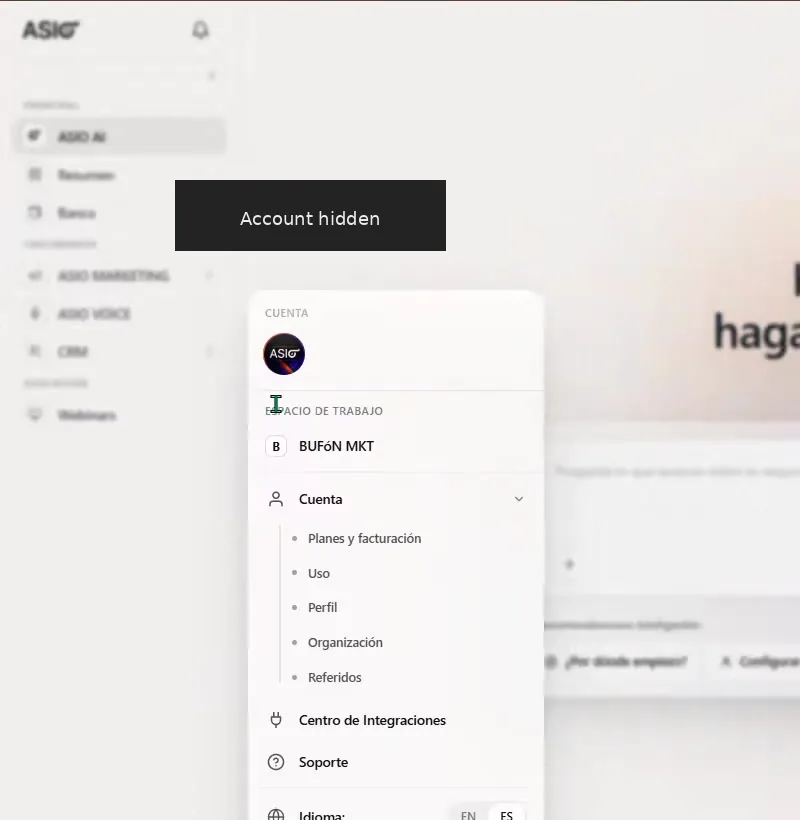
Open the account menu and select Integration Center.
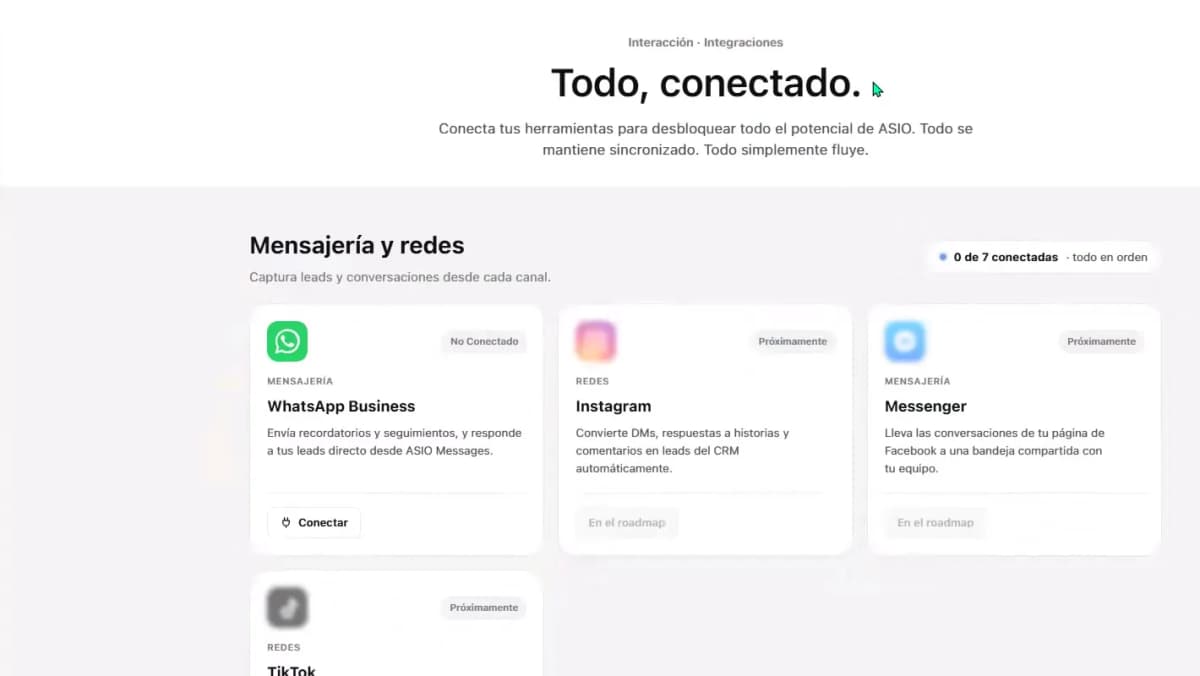
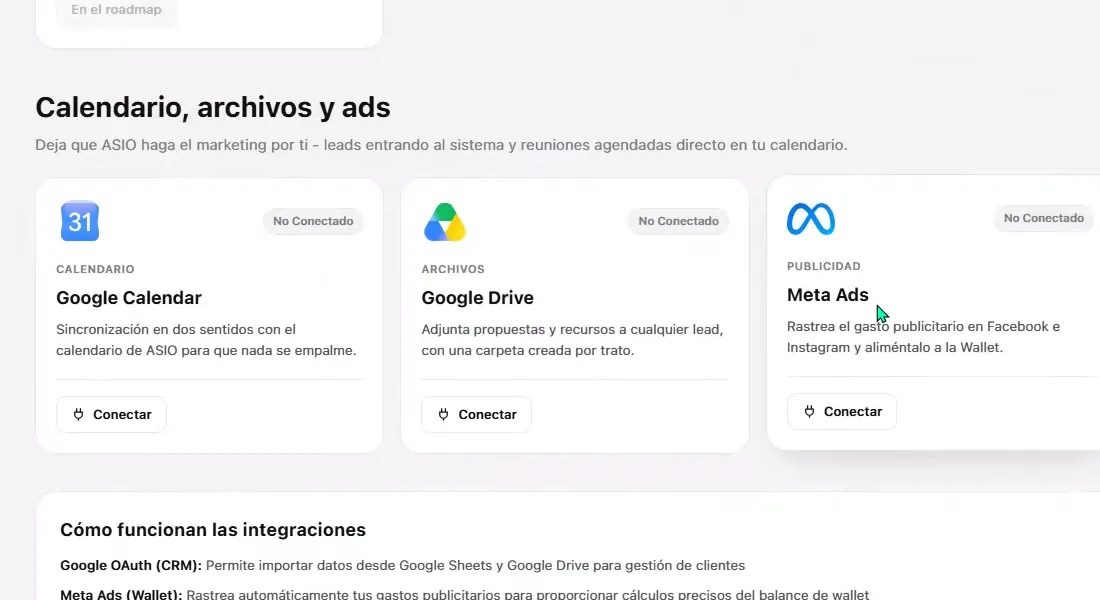
Find the Google integrations
The Integration Center groups connections by purpose. Scroll to Calendars, files and ads to find Google Calendar and Google Drive. Meta Ads appears in the same section but uses a separate authorization.
Connect the correct Google account
Select Connect
Use the Connect action on Google Calendar or Google Drive to open Google’s authorization window.
Choose the business Google account
Select the account that contains or can access the business files and calendars you intend to use with ASIO.
Use another account when necessary
If the correct account is not listed, select Use another account and sign in directly with Google.
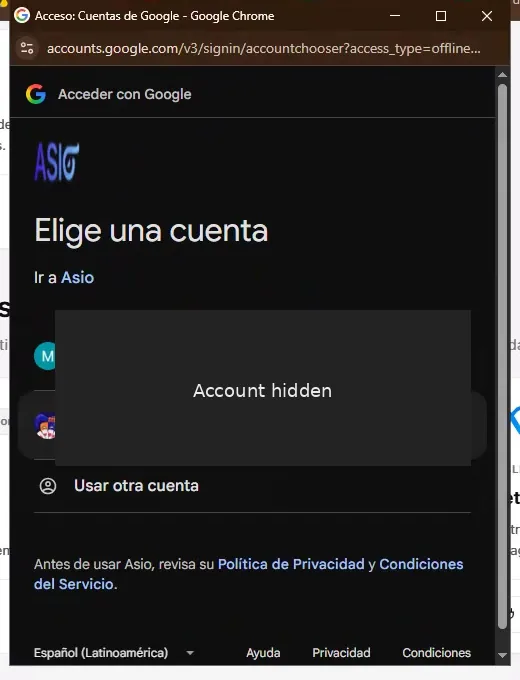
Choose the Google account that should be connected to ASIO.
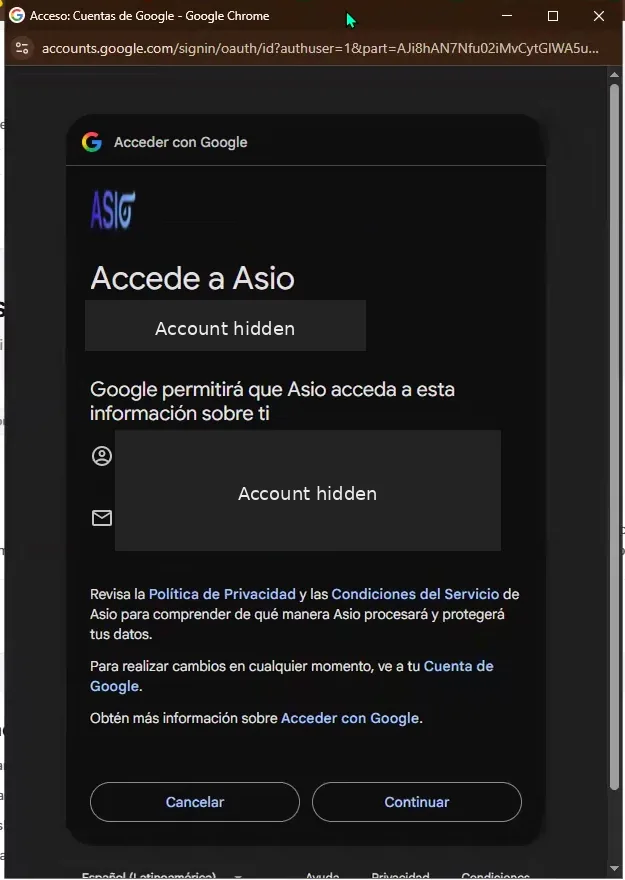
Review ASIO's basic account access
Google first shows the account information ASIO will be allowed to use for sign-in, such as the account’s profile information and email address. Confirm that the account shown is correct, review ASIO’s privacy and service information, and then select Continue only if you agree.
Select and approve the Google services
The tutorial shows Google asking for access to the services needed by the integration. Read every permission displayed in your own authorization window; Google’s wording or the exact list may change.
- Google Drive: view, edit, create, and delete the specific Drive files used with ASIO.
- Google Sheets: view spreadsheet files used by the integration.
- Google Calendar: view, create, change, and delete events in calendars you own.
Select the services
Choose the permissions required for the Google features you intend to use. The tutorial selects all displayed services.
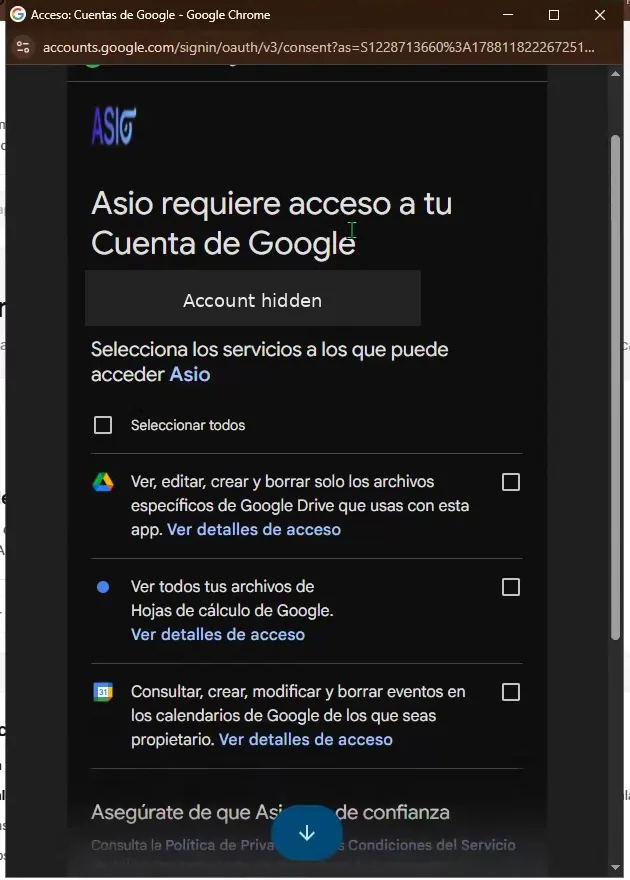
Select the Google services ASIO needs to use. Review the final permission list
Confirm what ASIO will be able to do in Drive, Sheets, and Calendar.
Select Continue
Complete the authorization only when the selected account and permissions are correct.
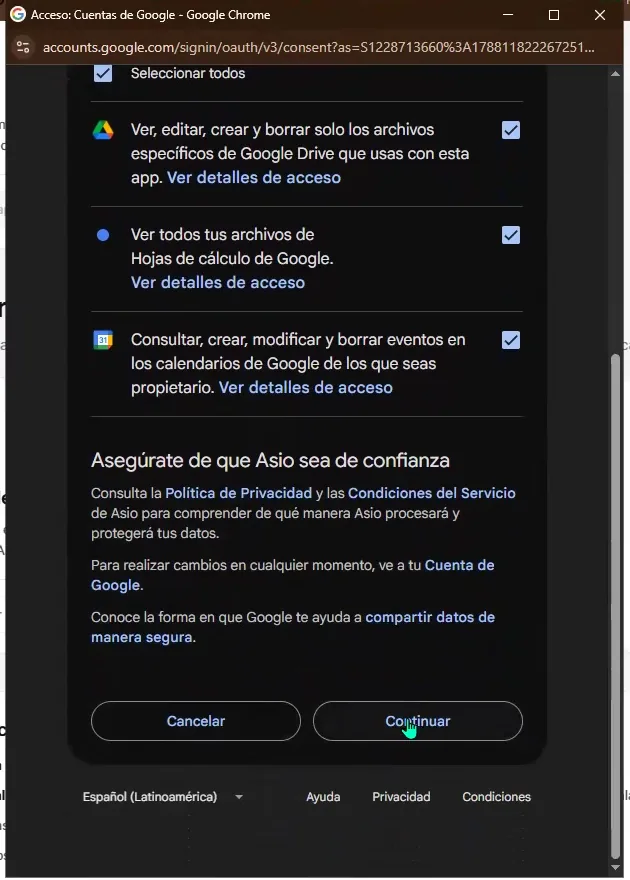
Review the selected permissions, then select Continue to authorize ASIO.
Verify the connection in ASIO
Return to the Integration Center
After Google finishes authorization, ASIO should display the integration cards again.
Check both Google cards
Confirm that Google Calendar and Google Drive show Connected.
Confirm the connected account
Under Google Drive, verify that the displayed account is the one you intended to connect.
Review Calendar synchronization
Use the Google Calendar synchronization control if you want meetings scheduled in ASIO to appear in Google Calendar.
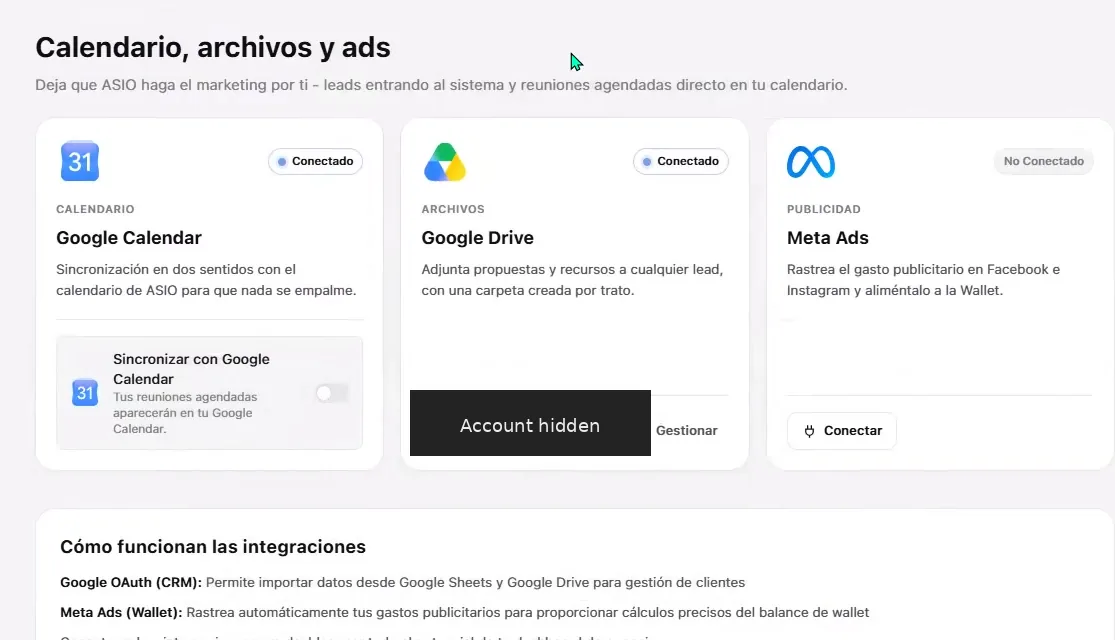
Confirm that Google Calendar and Google Drive both show Connected in ASIO.
What the connection enables
- Google Drive can be used to attach proposals and resources to leads, with files organized for the relevant deal workflow.
- Google Sheets and Drive access supports Google OAuth functions used for customer-data management in ASIO.
- Google Calendar synchronization helps place ASIO meetings in the connected Google Calendar and reduce scheduling conflicts.
Common problems
- The wrong Google account was selected
- Cancel the authorization or disconnect the Google integration, then reconnect and choose the intended business account.
- A permission was denied
- Restart the connection and approve the services required for the ASIO feature you want to use.
- Only one Google card appears connected
- Refresh the Integration Center, confirm the connected account, and restart the Google authorization if the second card remains disconnected.
- The Google window does not open
- Allow the Google sign-in window for ASIO, check browser pop-up or cookie restrictions, and try again.
- Meetings do not appear in Google Calendar
- Confirm Google Calendar is connected, check the calendar synchronization control, and verify that you are looking at the connected Google account.
Connection checklist
Check you are done
- The intended business Google account was selected.
- The requested Drive, Sheets, and Calendar permissions were reviewed.
- Google Calendar shows Connected in ASIO.
- Google Drive shows Connected in ASIO.
- The connected Google account displayed in ASIO is correct.
- Calendar synchronization is configured as intended.
Was this helpful?