How to Create a Facebook Page for Your Business
Create and complete a Facebook Page for your business before connecting Meta Ads to ASIO.
Last updated:
To advertise on Facebook and Instagram, your business needs a Facebook Page. Your personal profile lets you sign in and manage the Page, but the advertising itself always runs from the business Page.
Before you begin
- An active personal Facebook profile.
- Your business name and business category.
- A short description of what the business does.
- Recommended: phone number, email, city, profile image, and cover image.
Create the Page
Open Facebook Pages
Sign in with your personal Facebook profile. In the left menu, select Pages.
Start a new Page
Click Create new Page.
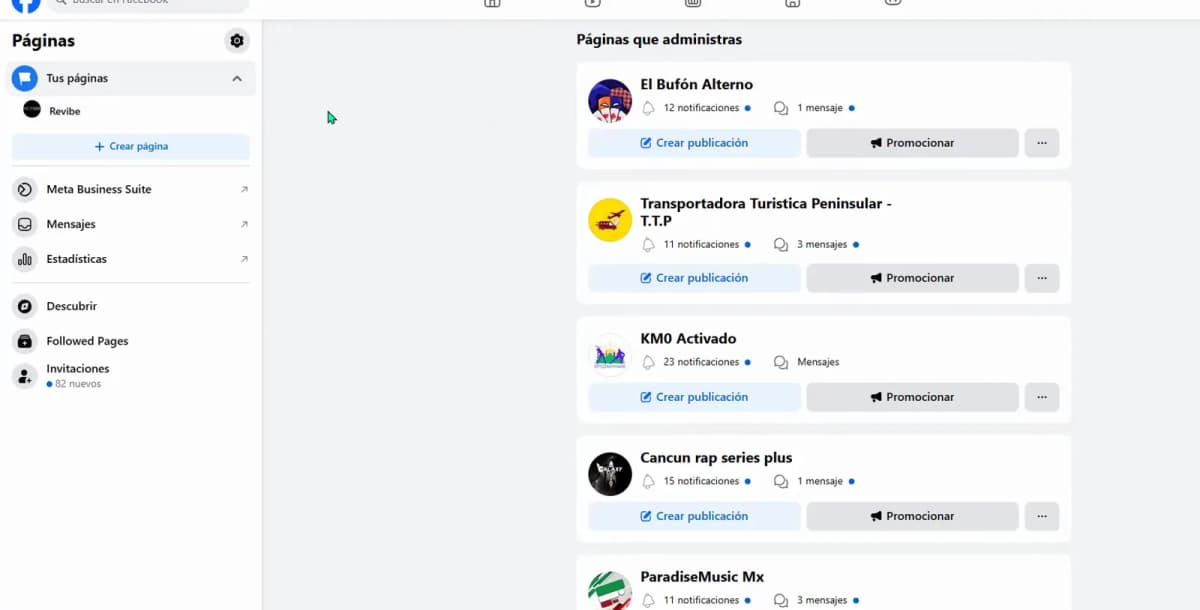
Open Pages and select Create new Page. Enter the Page name
Use the business name customers will recognize.
Choose the category
Select the closest category for the business. Meta may allow several categories; the first one becomes the primary category.
Add a short introduction
Explain what the business offers, where it operates, and who it helps.
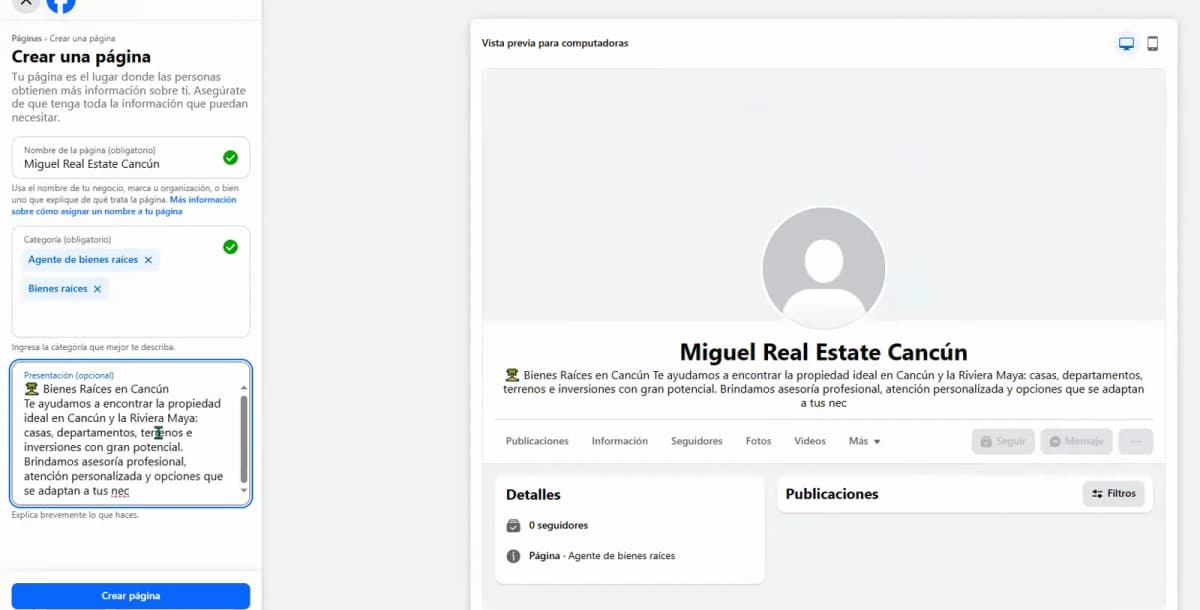
Review the Page name, category, and description before creating it. Create the Page
Review the information and click Create Page.
Complete the business information
Add contact details
Enter the website, phone number, email, city, address, and postal code when available. These fields are not all required, but they make the Page more complete.
Choose the business hours
Set specific hours, choose Always open, or choose not to display hours.
Upload the Page images
Add a profile image, normally the logo, and a cover image.
Add an action button
Optional: create a button that sends visitors to a message, website, email, or WhatsApp conversation.
Finish the Page setup
You may skip the native WhatsApp connection if it does not work during setup. You can also invite initial followers and choose your notification settings.
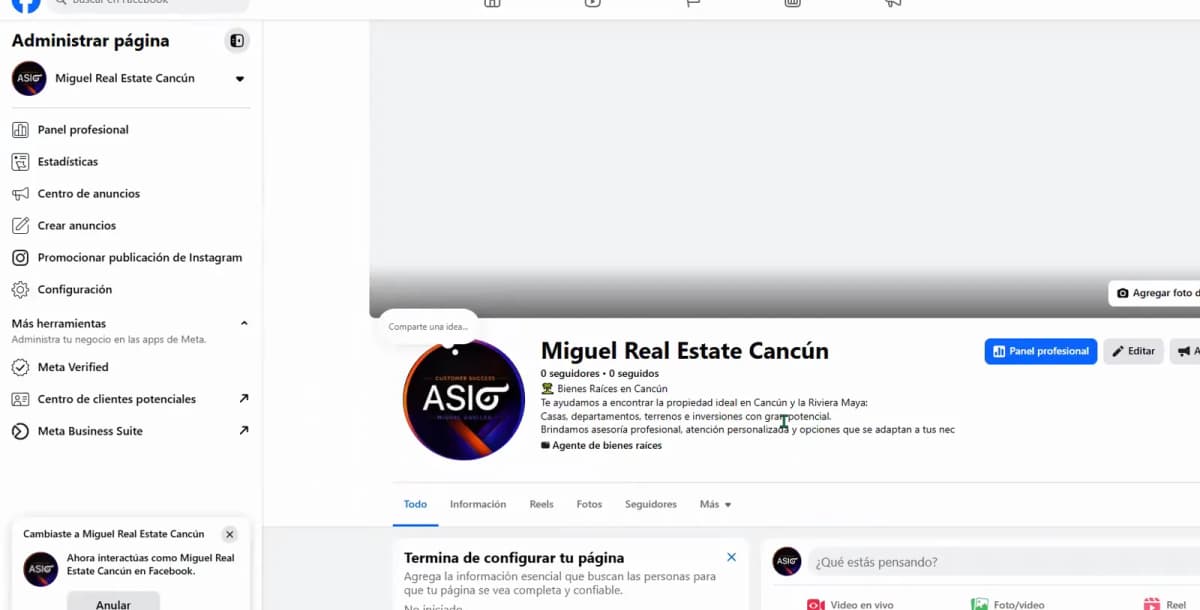
The completed Facebook Page is ready for the Meta advertising setup.
How to confirm you are finished
Check you are done
- The Page appears in the Pages section of your Facebook profile.
- The Page name, category, and description are correct.
- The profile image and cover image display correctly.
Was this helpful?